
Using the built-in “Restrictions” feature, you can decide who can watch your videos: everyone, only logged-out visitors, only logged-in users, or only users with specific roles. You set a site-wide default once, then override it for individual videos, or for whole batches of videos as you import them. Visitors who are not allowed to watch a video see your own message in place of the player, or a short trailer if you add one.
- How Restrictions Work
- Enable Restrictions
- Restrict Individual Videos
- Restrict Videos When Bulk Importing
- Restrict Auto-Imported YouTube and Vimeo Videos
- What Visitors See
- Test Your Restrictions
- For Developers
How Restrictions Work
Restrictions work at two levels:
- A global setting — Decides who can watch every video that follows the global setting. New videos follow it by default.
- A per-video setting — Overrides the global setting for one video. You can set it on the video’s edit screen, when you bulk import videos, or on a YouTube or Vimeo automation.
A restricted video is protected everywhere it appears: on its single video page, and in shortcodes, blocks, widgets, gallery templates, and popups. Download links for the video are blocked too.
Note: Administrators, editors, and anyone who can edit a video, including its own author, can always watch that video, whatever the restriction.
Enable Restrictions
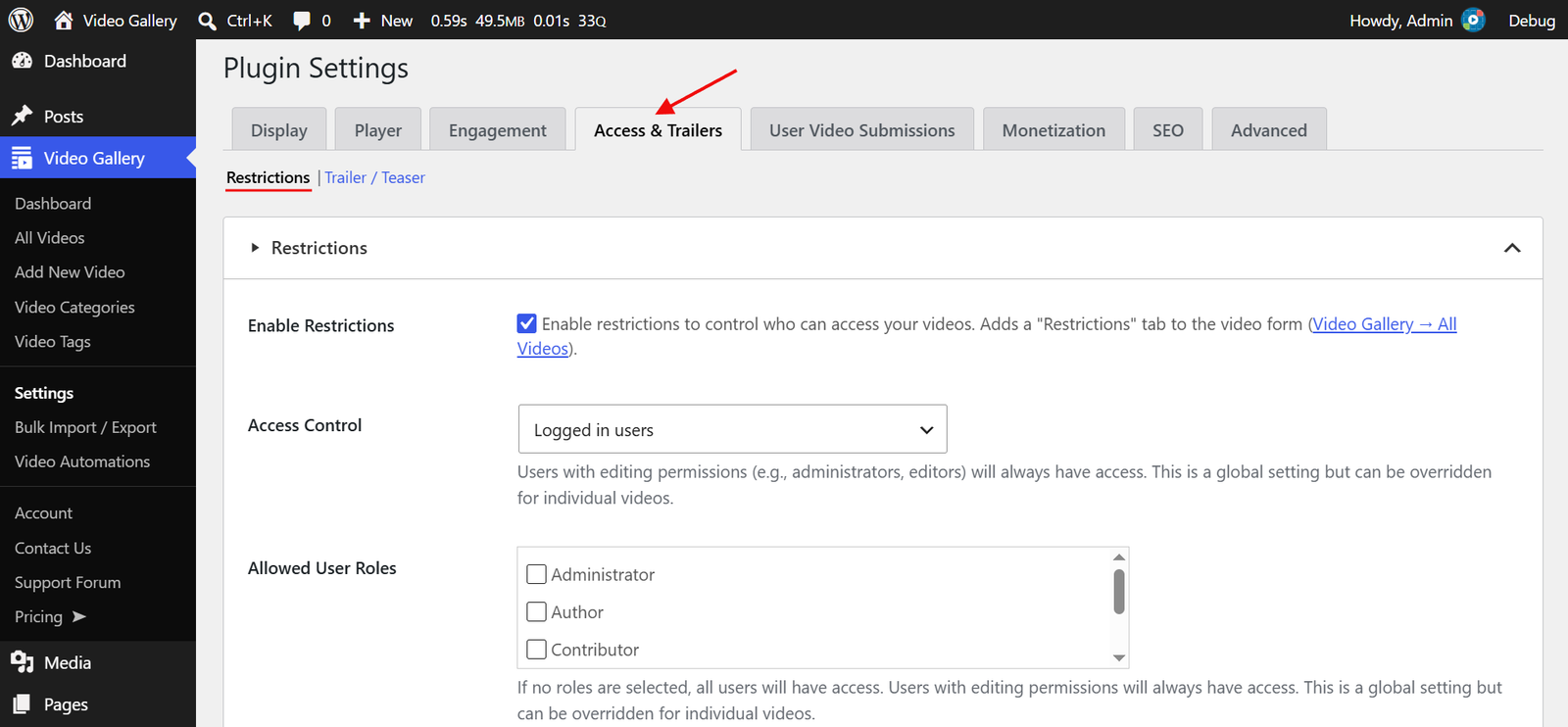
- Navigate to the “Video Gallery → Settings” menu from your WordPress Admin Dashboard.
- Click on the “Access & Trailers” tab, then select the “Restrictions” link.
- Check the “Enable Restrictions” option. This is the master switch. While it is off, no video is restricted by these settings, and any per-video settings are ignored.
- Choose who can watch your videos in “Access Control”:
- Everyone — All visitors can watch.
- Logged out users — Only visitors who are not logged in can watch. Logged-in users see the restricted message.
- Logged in users — Only logged-in users can watch.
- If you chose “Logged in users”, the “Allowed User Roles” option appears. Check the roles that can watch, for example Subscriber or a role added by your membership or shop plugin. Leave all roles unchecked to let every logged-in user watch.
- Enter the “Restricted Message”. It is shown in place of the video player to visitors who are not allowed to watch. The editor lets you format the text and add links, for example to your login or registration page.
- Click “Save Changes” to apply.
Important: “Access Control” is set to “Logged in users” by default. As soon as you enable restrictions and save, every video that follows the global setting is limited to logged-in users. If you only want to restrict a few videos, set “Access Control” to “Everyone” here, then restrict those videos individually.
Once enabled, a “Restrictions” tab appears in every video’s edit form, so you can override the global setting for each video.
Restricted Badge on Thumbnails:
The same screen controls the badge shown on gallery thumbnails of videos the visitor cannot watch:
- Show Restricted Badge on Thumbnails — Check this option to show the badge. It is checked by default.
- Thumbnail Badge Text — The text shown inside the badge. Defaults to
Restricted. - Thumbnail Badge Background Color — Choose a background color for the badge.
- Thumbnail Badge Text Color — Choose a text color for the badge.
Restrict Individual Videos
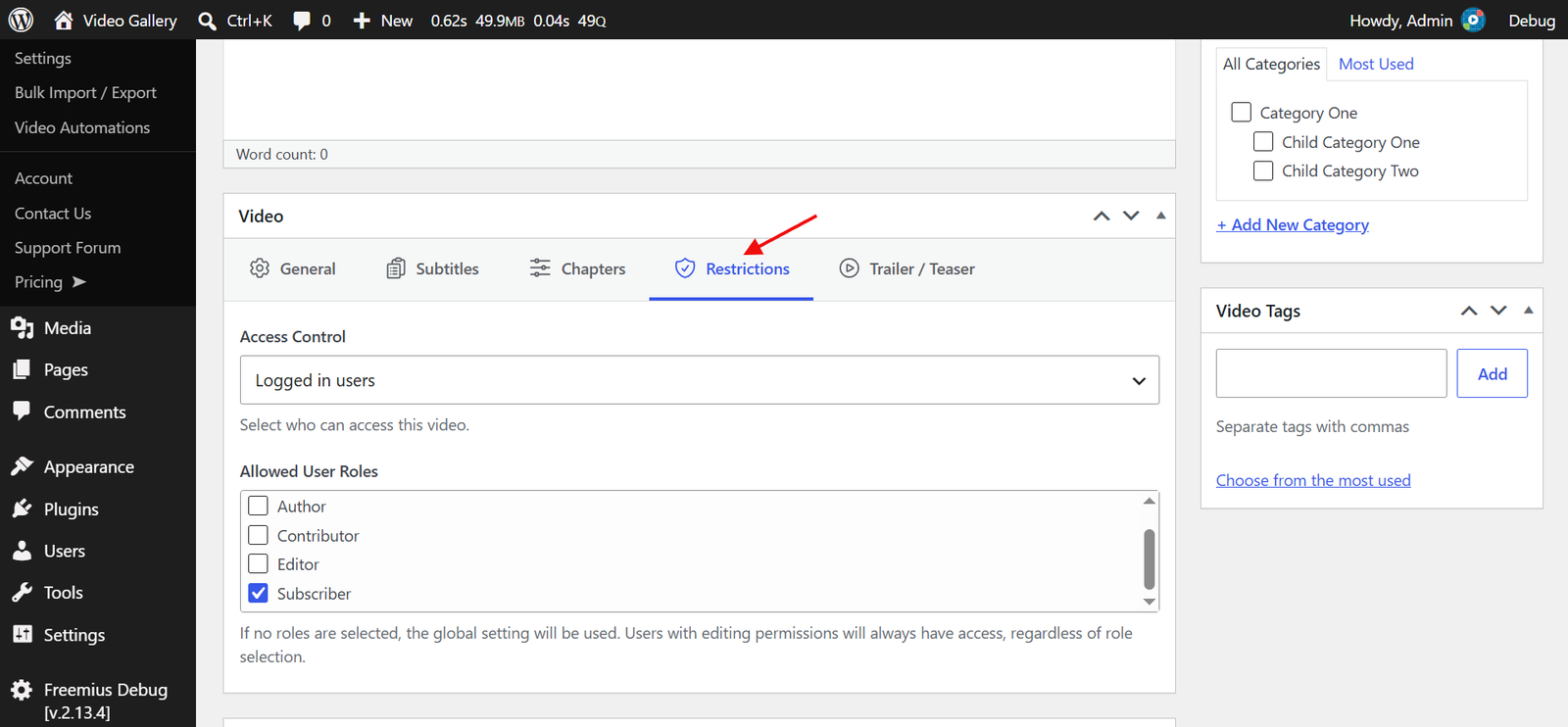
- Navigate to “Video Gallery → All Videos” and open the video you want to change for editing.
- Inside the “Video” metabox, click the “Restrictions” tab.
- Choose an “Access Control” option:
- Global — Follow the global setting. This is the default.
- Everyone, Logged out users, or Logged in users — Use this setting for this video only.
- If you chose “Logged in users”, check the “Allowed User Roles” for this video. If you leave all roles unchecked, the video uses the roles from the global setting.
- Click “Update” to save the change.
Tip: Set “Access Control” to “Everyone” on a video to keep it public while the rest of your library is restricted, for example a free sample episode.
Restrict Videos When Bulk Importing
When restrictions are enabled, you can set access for a whole batch of videos as you import them, instead of editing each video afterwards.
Import from Folder:
- Navigate to “Video Gallery → Bulk Import / Export” and open the “Import from Folder” section.
- Fill in the folder details as usual.
- Choose an “Access Control” option for the imported videos. If you choose “Logged in users”, check the “Allowed User Roles”. Leave it at “— Global —” to follow the global setting.
- Click “Scan & Import”.
While restrictions are enabled, the “Video Page Slug” option in this section defaults to “Generate Secure Random Slug (Recommended)”. A random slug makes it harder for visitors to guess the address of your video files from the page URL. We recommend keeping it for restricted videos.
Import from CSV File:
A CSV import can set access for each video separately. When you map your CSV columns, map them to the “Access Control” and “Allowed User Roles” fields:
- Access Control — Enter
0for everyone,1for logged-out users only, or2for logged-in users only. Leave the cell empty to follow the global setting. - Allowed User Roles — Enter the role names as WordPress stores them, such as
subscriberorcustomer, separated by the “Multi Values Separator” (;by default).
“Export Videos” on the same screen includes both columns, so you can export your videos to see the format.
Restrict Auto-Imported YouTube and Vimeo Videos (PRO)
If you use the premium “Video Automations” feature to import videos from YouTube or Vimeo automatically, you can restrict every video an automation imports.
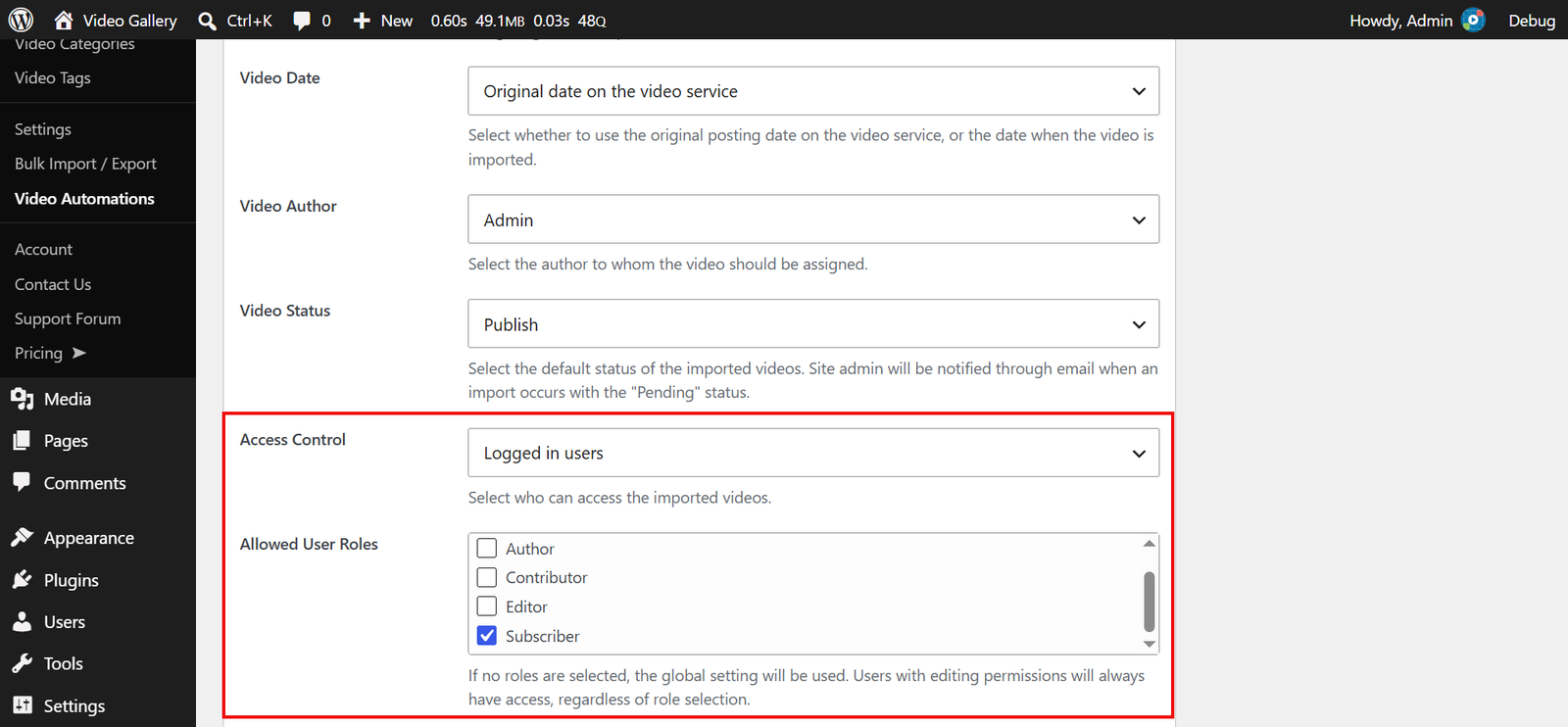
- Navigate to “Video Gallery → Video Automations” and open an automation for editing, or add a new one.
- In the “Imported Video Options” metabox, choose an “Access Control” option. If you choose “Logged in users”, check the “Allowed User Roles”.
- Save the automation.
Note: The setting is applied to each video at the moment it is imported. Changing it later affects only videos imported after the change. To change videos the automation has already imported, edit them individually.
What Visitors See
On the Single Video Page:
The page shows only your “Restricted Message”. The player, description, and related videos are not shown.
In Players and Popups:
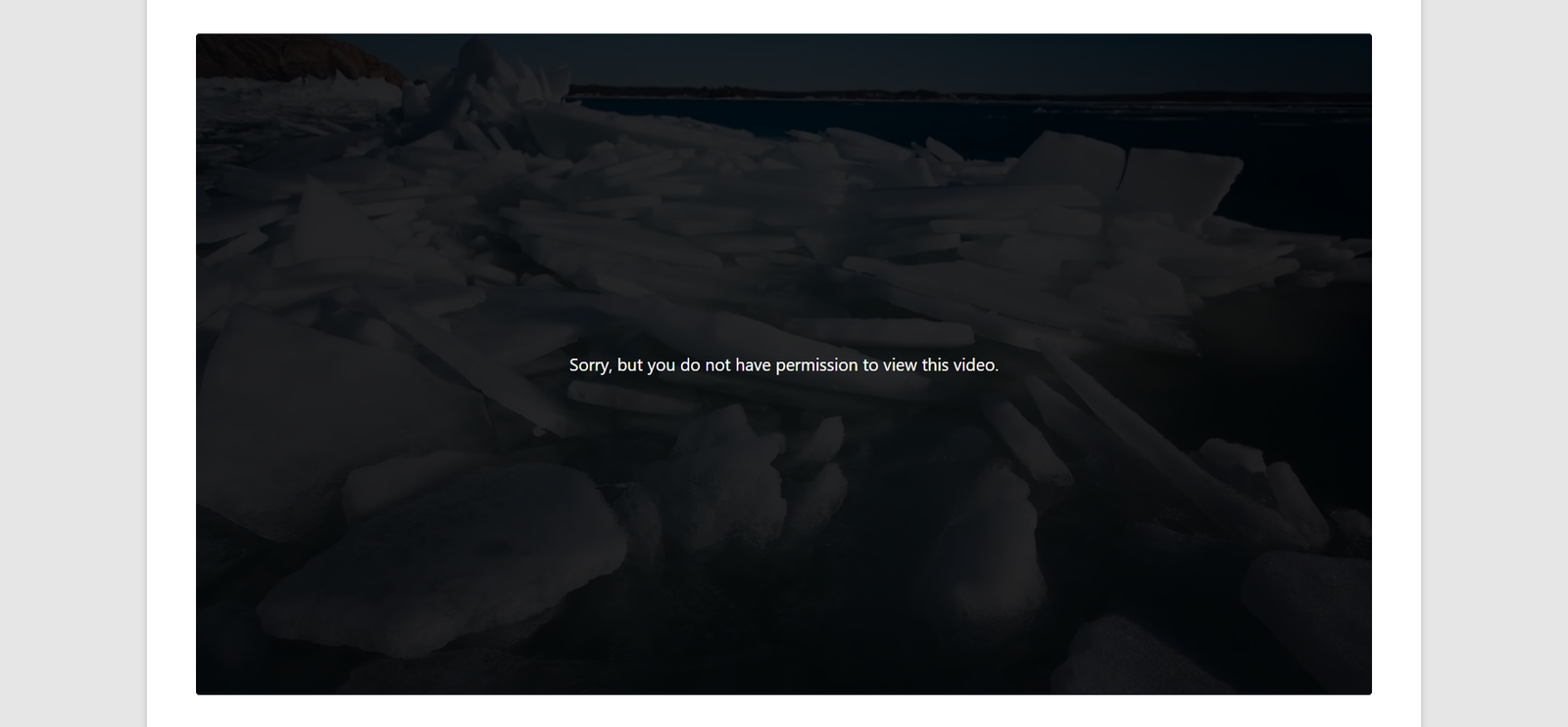
Wherever the video is embedded — a shortcode, block, widget, gallery template, or popup — the player is replaced by your “Restricted Message”, shown over the video’s thumbnail. Links in the message open in the full browser window, not inside the player.
In Galleries:
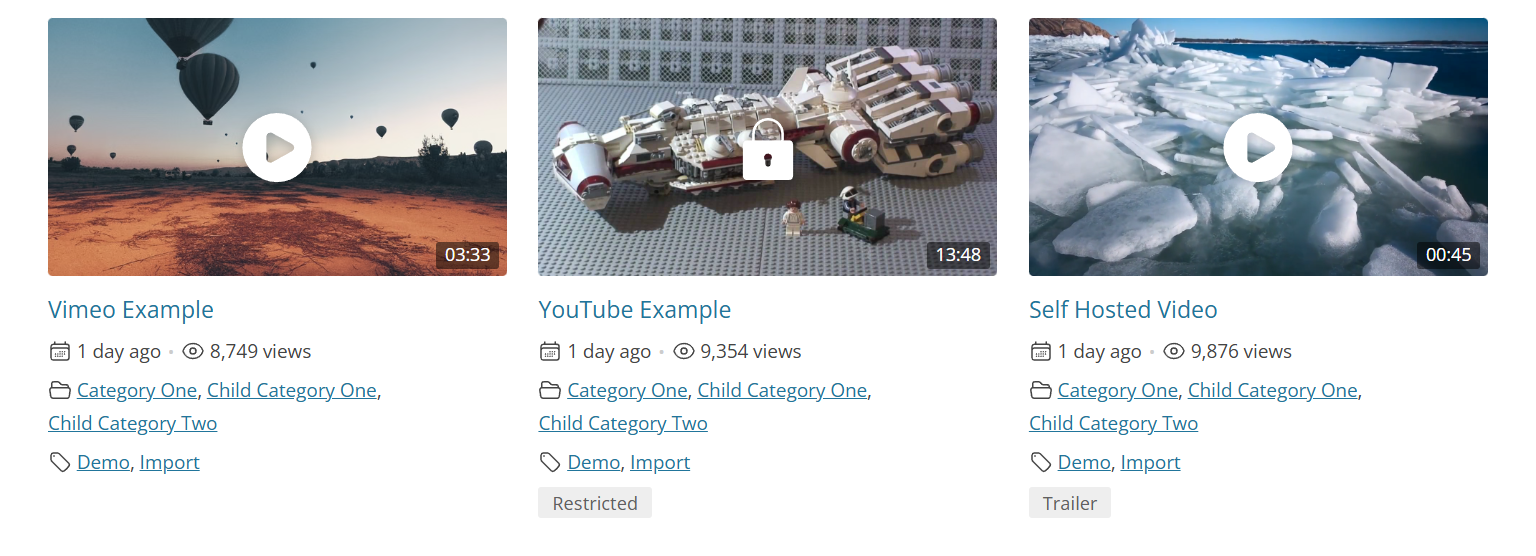
Restricted videos stay listed in your galleries, so visitors can see what they are missing. Their thumbnails show a lock icon instead of the play icon, plus the “Restricted” badge if it is enabled.
Show a Trailer Instead:
Instead of a message, you can play a short preview clip to visitors who cannot watch the full video. Check “Enable Trailers” under “Video Gallery → Settings → Access & Trailers → Trailer / Teaser”, then add a trailer in the “Trailer / Teaser” tab of the video’s edit form. A restricted video with a trailer shows its normal single video page, plays the trailer in every player, and shows a “Trailer” badge on its thumbnail instead of the lock icon. See our Trailer / Teaser documentation for the full setup.
Note: Restrictions protect the player, not the video file itself. Anyone who already has a self-hosted file’s direct URL can still open it. For stronger protection, host your videos on Bunny Stream with token authentication.
Test Your Restrictions
Because administrators and editors can always watch every video, you will not see any restriction while logged in to your own account. To check what visitors see:
- Open the video in a private browser window while logged out.
- To test role-based access, log in with a test account that has only the role you want to check, such as Subscriber.
Tip: If you run a membership site with Paid Memberships Pro, you can restrict videos by membership level instead of by user role. Both can work together. See our Paid Memberships Pro documentation.
For Developers
The message shown in place of a restricted video passes through the aiovg_restricted_message_html filter, with the arguments $html, $post_id, $context (page, player, or iframe), and $content. Use it to show different markup, for example a login form. The returned HTML is output as-is, so escape any markup you build.
With restrictions, you decide who watches your videos — site-wide, per video, or for every video you import — without any additional plugins.