
If you run a membership site with Paid Memberships Pro, you can make any video members-only. Visitors without the right membership level see the Paid Memberships Pro membership message in place of the video, wherever the video appears: single video pages, shortcodes, blocks, widgets, and popup galleries. Members watch as usual. You can also show a trailer to non-members to encourage them to join.
- Requirements
- Set Up Paid Memberships Pro
- Restrict a Video
- What Visitors See
- Show a Trailer to Non-Members
- Combine with the Plugin’s Own Restrictions
- Test as an Administrator
- Not Included Yet
- For Developers
Requirements
- All-in-One Video Gallery 4.9.4 or later. The free version is enough.
- Paid Memberships Pro, with at least one membership level created.
- The Custom Post Type Membership Access Add On for Paid Memberships Pro. It is a premium Add On, so it needs a paid Paid Memberships Pro license.
Note: Without the Custom Post Type Membership Access Add On, the “Require Membership” box does not appear on your videos, so you cannot restrict them.
Set Up Paid Memberships Pro
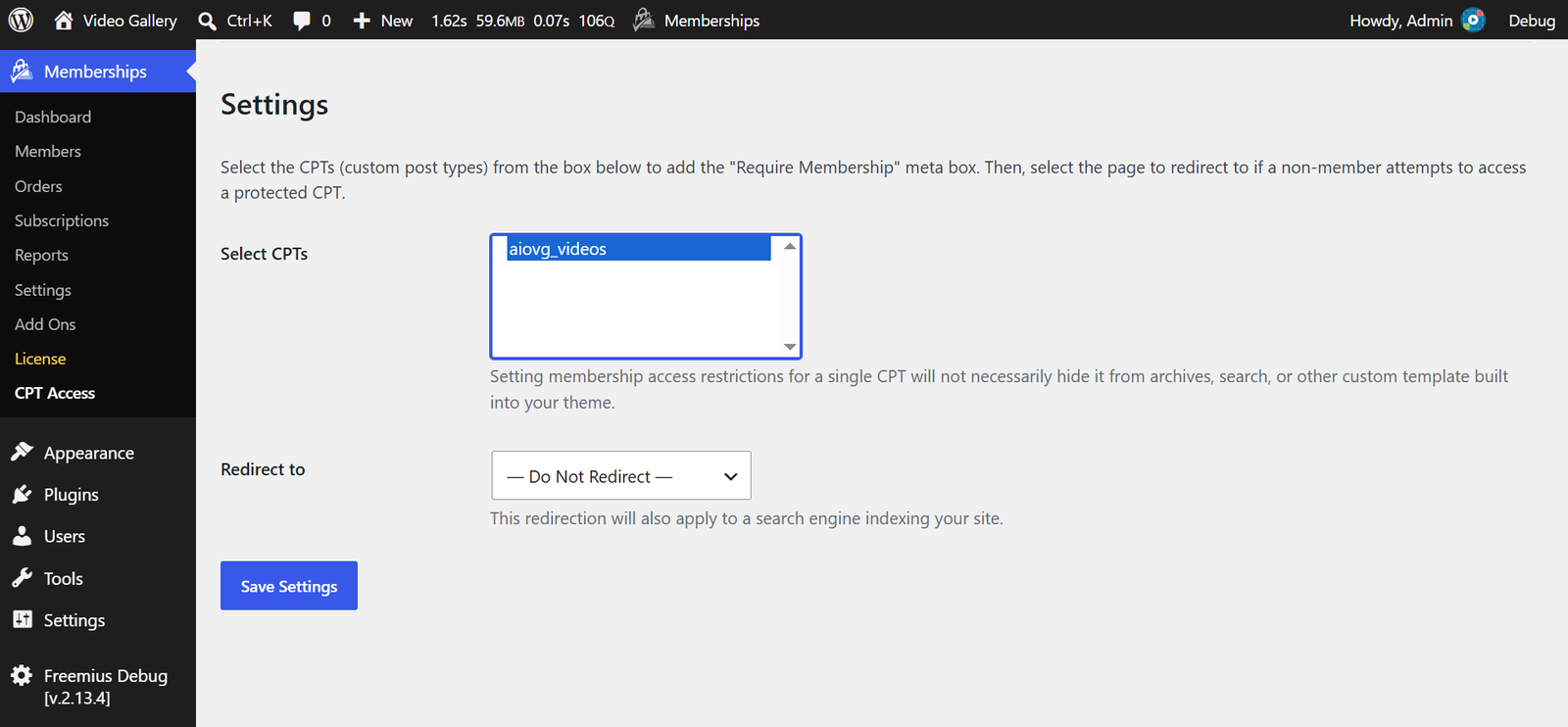
- Navigate to the “Memberships → Add Ons” menu from your WordPress Admin Dashboard. Find “Custom Post Type Membership Access”, then install and activate it.
- Navigate to “Memberships → CPT Access”.
- In the “Select CPTs” box, check “aiovg_videos”.
- Leave “Redirect to” set to “Do Not Redirect”. We recommend this; see the note below.
- Click “Save Settings” to apply.
About the “Redirect to” Option:
If you choose a page in “Redirect to”, non-members who open a restricted video’s page are sent to that page instead of seeing the membership message. Keep in mind:
- It applies to the single video page only. Videos shown through shortcodes, blocks, widgets, and galleries still show the membership message.
- Videos that have a trailer are never redirected, so non-members can still watch the trailer.
- The redirect does not remember which video the visitor wanted, so after joining or logging in they are not taken back to it.
Restrict a Video
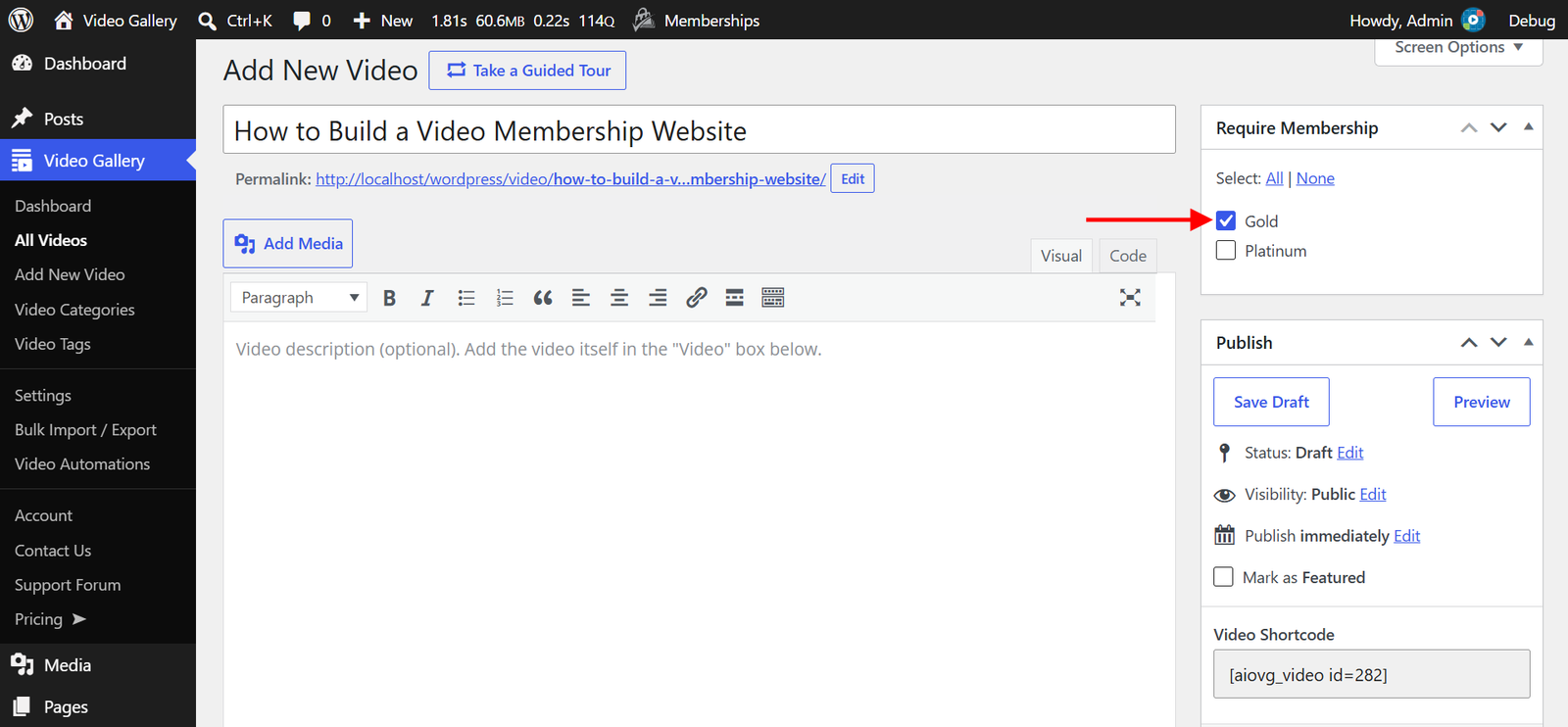
- Navigate to “Video Gallery → All Videos” and open a video for editing.
- In the “Require Membership” box in the sidebar, check the membership levels that can watch this video.
- Click “Update” to save the change.
You can check more than one level. A member of any checked level can watch the video. With one level checked, the membership message links to that level’s checkout page. With several, it links to your membership levels page.
Note: A video with no level checked is not restricted by Paid Memberships Pro. Everyone can watch it, unless the plugin’s own Restrictions say otherwise.
What Visitors See
Visitors who are logged out, have no membership, have a different level, or whose membership has expired or been cancelled see the Paid Memberships Pro membership message instead of the video. The message names the required level and includes a button to join. Logged-out visitors also see a link to log in.
On the Single Video Page:
The page shows only the membership message, the same way the plugin’s own restrictions work. If “Show Excerpts to Non-Members?” is set to “Yes” under “Memberships → Settings → Advanced”, the video’s excerpt appears above the message on this page.
In Players and Popups:
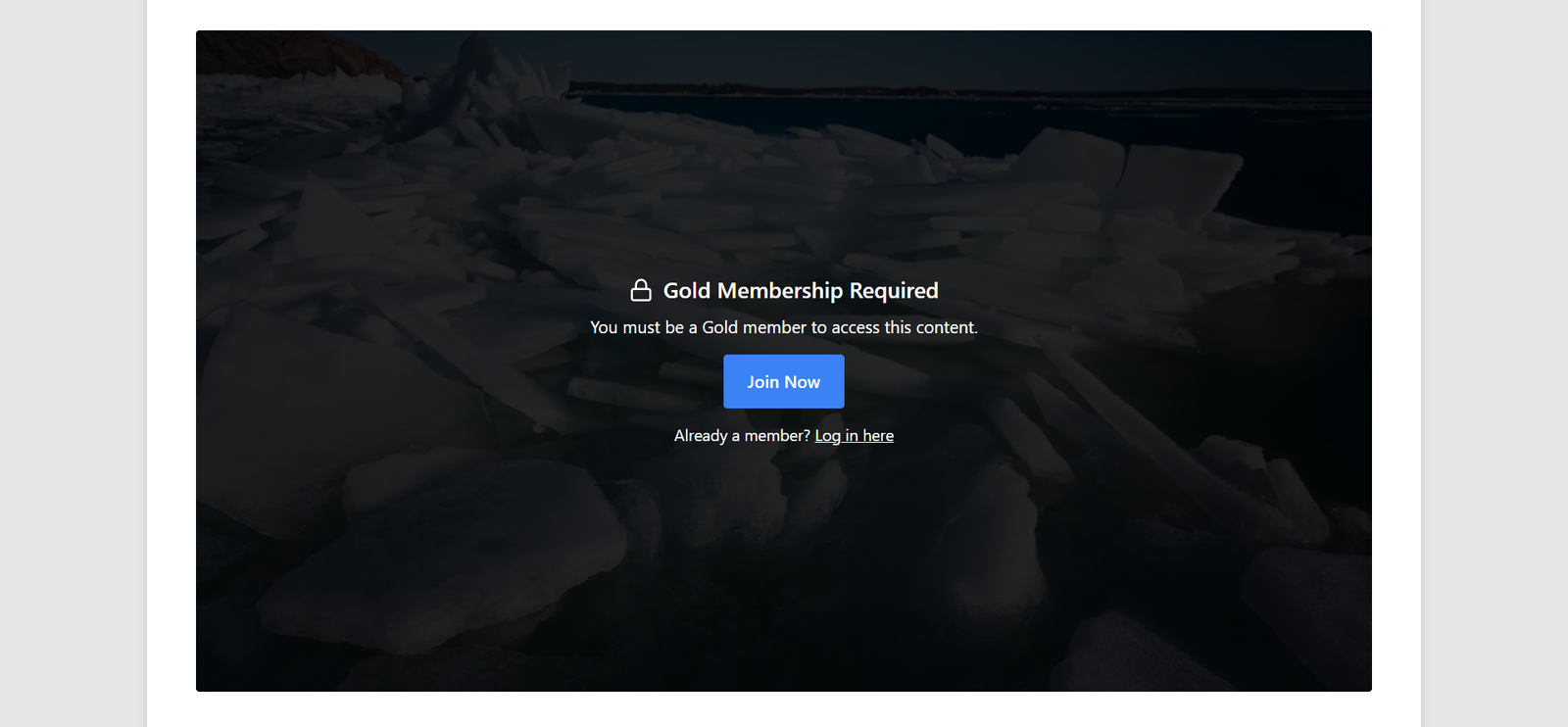
Wherever the video is embedded — a shortcode, block, widget, or gallery template — the player is replaced by the membership message, shown over the video’s thumbnail. When a visitor logs in from the message, they are brought back to the video. The excerpt is not shown inside players.
Note: If your site still uses Paid Memberships Pro’s legacy “Custom Membership Required Message”, that text is shown instead of the generated message, both on the page and inside players.
In Galleries:
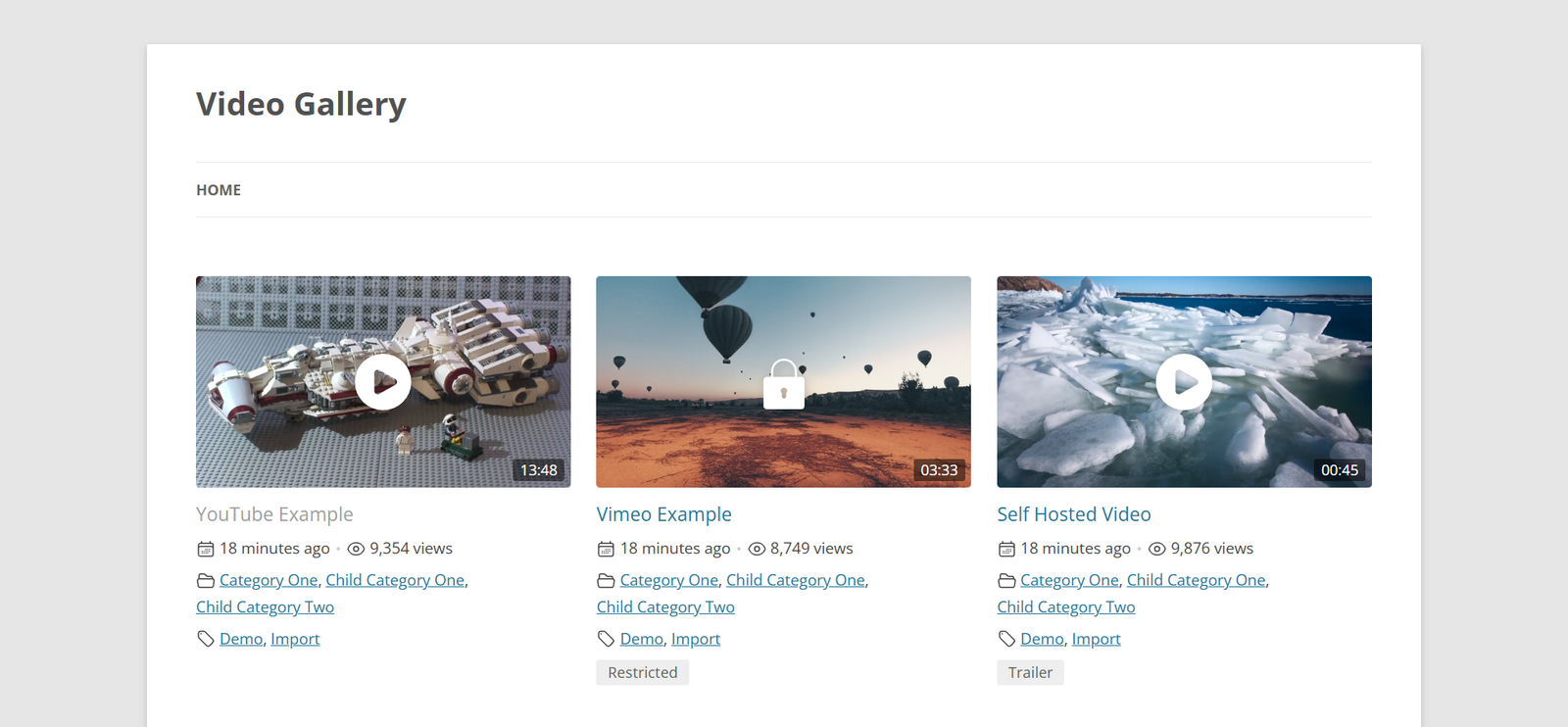
Members-only videos stay listed in your galleries, so visitors can see what membership unlocks. Their thumbnails show a lock icon instead of the play icon, plus a “Restricted” badge. You can turn the badge off or change its text under “Video Gallery → Settings → Access & Trailers → Restrictions” with the “Show Restricted Badge on Thumbnails” option. The badge works even when “Enable Restrictions” is off.
Videos that have a trailer show the play icon and a “Trailer” badge instead.
Note: This protects the player, not the video file itself: anyone who already has a self-hosted file’s URL can still open it. For stronger protection, use Bunny Stream with token authentication, or Paid Memberships Pro’s own file protection.
Show a Trailer to Non-Members
Instead of a message, you can play a short trailer to non-members, with a link that invites them to join.
Enable Trailers:
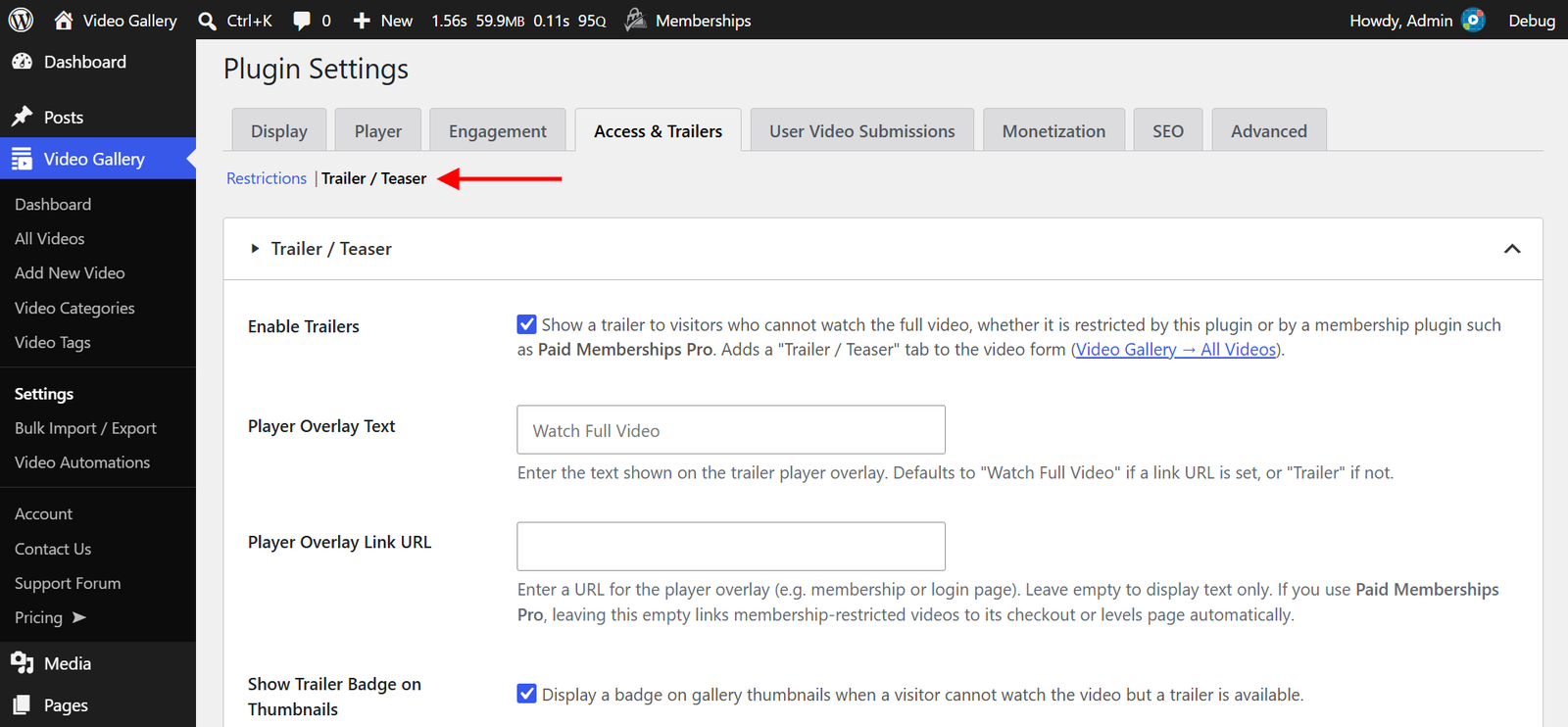
- Navigate to “Video Gallery → Settings”.
- Click on the “Access & Trailers” tab, then select the “Trailer / Teaser” submenu.
- Check the “Enable Trailers” option. Trailers work for membership-restricted videos even when “Enable Restrictions” is off.
- Leave “Player Overlay Link URL” empty. The trailer badge, and the “Watch Full Video” button shown when the trailer ends, then link to Paid Memberships Pro automatically: to the checkout page when the video requires a single level, or to your membership levels page when it requires several. Levels with new signups disabled are skipped, just as in the membership message. Enter a URL only if you want every trailer to link to the same page.
- Optionally, enter a “Player Overlay Text”. It is shown on the trailer badge and the button. When it is empty and the trailer has a link, the text defaults to
Watch Full Video. - Click “Save Changes” to apply.
Add a Trailer to a Video:
- Navigate to “Video Gallery → All Videos” and open the restricted video for editing.
- Inside the “Video” metabox, click the “Trailer / Teaser” tab.
- Choose a “Source Type” and add the “Trailer Source”.
- Click “Update” to save the change.
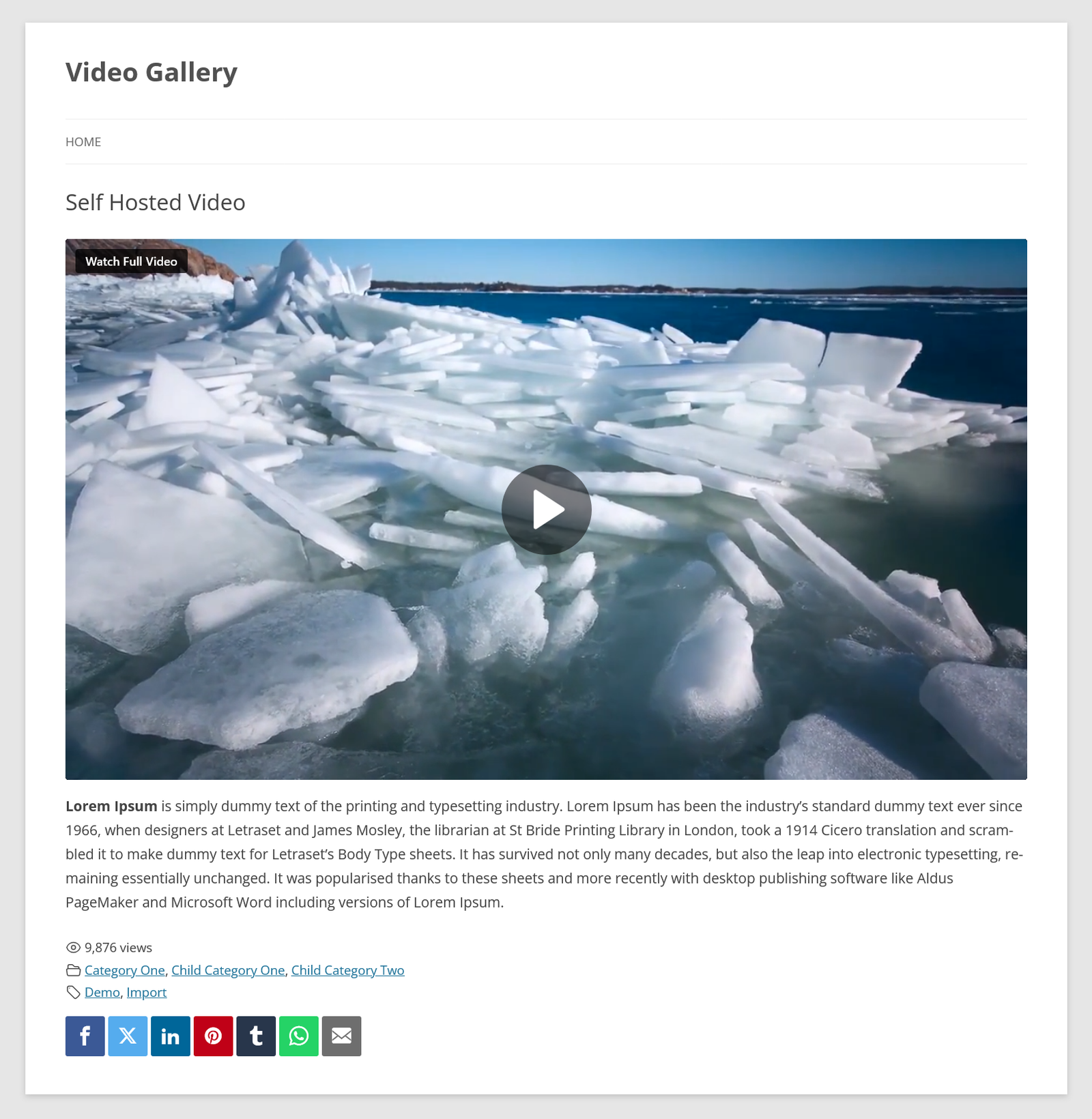
Non-members now see the trailer wherever the video appears. A video with a trailer shows its normal single video page, including its description, with no membership message. A video without a trailer shows only the message. This matches how the plugin’s own restrictions work.
Note: The trailer badge and button appear only when the trailer plays in the plugin’s built-in player. They do not appear on trailers from Dailymotion, Rumble, Facebook, or other third-party player embeds, or on YouTube, Vimeo, and Bunny Stream trailers when the player uses their native controls.
Combine with the Plugin’s Own Restrictions
The plugin’s own Restrictions, which limit videos to logged-in users or specific user roles, keep working alongside Paid Memberships Pro. When a video uses both, a visitor must pass both to watch it:
- A visitor without the required membership level sees the Paid Memberships Pro membership message.
- A member with the right level whom the plugin’s own Restrictions do not allow sees the plugin’s “Restricted Message”.
If “Enable Restrictions” is off under “Video Gallery → Settings → Access & Trailers → Restrictions”, membership levels are still enforced. For most membership sites, Paid Memberships Pro on its own is the simplest setup.
Test as an Administrator
Paid Memberships Pro decides who can watch a members-only video for everyone, including administrators, editors, and the video’s author. If your own account has no membership level, you see the membership message just like a visitor. This is expected, and it lets you see exactly what non-members see.
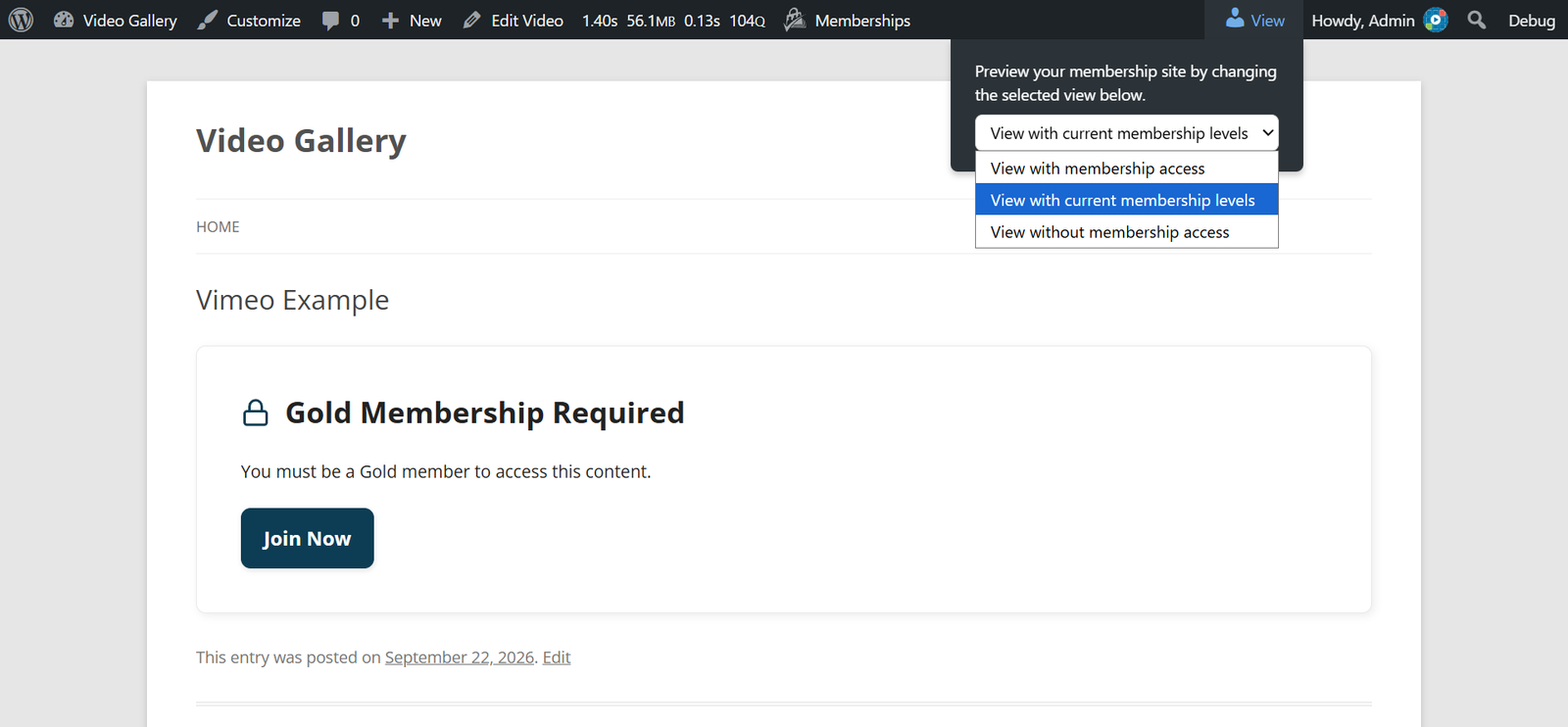
To preview both views, use the “View” menu that Paid Memberships Pro adds to the admin bar on the front end of your site:
- View with membership access — See the site as a member. Members-only videos play.
- View without membership access — See the site as a non-member.
- View with current membership levels — See the site with your account’s real membership levels (the default).
Not Included Yet
The integration does not currently support:
- Restricting a whole video category or tag at once. Set the membership levels on each video instead.
- Setting membership levels while bulk importing videos, or on videos created by Video Automations. Add the levels to those videos after they are created.
For Developers
The message shown in place of a restricted video passes through the aiovg_restricted_message_html filter, with the arguments $html, $post_id, $context (page, player, or iframe), and $content. The Paid Memberships Pro integration uses this filter to show its own message, and you can use it for another membership plugin. The returned HTML is output as-is, so escape any markup you build.
With Paid Memberships Pro and All-in-One Video Gallery, your videos become part of your membership. Members watch without interruption, non-members see a clear invitation to join, and a trailer lets you show what they are missing.