
Using the “Trailer / Teaser” feature, you can attach a short preview clip to any restricted video. When a visitor who cannot watch the full video opens it, the plugin plays the trailer instead of the restriction message. A trailer badge stays on the player the whole time, so the viewer always knows they are watching a preview. If you add a link, the badge becomes a “Watch Full Video” button when the trailer ends, pointing the viewer straight to your membership, checkout, or login page.
- Prerequisites
- Enable Trailers
- Add a Trailer to a Video
- What Visitors See
- Customize the Player Badge
- Customize the Thumbnail Badge
- YouTube and Vimeo Trailers
Prerequisites
A trailer plays only when a visitor is not allowed to watch the full video. So the video must be restricted in one of these ways:
- With the plugin’s own restrictions — turn on “Enable Restrictions” under “Video Gallery → Settings → Access & Trailers → Restrictions” and limit who can watch the video. See our Video Access Control documentation.
- With Paid Memberships Pro — require a membership level on the video. The plugin’s own restrictions can stay off. See our Paid Memberships Pro documentation.
If a video is open to everyone, its trailer never plays.
Enable Trailers
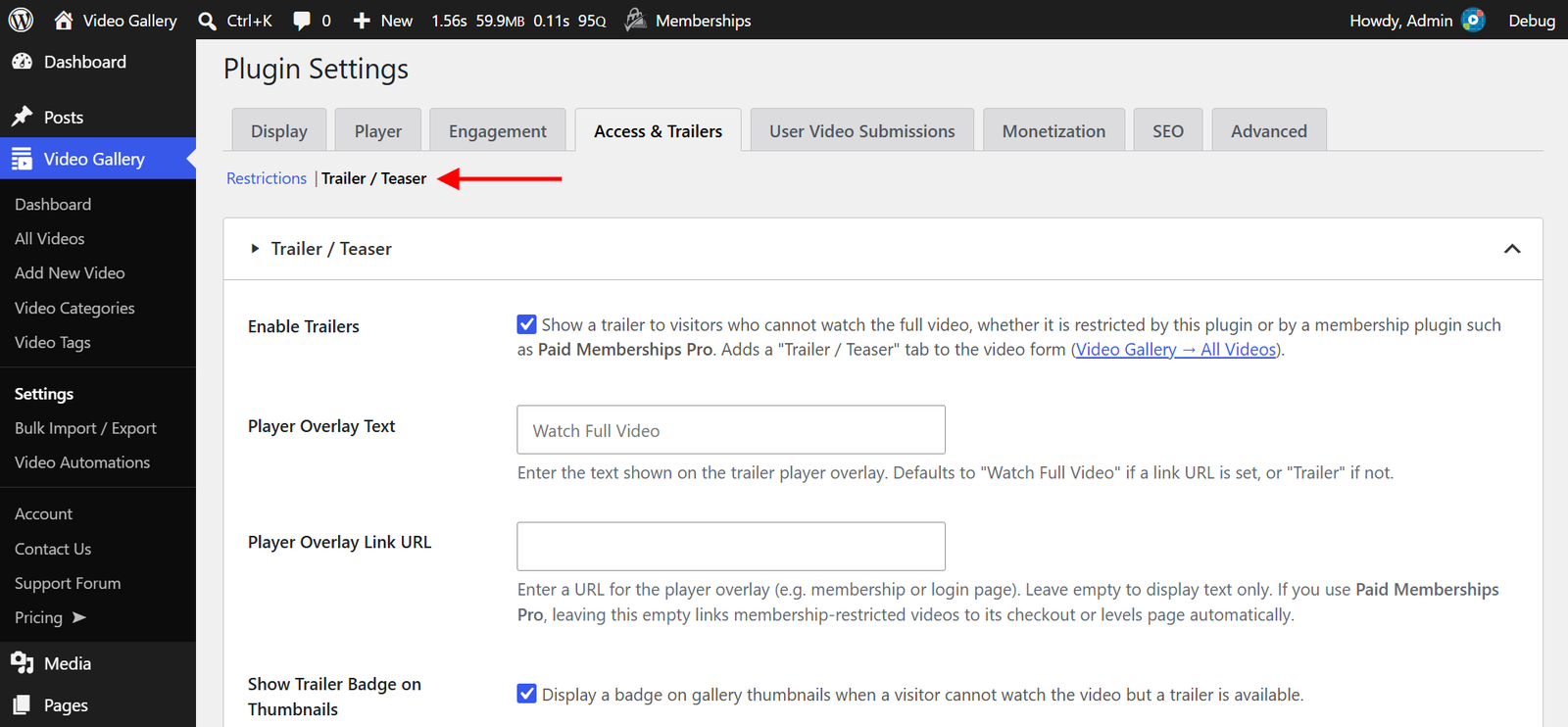
- Navigate to the “Video Gallery → Settings” menu from your WordPress Admin Dashboard.
- Click on the “Access & Trailers” tab, then select the “Trailer / Teaser” link.
- Check the “Enable Trailers” option.
- Click “Save Changes” to apply.
Once enabled, a “Trailer / Teaser” tab appears in every video’s edit form, so you can attach a trailer to each video individually.
Add a Trailer to a Video
Once trailers are enabled, you can assign a trailer clip to any video from its edit form.
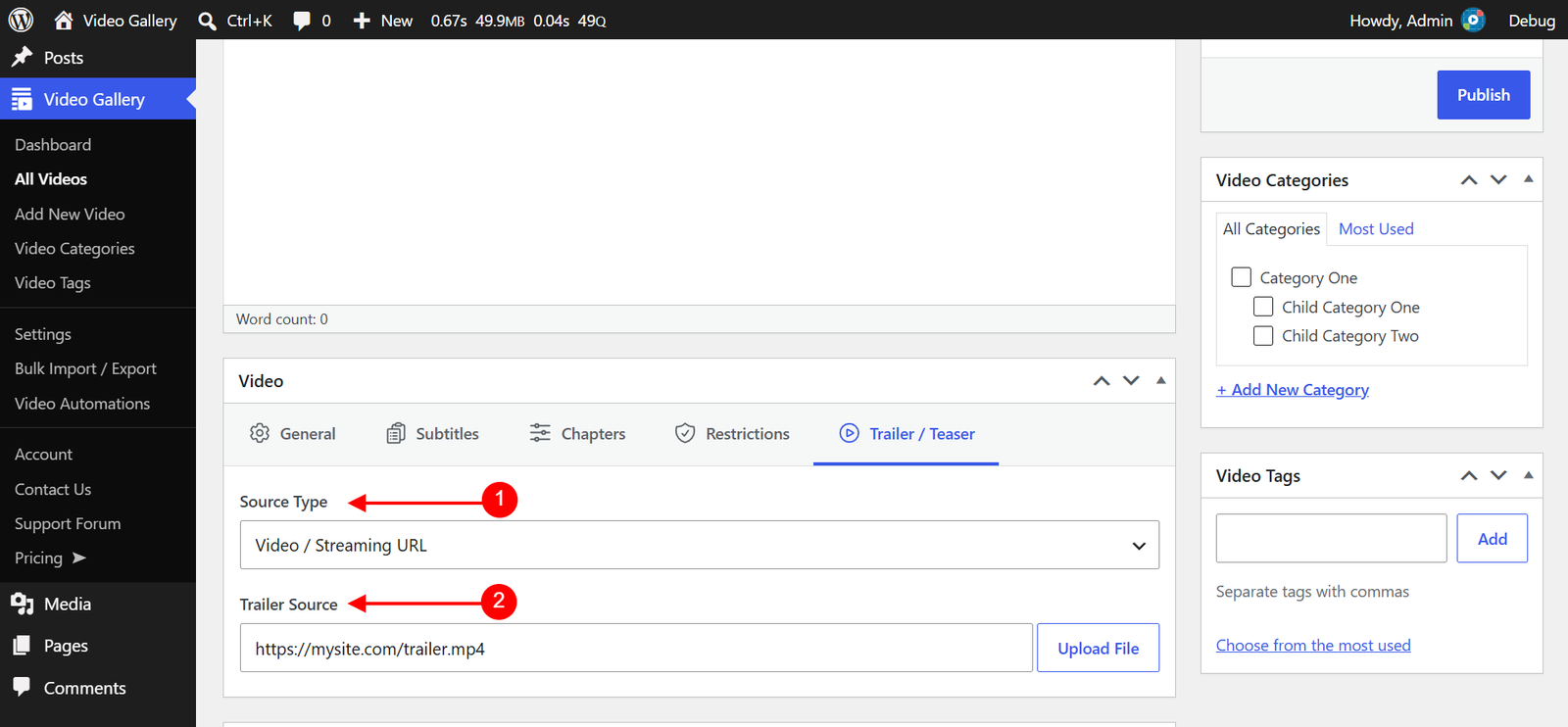
- Navigate to “Video Gallery → All Videos” and open the restricted video you want to add a trailer to.
- Inside the “Video” metabox, click the “Trailer / Teaser” tab.
- Choose a “Source Type”:
- Video / Streaming URL — Enter the trailer URL in the “Trailer Source” field. Supported sources include YouTube, Vimeo, Dailymotion, Rumble, Facebook, MP4, HLS, MPEG-DASH, and more. You can also upload a video file directly using the “Upload File” button, or the “Bunny Stream” button when Bunny Stream is enabled.
- Third-Party Player Code — Paste an embed code (iframe or script) from an external player.
- Click “Update” to save.
Note: The trailer plays only for visitors who cannot watch the full video. Users with access see the full video as normal and never see the trailer. Administrators and editors usually have access, so check the trailer in a private browser window while logged out.
What Visitors See
While the trailer is on screen, the player shows a trailer badge with your “Player Overlay Text” — Trailer by default, or Watch Full Video when a link is set.
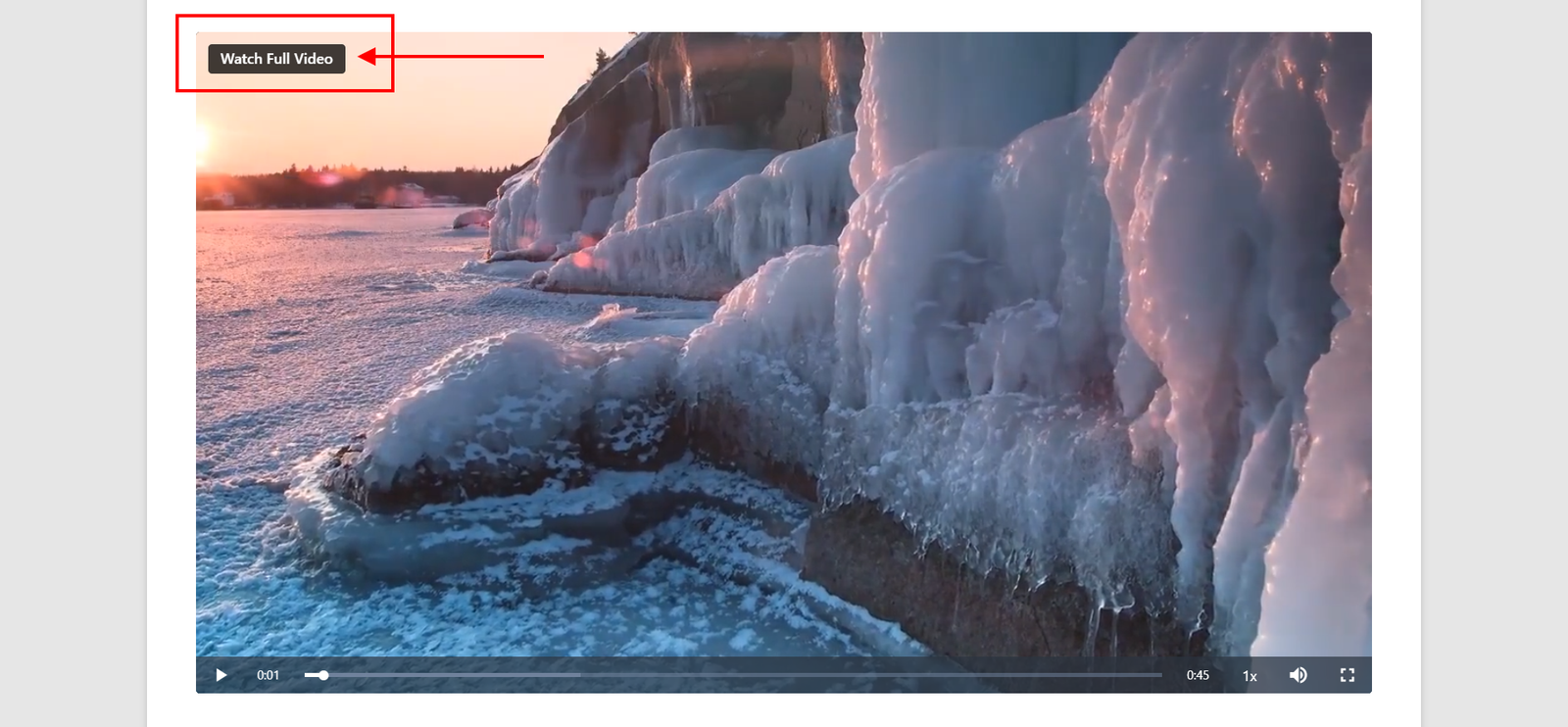
- Always visible — The badge stays on the player from the poster image until the trailer ends. It does not fade out with the player controls.
- Position — The badge sits in the top-left corner. If your player logo is set to the top-left corner, the badge moves to the bottom-left, just above the controls, so the two never overlap.
- Clickable when linked — With a “Player Overlay Link URL”, the badge is a link that opens your page in the same browser tab, even when the player is embedded. Without a link, it is a plain label.
- Your logo stays your logo — If you show a player logo, it keeps its own link and position on trailers.
When the Trailer Ends
If the trailer has a link, the badge becomes a large “Watch Full Video” button in the middle of the player, just below the replay button. This is the moment visitors are most likely to act, so the button is sized to be easy to see and tap. It uses the “Primary Color” set under “Video Gallery → Settings → Advanced → General”.
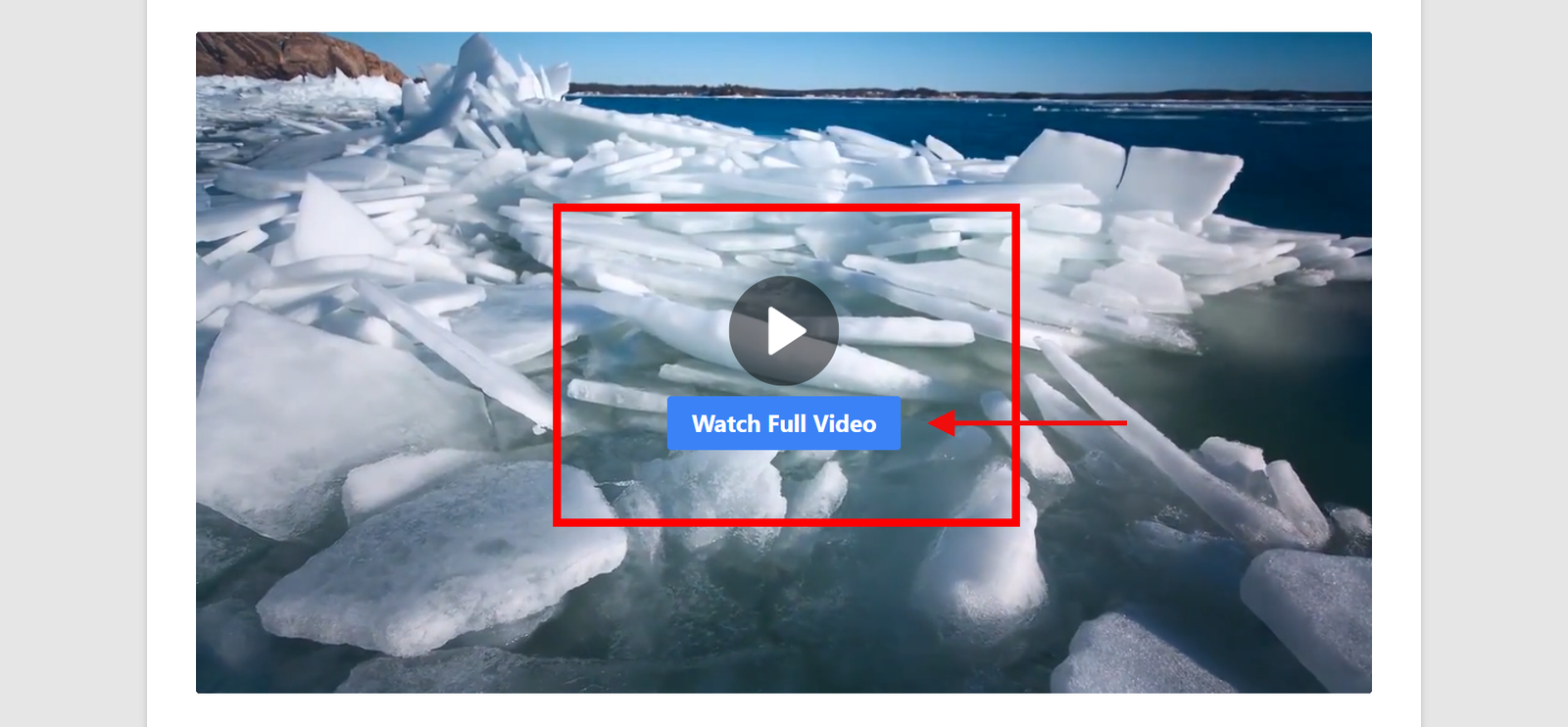
- Press replay to watch the trailer again. The badge returns to its corner.
- Trailers without a link end normally, with the badge still in its corner.
- The button does not appear when the player is set to “Loop”, or in galleries that play the next video automatically.
Note: If you use “Email & Lead Capture” with the “After the Video” timing, the email form is skipped at the end of trailers that have a link, so the “Watch Full Video” button is the only thing on screen. The form still shows at its other timings, and at the end of trailers without a link.
Customize the Player Badge
The badge and the end-of-trailer button use the same two options under “Video Gallery → Settings → Access & Trailers → Trailer / Teaser”.
- Player Overlay Text — The text shown on the badge and the button. If you set a link URL, it defaults to
Watch Full Video. If no link is set, it defaults toTrailer. Enter your own text to override the default. - Player Overlay Link URL — Enter a URL to make the badge a link and to show the button when the trailer ends. Use it to send visitors to your membership, checkout, login, or sign-up page. Leave it empty to show a plain label with no button. If you use Paid Memberships Pro, leaving it empty links membership-restricted videos to its checkout or membership levels page automatically.
Customize the Thumbnail Badge
The plugin can also display a badge on gallery thumbnails, telling visitors that a video they cannot watch has a trailer available. This can help drive clicks and increase conversions.
- Show Trailer Badge on Thumbnails — Check this option to enable the badge. It appears only on videos the visitor cannot watch that have a trailer.
- Thumbnail Badge Text — The text shown inside the badge.
- Thumbnail Badge Background Color — Choose a background color for the badge.
- Thumbnail Badge Text Color — Choose a text color for the badge.
These options style the thumbnail badge only. The badge on the player always uses a dark background with white text, so it stays readable over any video.
YouTube and Vimeo Trailers
YouTube shows the video’s title across the top of the player when a video loads and whenever it is paused, then hides it after a few seconds. During that time the title sits behind the trailer badge. The badge stays readable, but the overlap can look busy.
To remove YouTube’s title bar, check the “Hide YouTube Logo” option under “Video Gallery → Settings → Player”. It trims YouTube’s own top and bottom bars out of view on all YouTube videos, not just trailers.
Note: “Hide YouTube Logo” is an experimental option. It can cause scaling or layout issues, especially with YouTube Shorts. If you see display problems, turn it off.
The badge and the end-of-trailer button appear only when the trailer plays in the plugin’s built-in player. They do not appear on trailers added as “Third-Party Player Code”, on Dailymotion, Rumble, or Facebook trailers, or on YouTube, Vimeo, and Bunny Stream trailers when the matching “Use Native Controls” option is checked under “Video Gallery → Settings → Player”.
The Trailer / Teaser feature is an effective way to showcase your content and turn visitors without access into paying members or subscribers. By giving them a taste of what’s behind the paywall — and a clear button to your sign-up page the moment the trailer ends — you can improve conversion rates without any additional plugins or tools.