
All-in-One Video Gallery allows you to automatically import videos from the YouTube website. Technically, the videos are fetched using YouTube’s Data API.
Note: YouTube’s Data API is free but has a daily quota limit of 10,000 units per day, which should be sufficient for most users. If you need more quota per day, you can request an increase directly from the YouTube Help Center at YouTube API Services.
In this tutorial, we will walk you through the steps to get an API key for yourself and use it with All-in-One Video Gallery.
1. Login to Google’s Cloud Console
Visit the Google Cloud Console. If you haven’t already created a project, you will need to create a new one. If you already have a project created, then you can proceed to the next step.
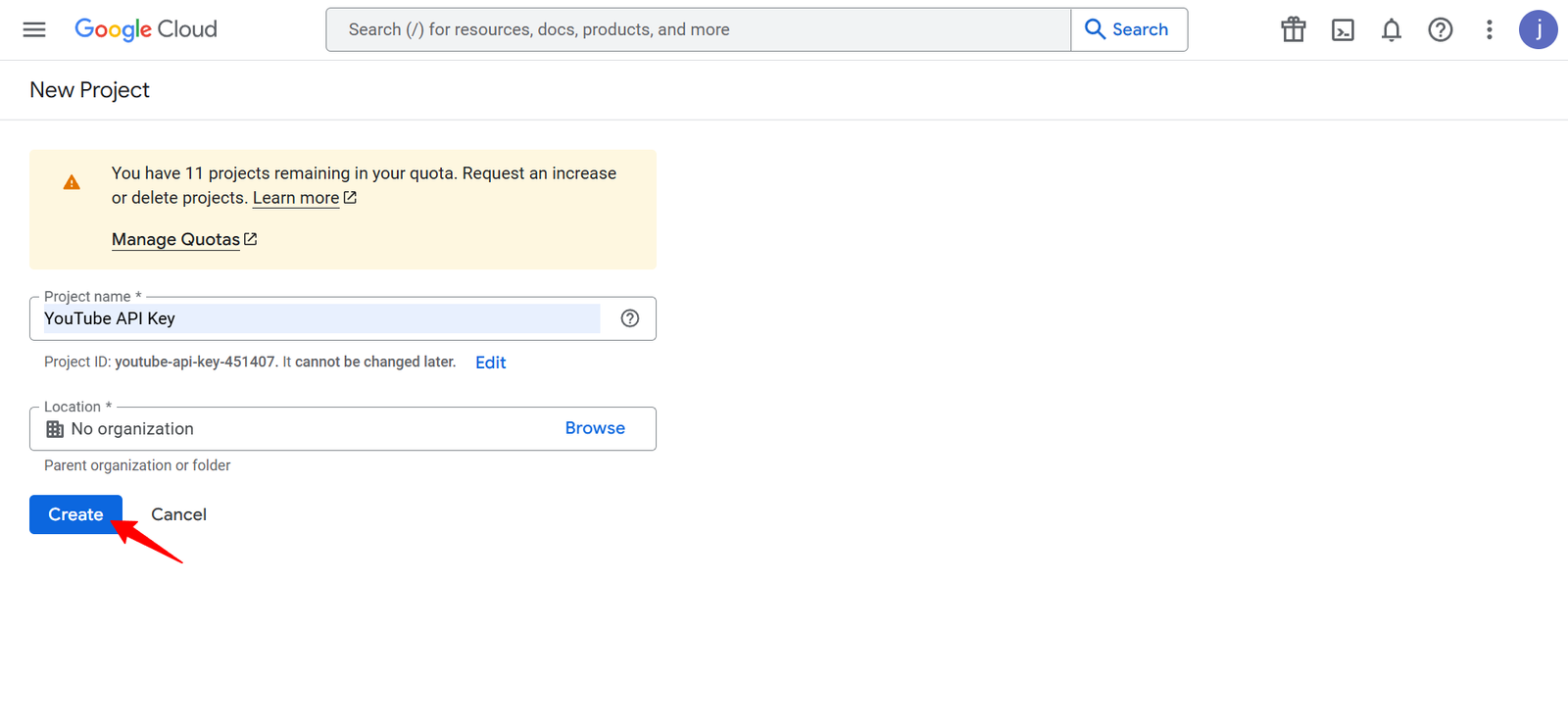
To create a new project, click the CREATE PROJECT option that appears on the screen.

Next, enter the project details and click the CREATE button.
2. Create an API Key
Once you’ve created a project, click the Credentials tab in the left menu.
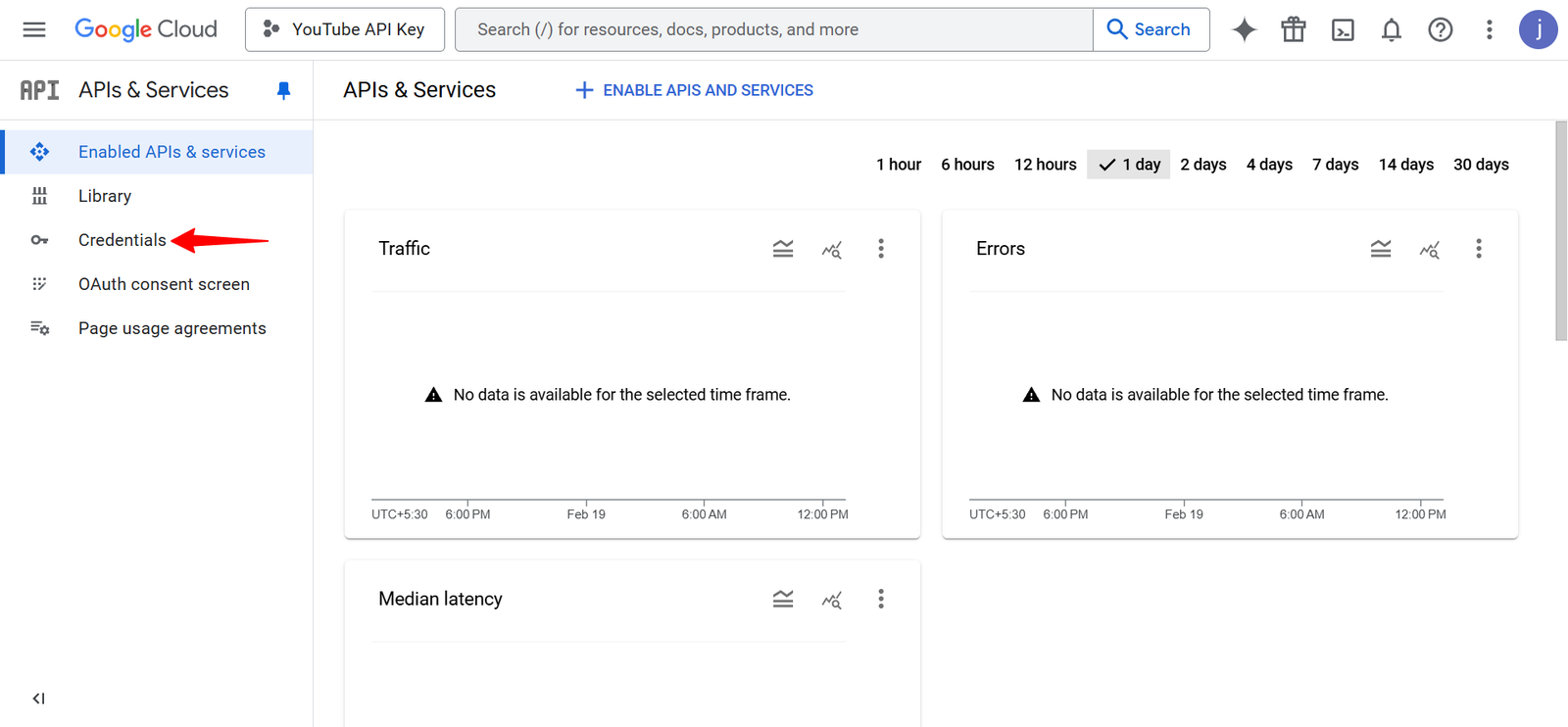
On the Credentials page, click the Create Credentials option, and from the dropdown, choose API Key.

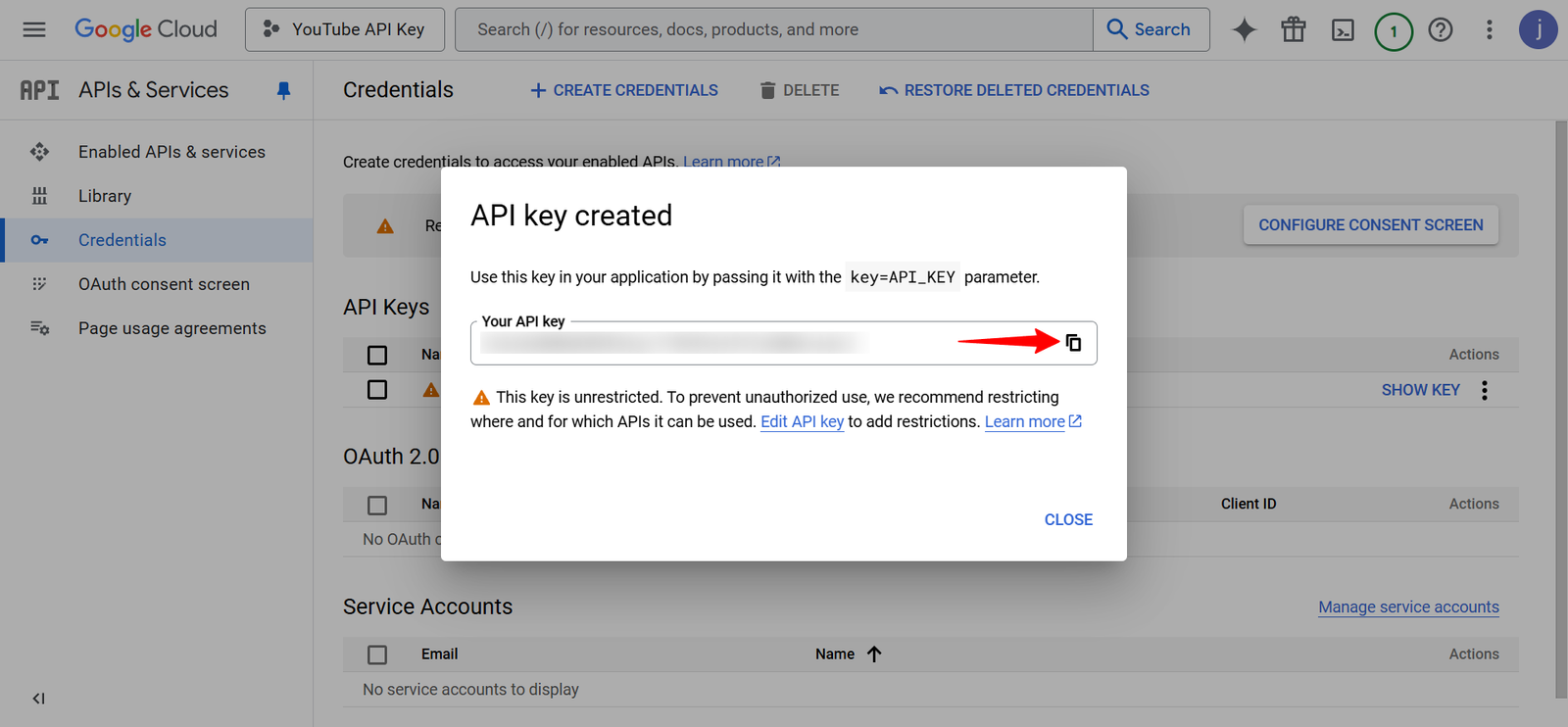
Wait for a few moments for the API key to be created. Then, copy the generated API Key.
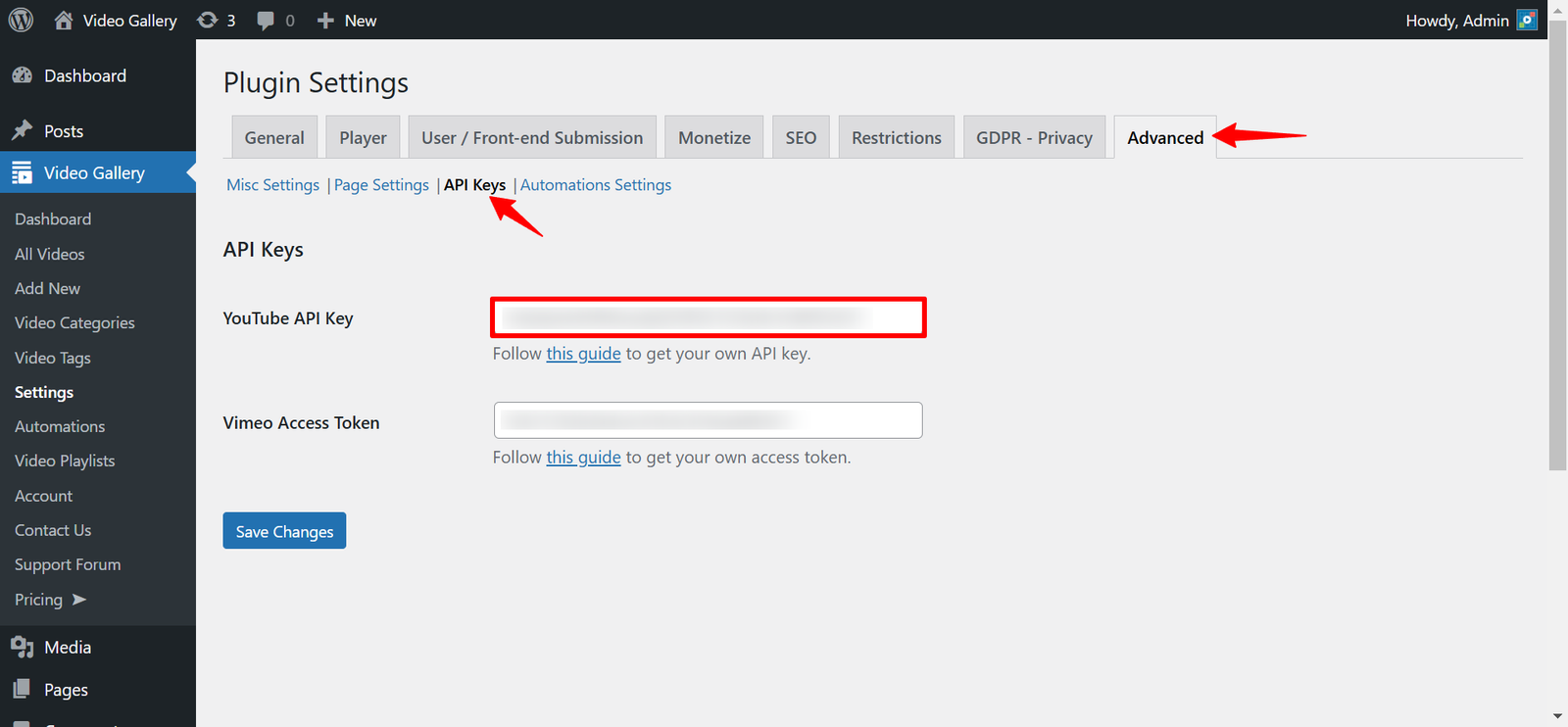
Paste it into the YouTube API Key field in the All-in-One Video Gallery settings, and click the Save Changes button.
3. Enable the YouTube Data API
Google, by default, doesn’t enable the YouTube Data API for all the projects.
So, we still need to head over to the Enabled APIs & Services tab in the Cloud Console menu and choose the ENABLE APIS AND SERVICES option.
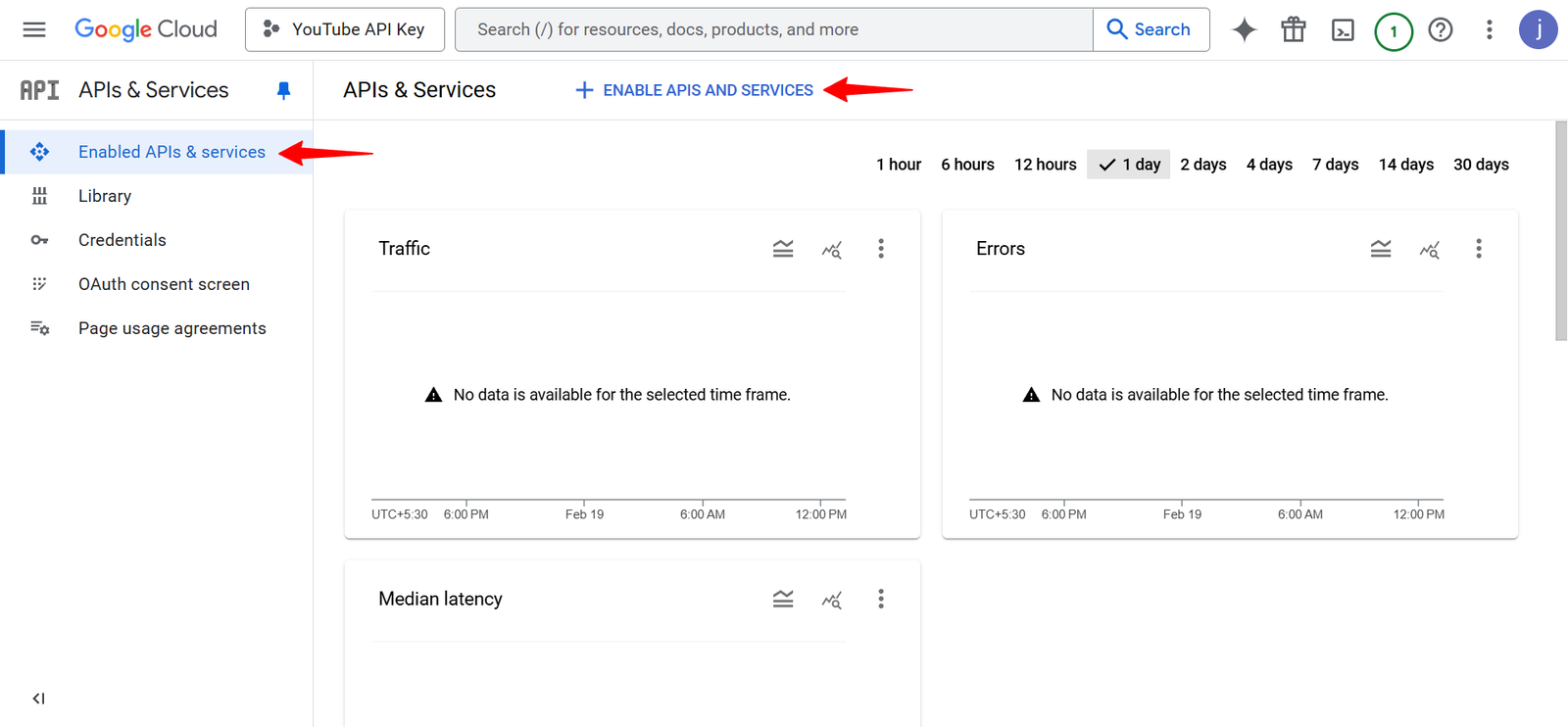
From the API Library, search for YouTube Data API v3 and select it.
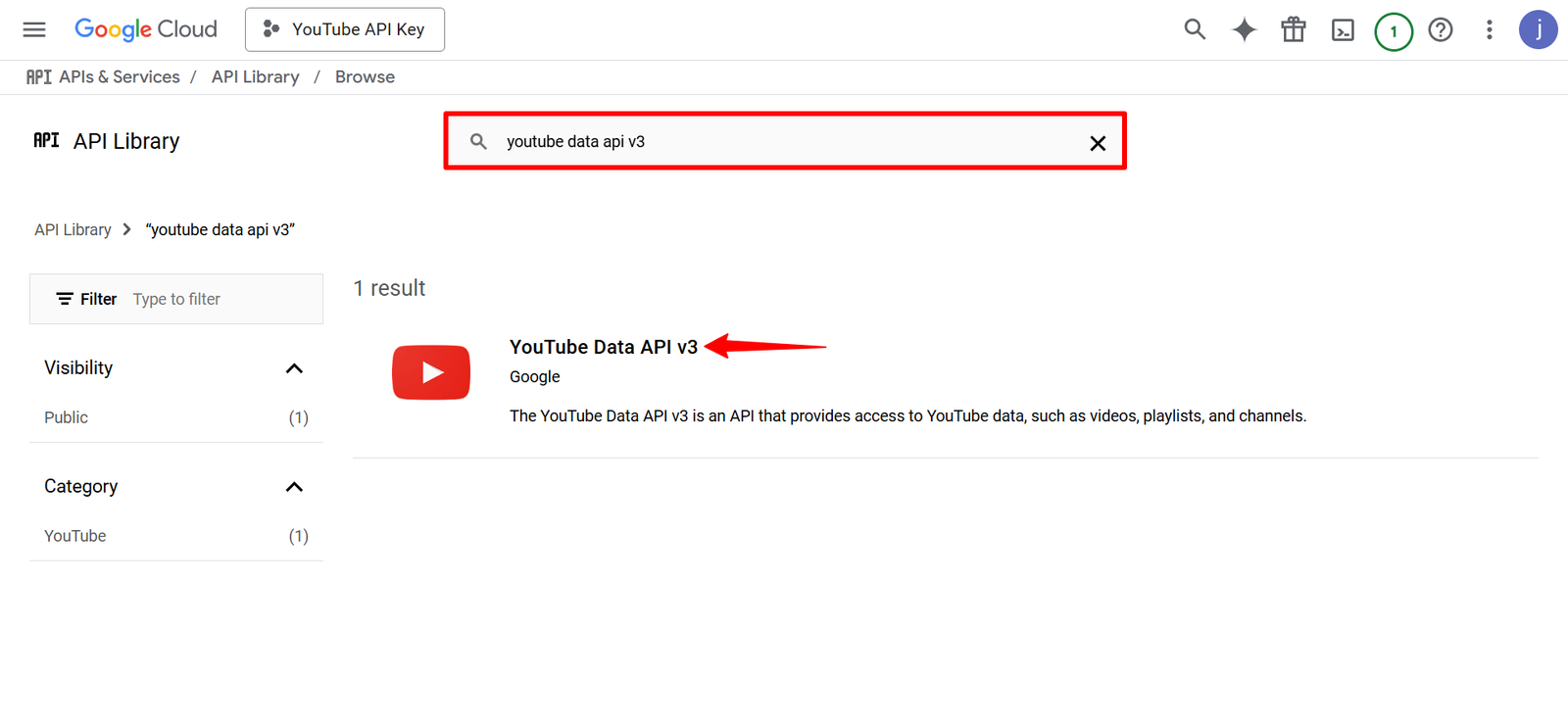
Then, ENABLE the YouTube Data API as shown below.

Now that you’ve enabled the YouTube Data API, you can start using it within All-in-One Video Gallery.
And that’s it. If you have any questions about All-in-One Video Gallery or face any issues with the setup, feel free to get in touch with our support team, and our support team will always be happy to assist you.