

Most service business websites still rely on static landing pages filled with long paragraphs, stock images and a single “Book Now” button at the bottom.
But today’s visitors don’t just want to read about your service. They want to see it in action. When someone visits a service website, one question dominates their mind: “Can I trust this business?“
“Text can explain. Photos can suggest. But the video proves.“
Video on landing pages lowers hesitation because visitors can see real processes, real environments and real people before making a decision. And when that trust is paired with an immediate way to book, conversions skyrocket.
In this guide, you’ll learn how to replace traditional landing pages with structured video experiences and connect them smoothly to your booking workflow.
What is a Video Landing Page?

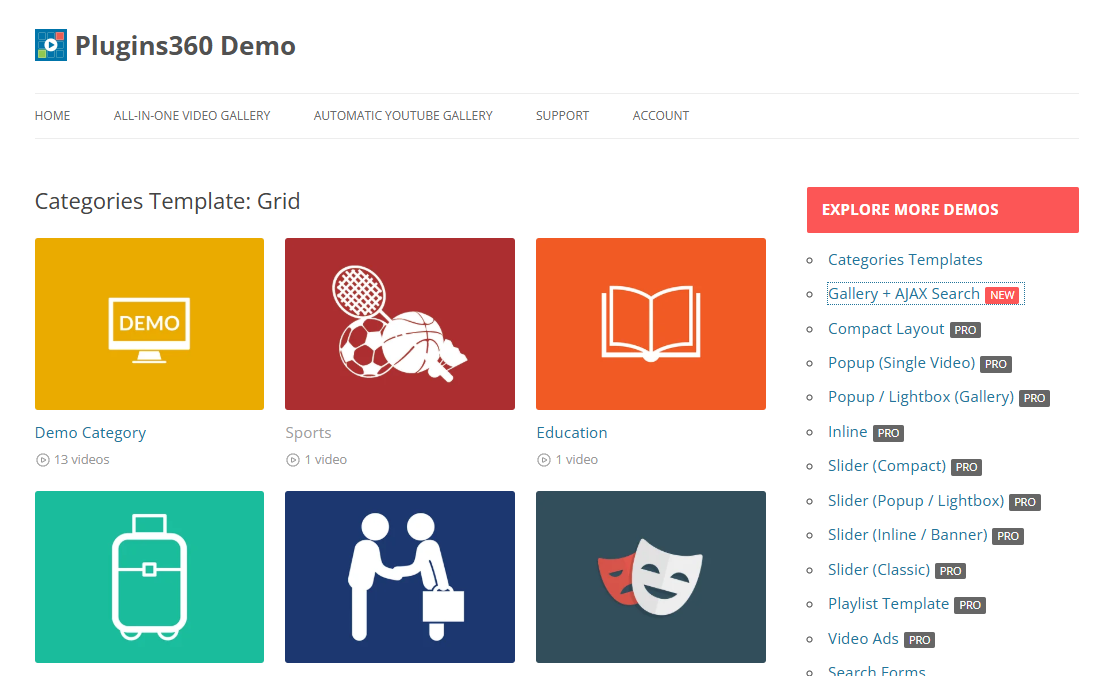
A video landing page is a conversion focused web page designed around a single central video to drive visitors to take specific actions.
In our scenarios, it’s to lead visitors to hit that “Book Now” button.
Video on landing pages uses structured video content such as service walkthroughs, demonstrations, testimonials or behind the scenes clips to show the value of your services more perfectly.
For service businesses, this works perfectly because customers often want to:
- See how the service is delivered.
- Understand what to expect during an appointment.
- Evaluate professionalism and environment.
- Build confidence before booking.
When visitors can visually experience your service, hesitation drops right away and decision making becomes instant. Modern landing pages with video go beyond a single embedded clip. They often include:
- Categorized service videos.
- Search and filtering options.
- Playlists or featured highlights.
- Clear calls-to-action are placed directly below the video.
In this format, the page becomes less about reading and more about exploring. Visitors browse, watch, and engage, rather than scrolling.
For WordPress users, creating a structured video landing page means organizing videos in a way that is searchable, filterable and easy to navigate.
How to Set Up Video Landing Page with All-in-One Video Gallery
Creating a structured video landing page in WordPress doesn’t need any custom development.
All-in-One Video Gallery plugin is going to replace your traditional, boring and static landing pages with amazing video experiences. You can create a searchable, filterable video experience right inside your WordPress site with zero coding.
Let’s see how it goes:
Step 1: Install and Activate the Plugin

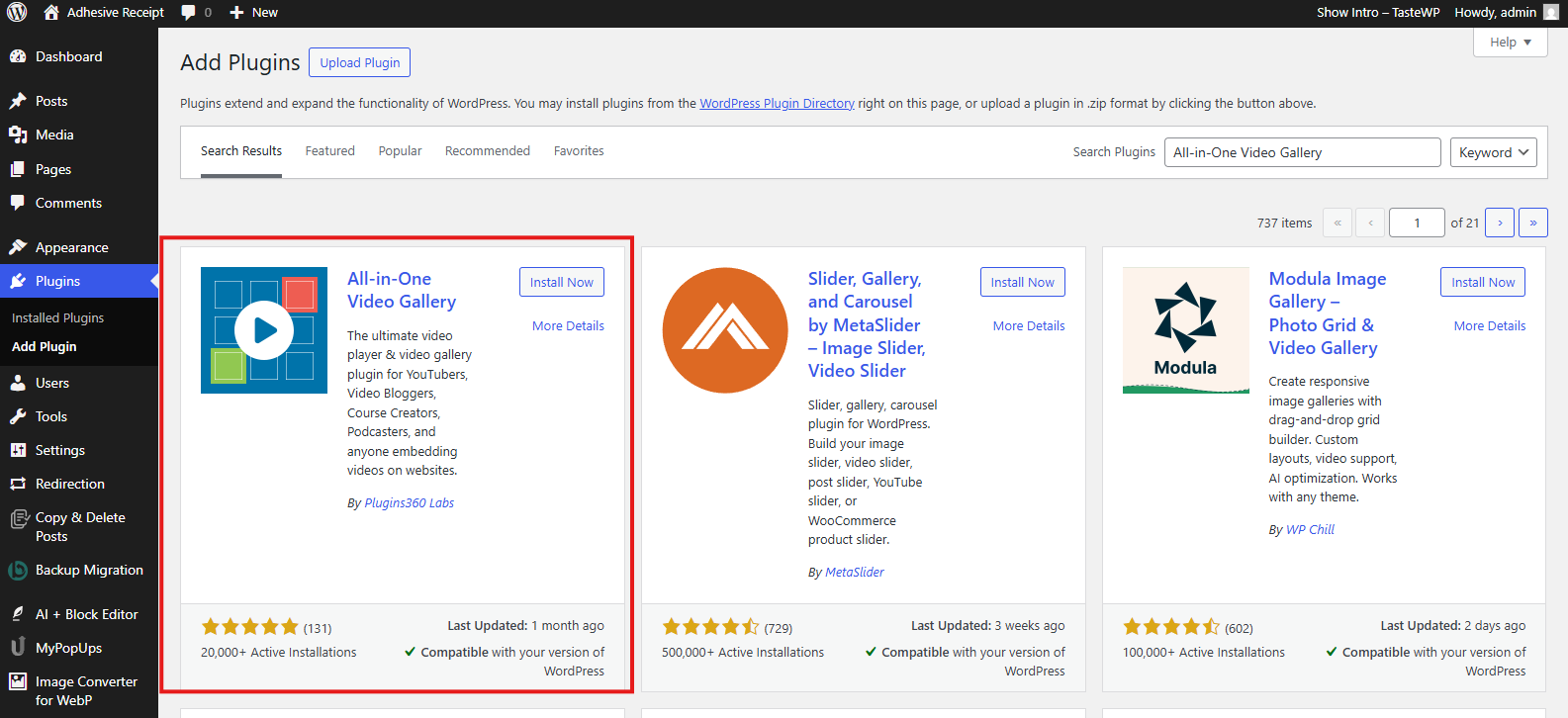
First of all, go to your WordPress dashboard. From here on:
- Go to Plugins → Add Plugin
- Now, search for “All-in-One Video Gallery“
- And Install & Activate the plugin.

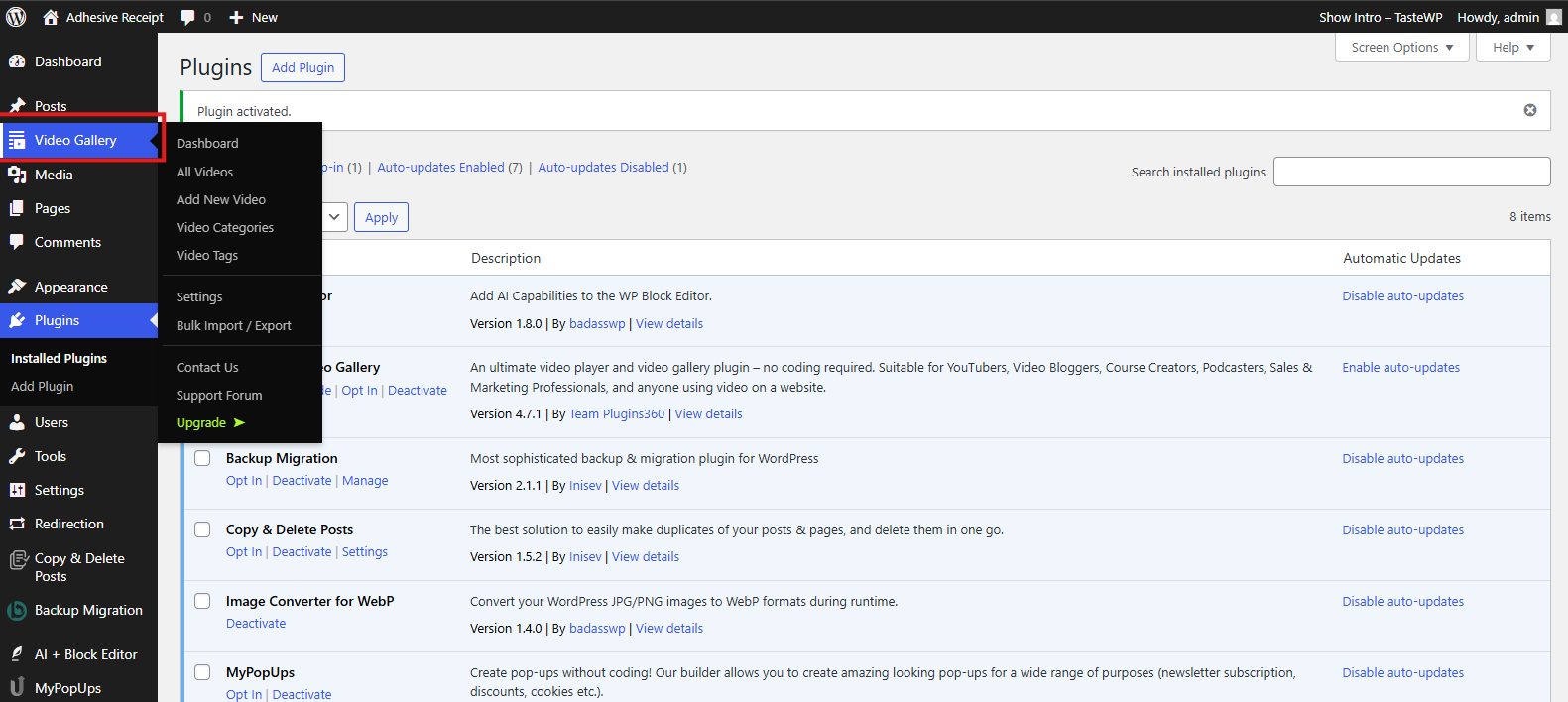
Once activated, the plugin adds a dedicated Video Gallery section to your WordPress admin area. Here you can manage videos, categories, tags and gallery settings.
Step 2: Upload Your Videos
Next, go to its Dashboard and you’ll see a small help section that shows you how to create or add a video gallery, which to be fair looks easy to follow even for beginners.
Now it’s time to add your service videos.
You can:
- Upload self-hosted videos (MP4, WebM, etc.)
- Embed videos from platforms like YouTube or Vimeo.
- Use supported third-party embed codes.
For service businesses, consider uploading:
- Service demonstrations.
- Before-and-after transformations.
- Client testimonials.
- Introductory videos from staff.
Each video functions like its own content item that makes it easy to organize and reuse across your site. Thus, go to “Add New Video” and a quick setup wizard will show you everything.

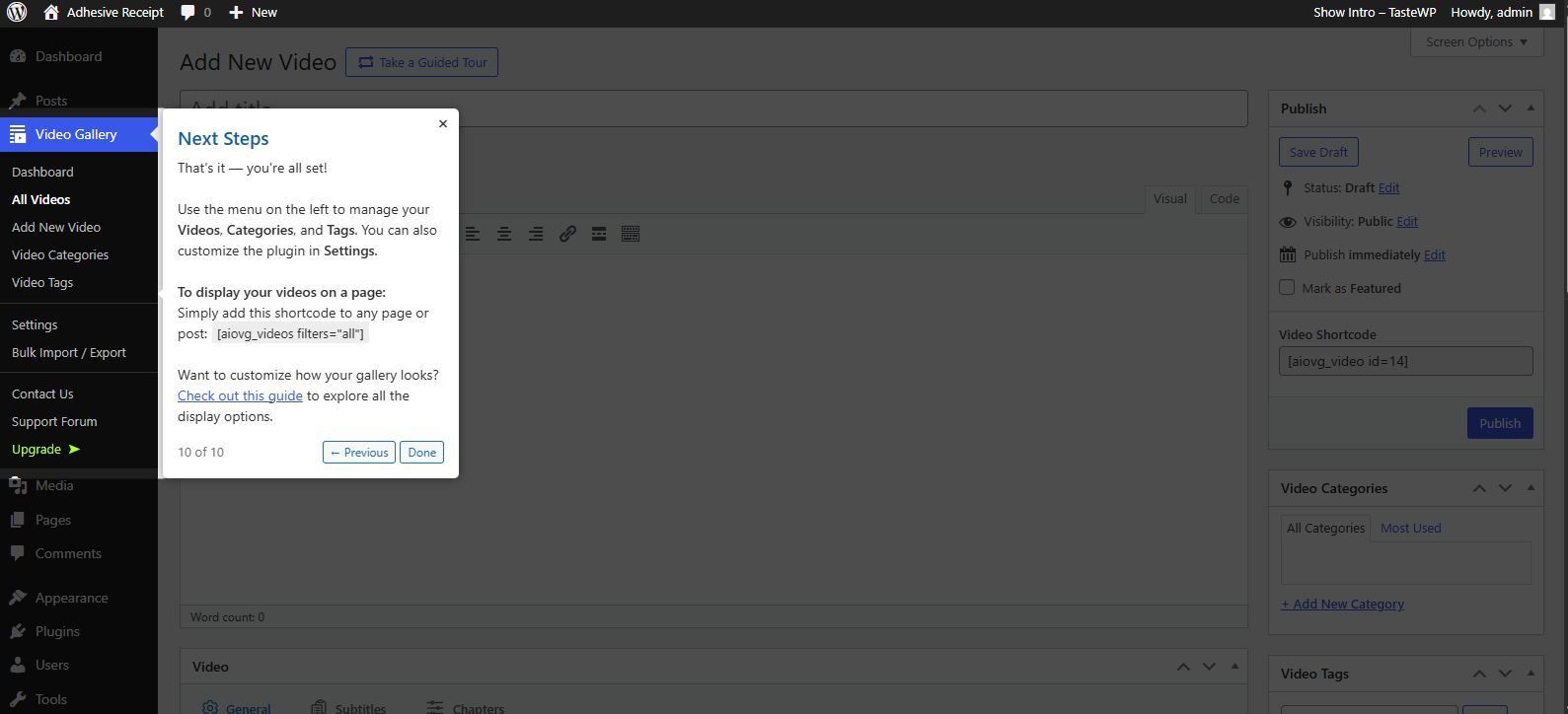
To upload your video, you have to enter its:
- Video Title and Description.
- Source Type – YouTube, Vimeo, Dailymotion, Rumble, Facebook and more.
- Video File (mp4, webm, ogv, m4v, mov) – Upload your own videos from here.
- Poster Image – Image before playing video.
- Image Alt Text – Optional.

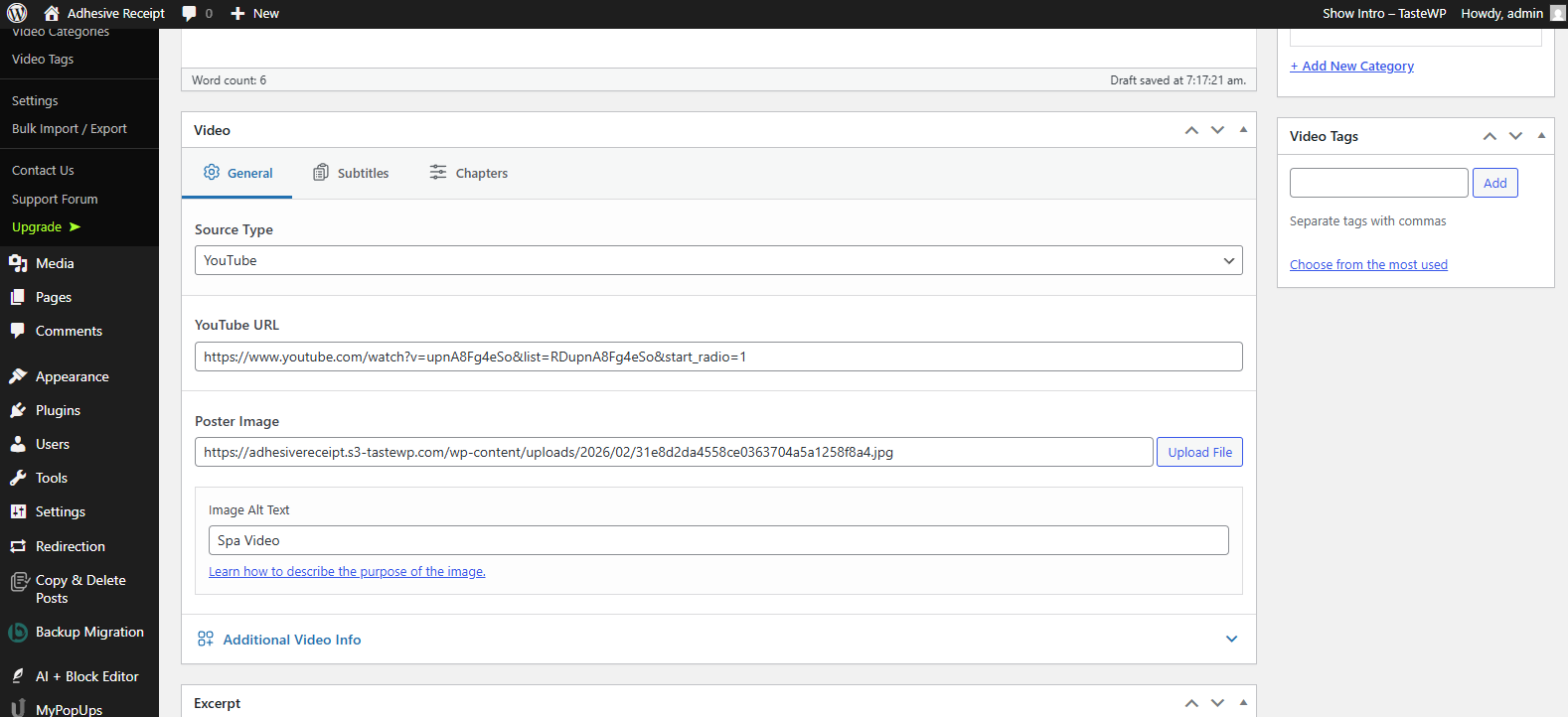
And that’s it! At the end, you can easily copy the shortcode of your video and paste it anywhere you see fit.
Step 3: Organize Videos into Categories & Tags
Structure is what turns a simple video page into a true video landing page. That’s why you should use:
- Categories to group videos by service type (e.g., Hair Styling, Spa, Makeup)
- Tags to label specific themes (e.g., Beginner, Advanced, Consultation, Transformation)
This organization allows visitors to quickly navigate to the services they’re most interested in, rather than scrolling through a full page.
To add a Video category, first go to the “Video Category” section. Here, enter name, slug, description and image (optional), then click on “Add New Category“.

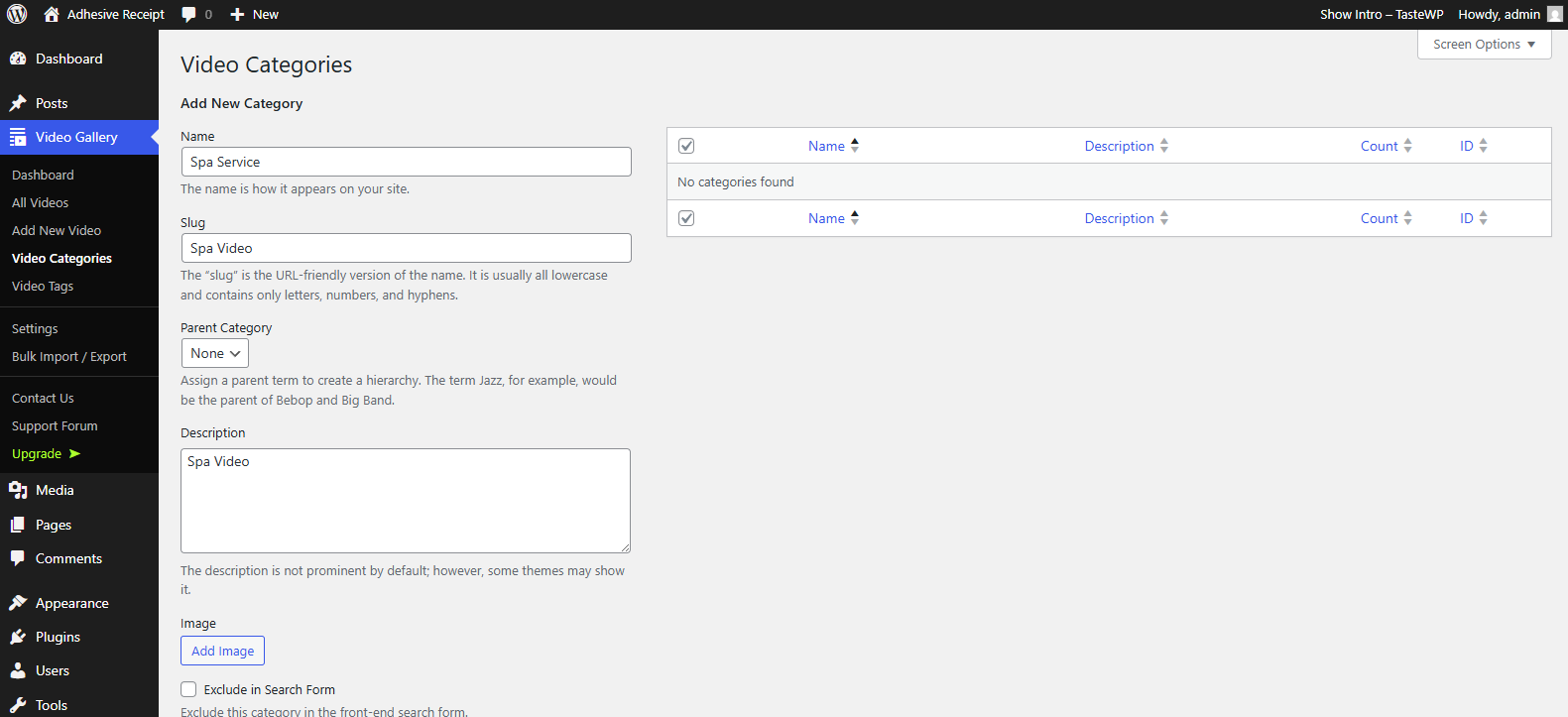
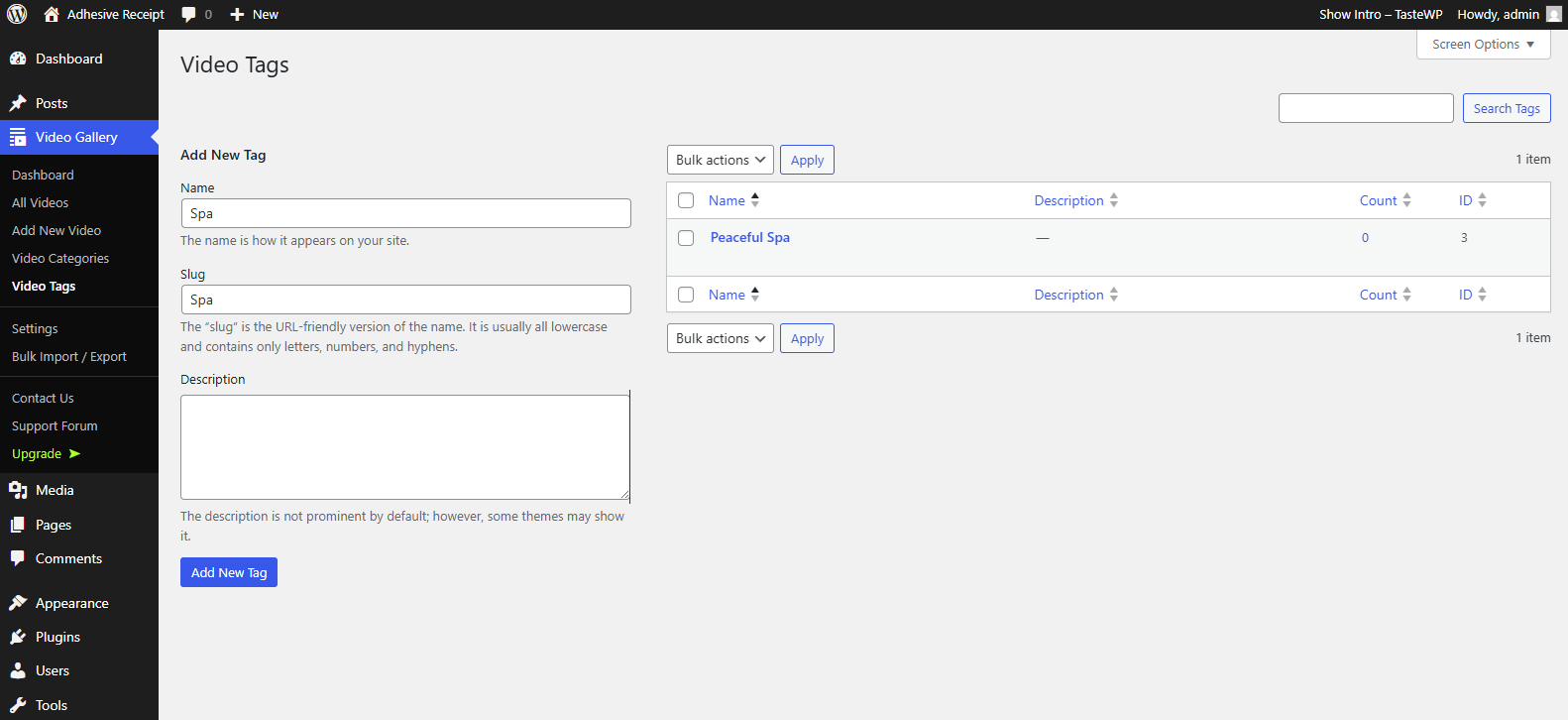
After creating a video category, head over to “Video tags” and create a new video tag the same way. Enter the name, slug, description and hit the “Add New Tag” button.

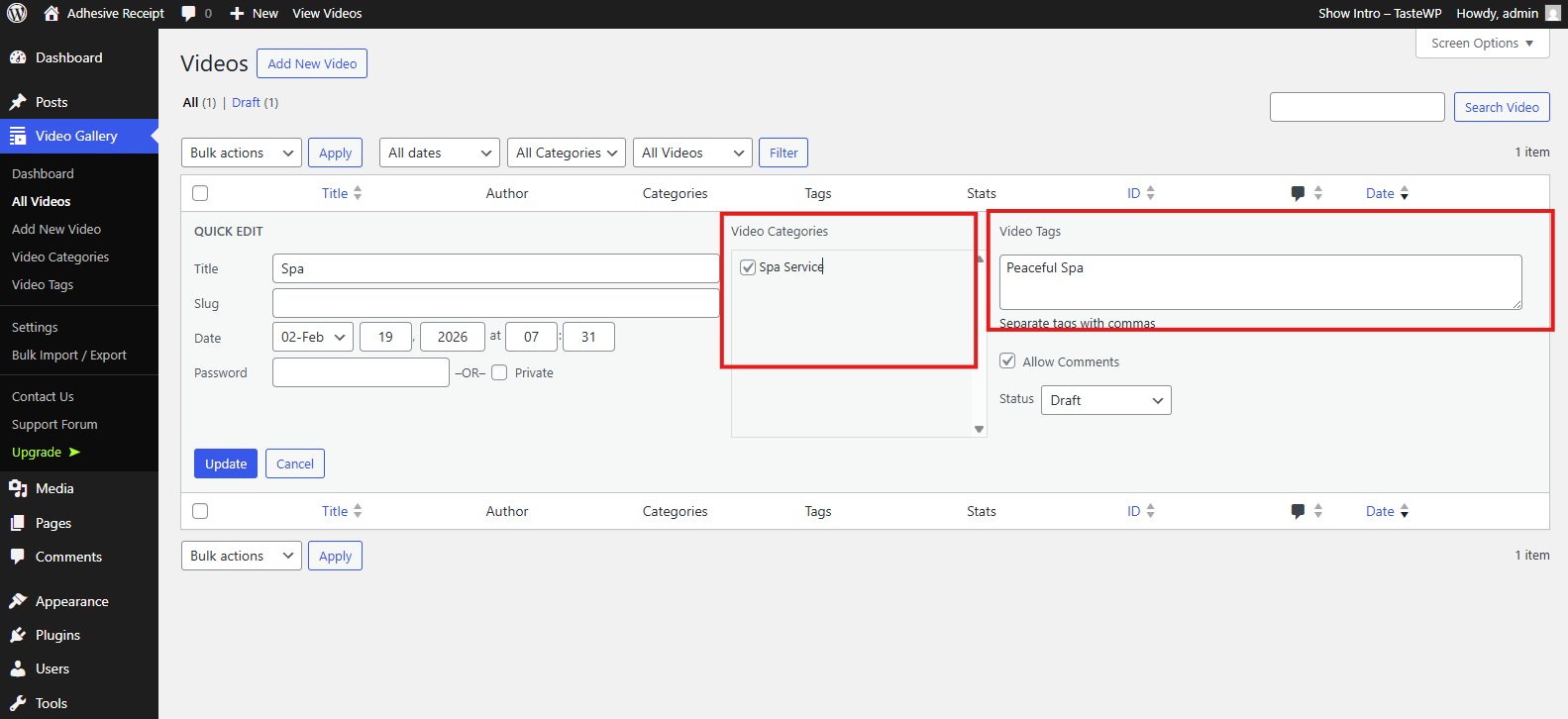
Finally, go back to your “All Videos” section to quickly edit both video category and video tag.

Step 4: Configure Search and Filters

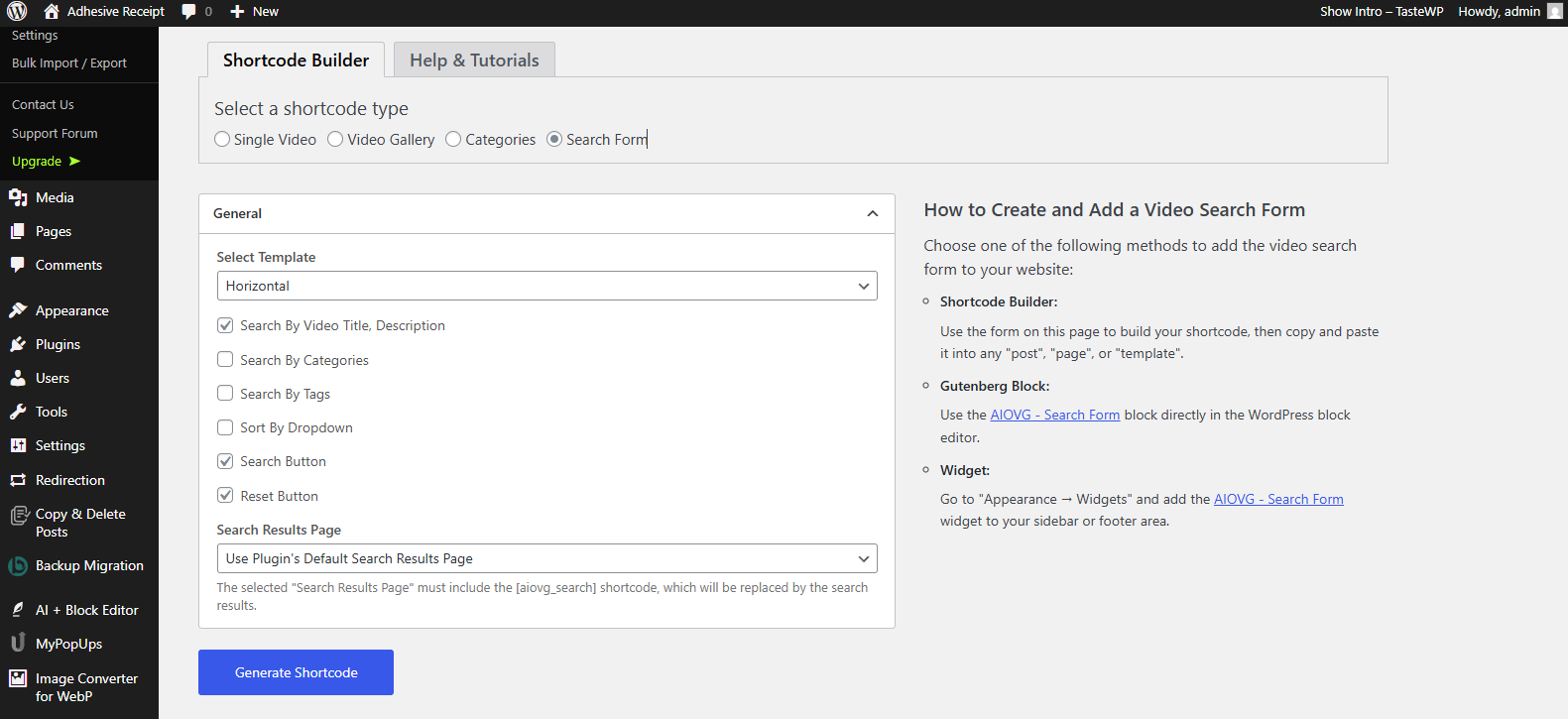
One of the biggest advantages of using a All-in-One Video Gallery plugin is built-in filtering. You can enable options from the Dashboard, such as:
- Category filtering.
- Tag filtering.
- Keyword search.
- Sorting by date, popularity or title.
With these features, your landing page becomes interactive. Visitors can actively explore services with ease. This approach lowers friction and increases engagement, especially for businesses offering multiple appointment types.
Step 5: Customize the Video Player
Finally, design the video player to match your brand and user experience. You can configure:
- Playback controls.
- Autoplay and mute settings.
- Subtitles and captions.
- Layout style (grid, list, or other supported templates).
- Social sharing options.
Keep the design attractive yet distraction free. The goal is to make watching effortless.
At this point, you’ve replaced a traditional static landing page with a structured, searchable video experience. So now, your visitors can browse, filter and watch service videos before deciding to book.
In the next section, we’ll connect this video experience directly to your booking workflow to create a seamless path from watching to scheduling.
Integrating BookingPress for Seamless Conversions
A video landing page builds trust. But trust alone doesn’t generate appointments. If visitors need to navigate to a separate “Book Now” page after watching a video, you introduce friction. And friction just lowers conversions.
Here our goal is to let users watch and book on the same page.
To connect your video experience to a smooth booking workflow, BookingPress is just best choice.

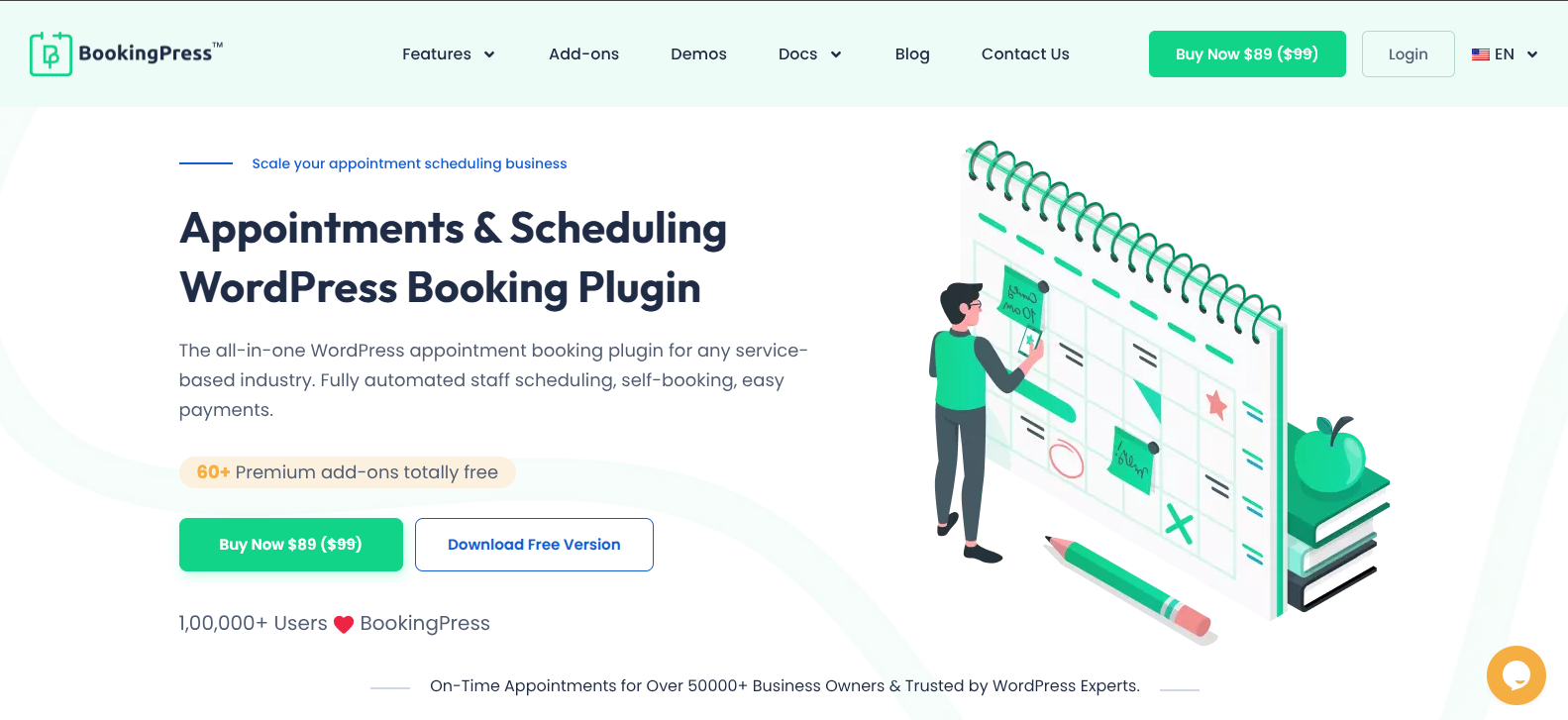
BookingPress is an all-in-one WordPress appointment booking plugin that turns your simple WordPress site into a complete online booking system. You don’t have to focus on users to go to a different booking page. It lets you add a custom booking form right next your video landing page.
Let’s see how you can add personalize booking form to your video landing pages to get more bookings:
Step 1: Install BookingPress
To get BookingPress, go to its official website and get your preferred version. (We recommend going with the BookingPress premium version to unlock all 60+ premium addons for free). Or you can also start with the free version and upgrade anytime you want.
Once you download your BookingPress zip file, go back to your WordPress Dashboard. From here on:
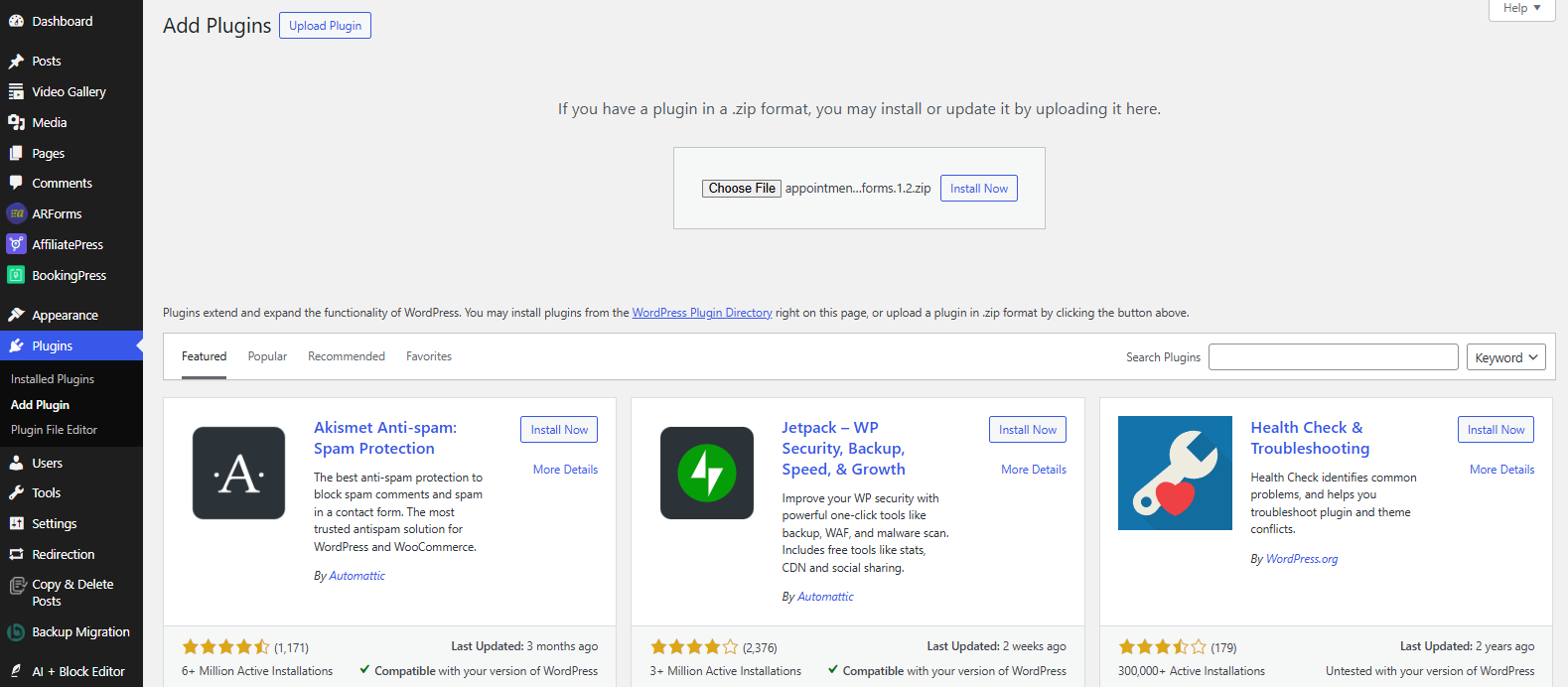
- Go to Plugins → Add New → Upload Plugin.
- Now upload the zip file you got earlier.
- Next, press “Install Now” and then activate the plugin.

Once activated, you don’t have to worry about anything. Its smart wizard setup will guide you in every step to create your services, set availability, set staff schedules, configure booking settings and so on.
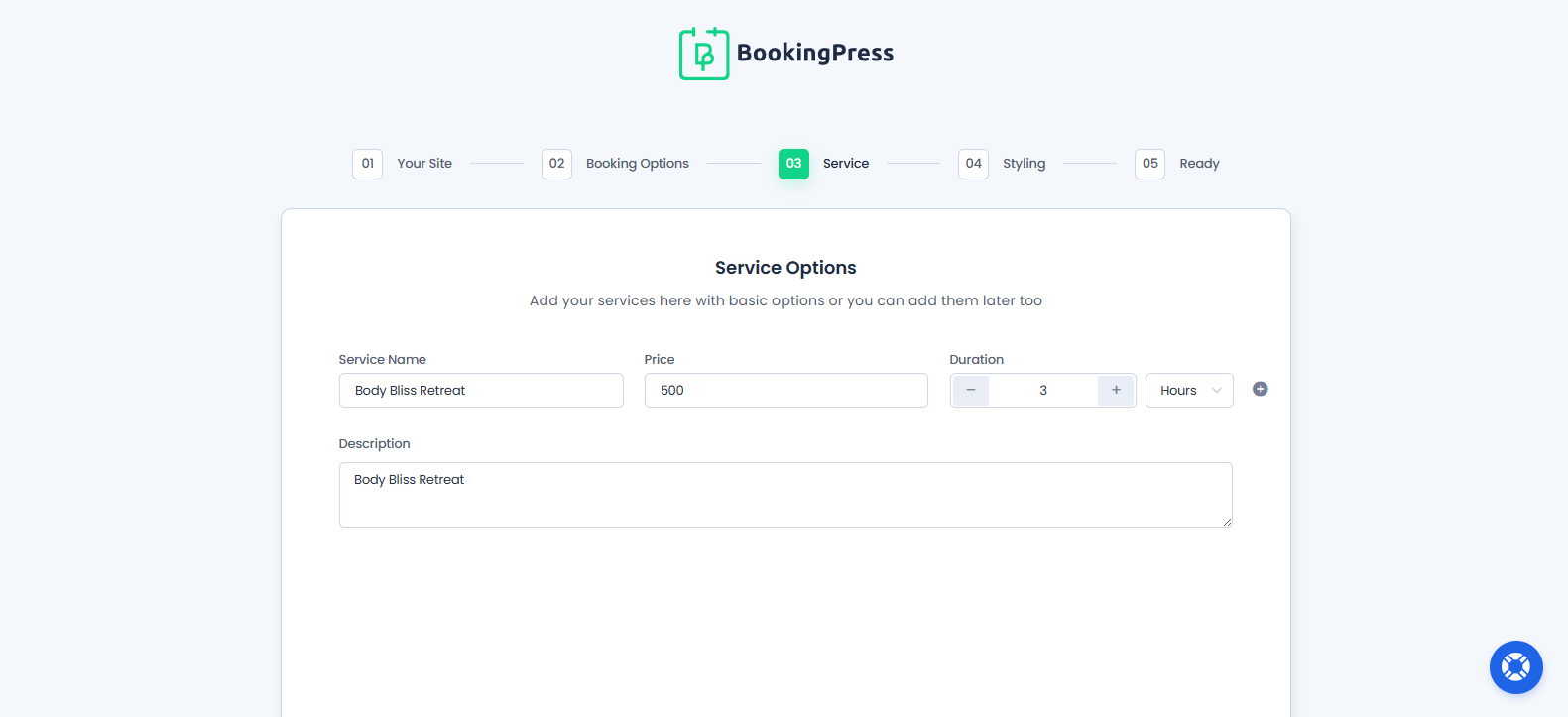
Before embedding forms, make sure you:
- Create your core services.
- Set service durations.
- Configure staff availability (if applicable).
- Set pricing.
This makes sure that when visitors are ready to book, the system is also ready to go.
Step 2: Create Your Service & Staff Setup
If by any chance, you skipped the quick wizard setup, no worries. Walk with us to create your services and staff setup right now.
Before embedding booking forms, you need services configured, so just go to BookingPress → Services.

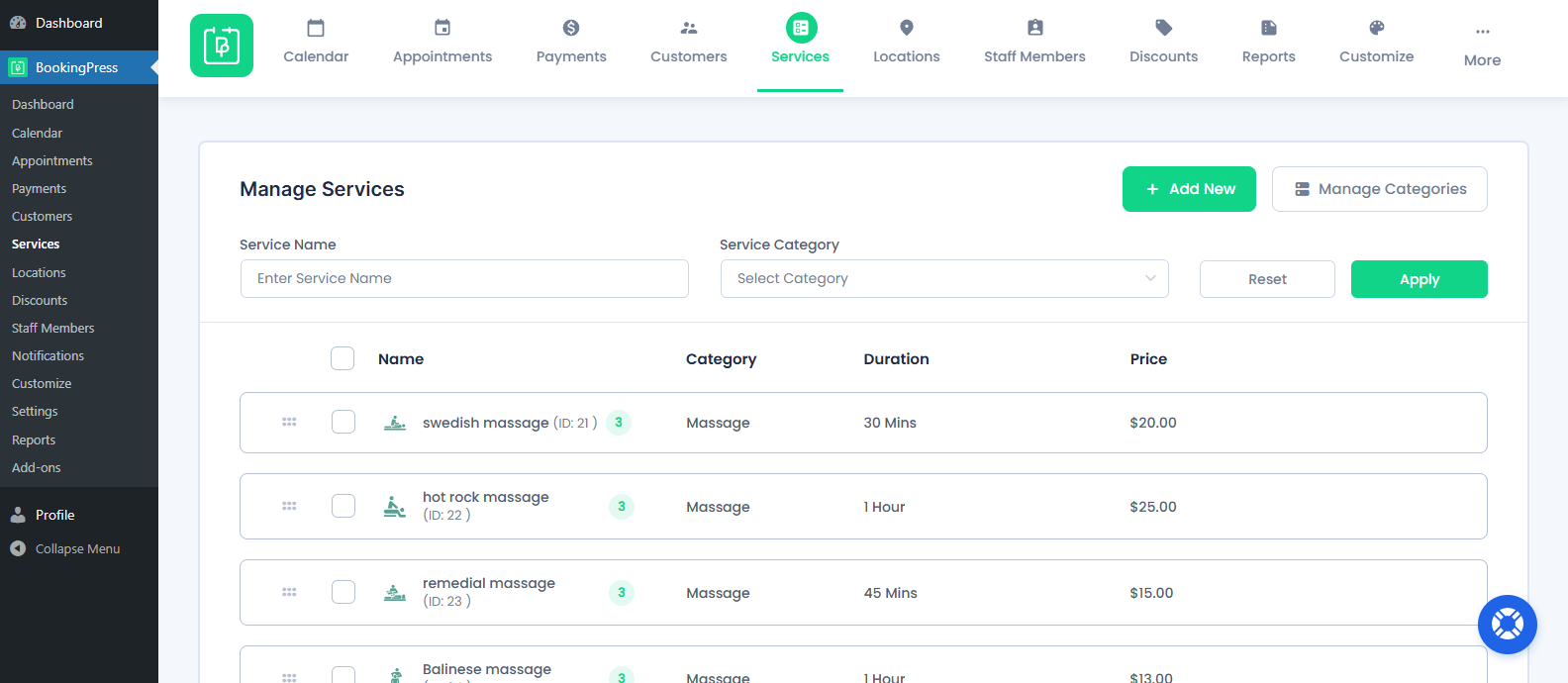
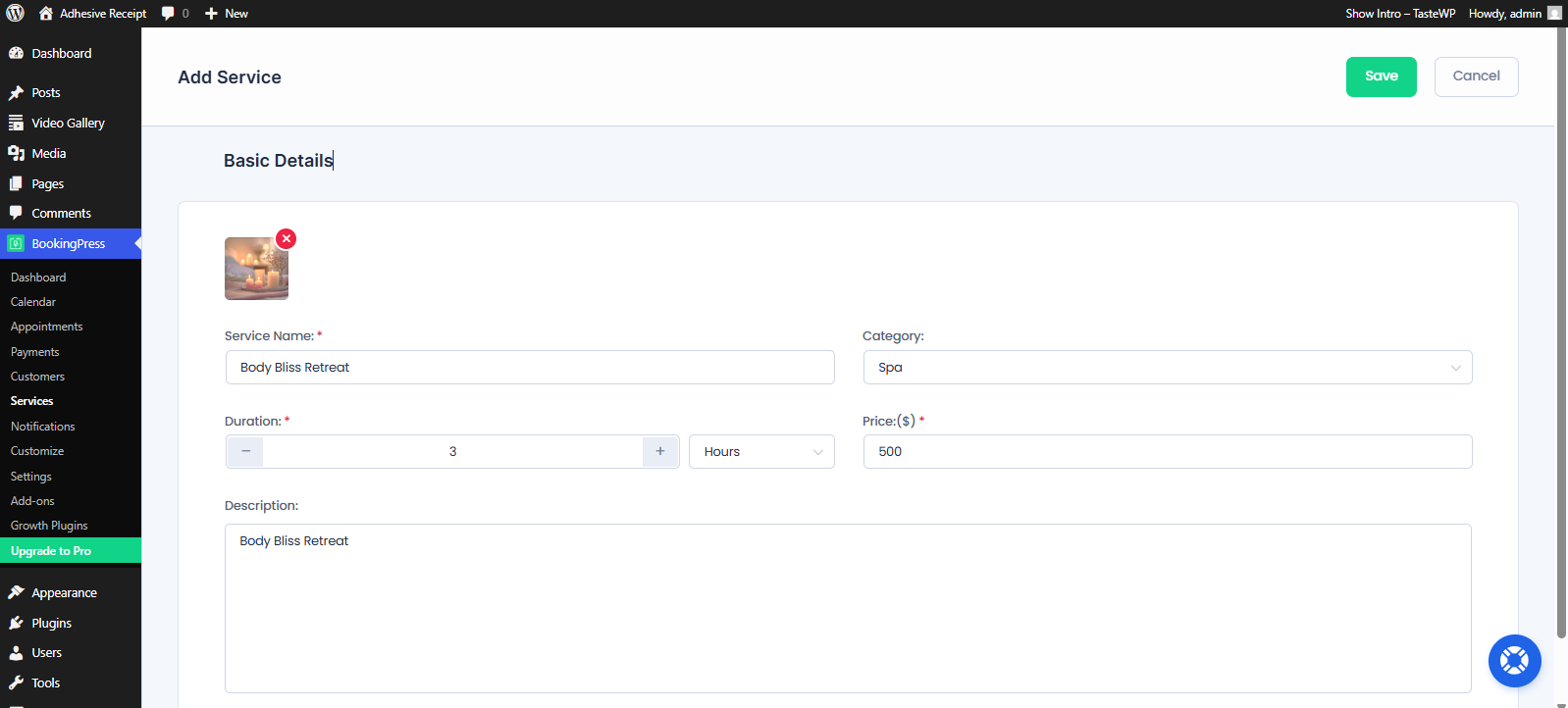
Now click on “Add New,” and you’ll be redirected to a pop-up for adding your:
- Service name (Consultation, Spa, Therapy Session)
- Duration
- Price
- Category (If you don’t have one, make one later under Services → Manage Categories → Add New).

Next, time to assign a staff member under BookingPress → Staff Members. (You’ll only see this option if you got BookingPress Premium).

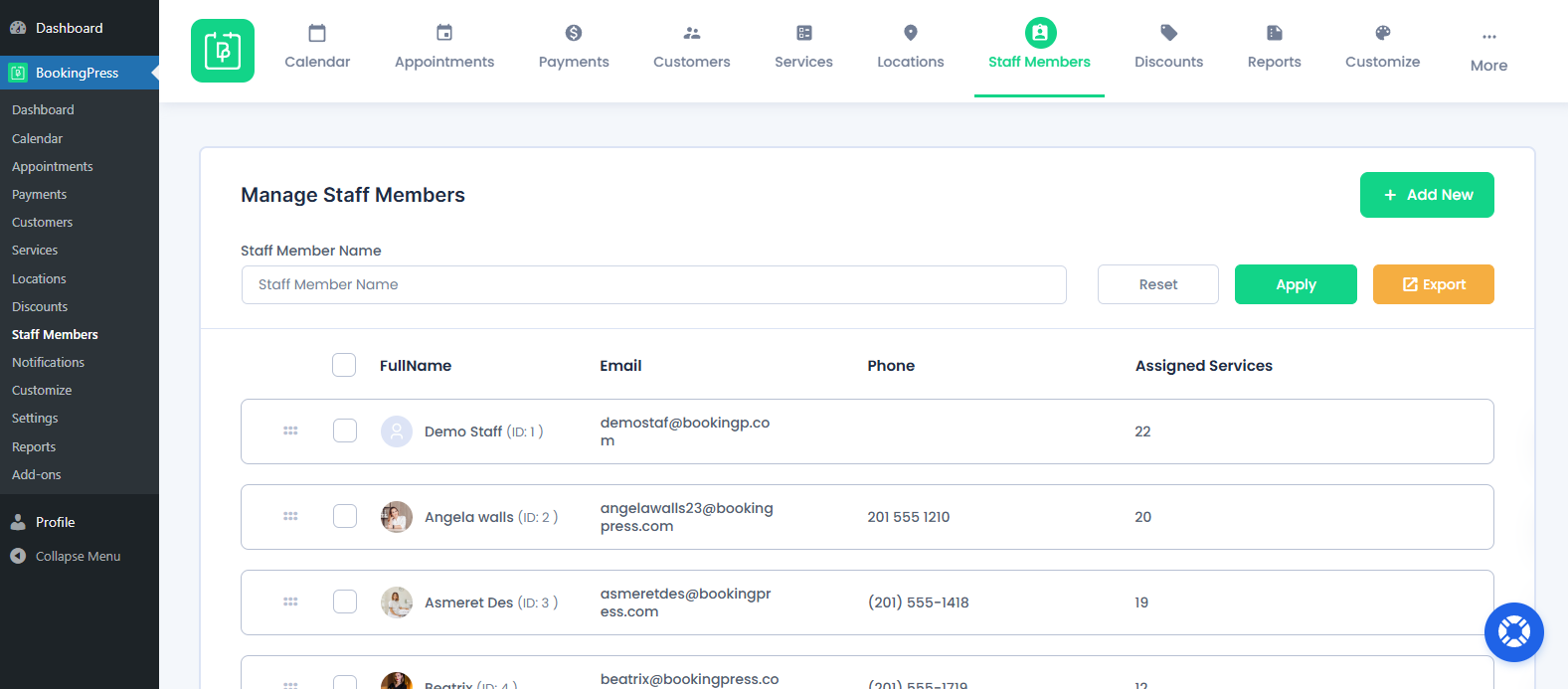
From here, you can easily add your staff members, manage their schedules and assign them services. This step is crucial for service businesses like:
- Coaches
- Consultants
- Salons
- Fitness trainers
- Agencies
Step 3: Generate the Booking Form

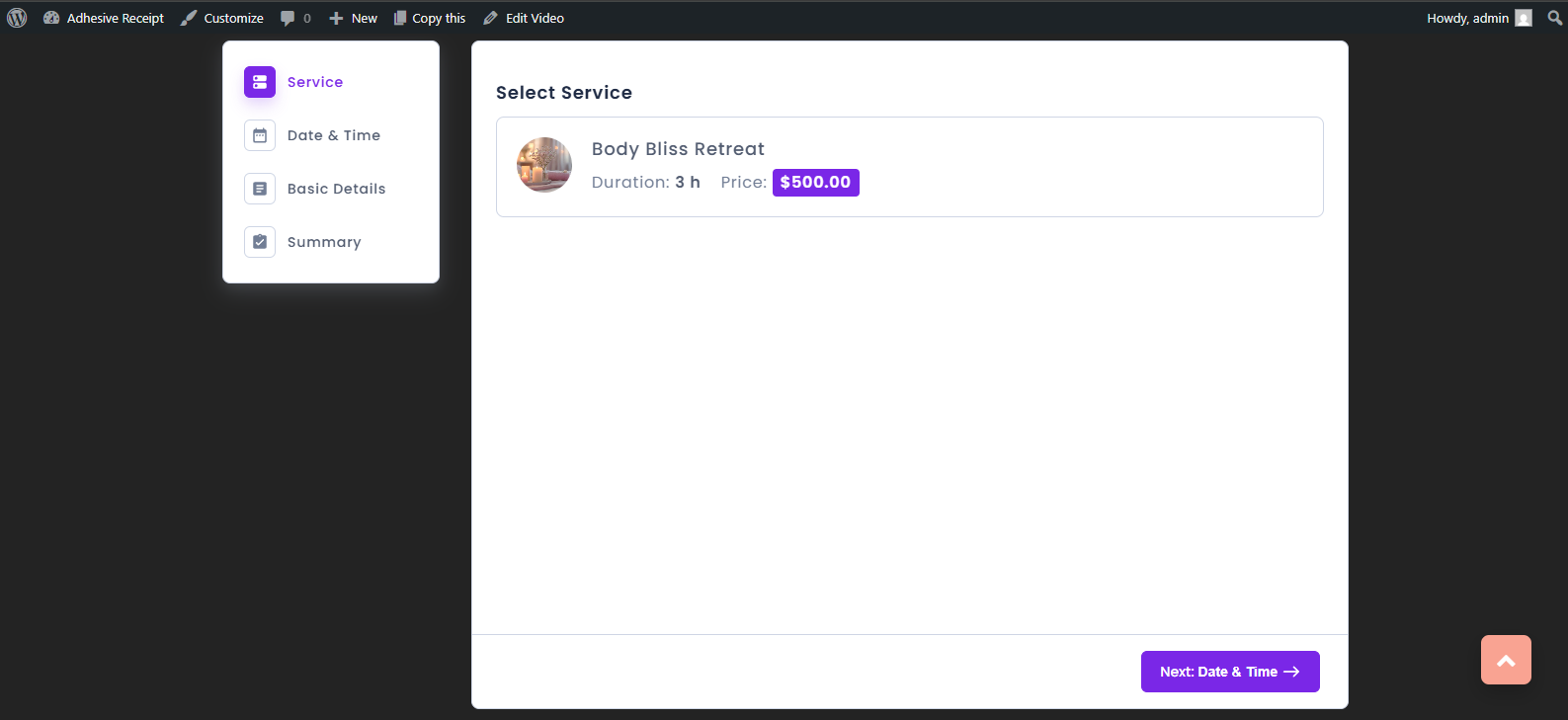
Now it’s time to make the Booking form that matches your website design and can smoothly make your visitor jump from the service video to “Book Now“.
BookingPress allows shortcode-based booking forms, which is perfect as you can later embed them anywhere you love.
- First, head over to BookingPress → Customize.

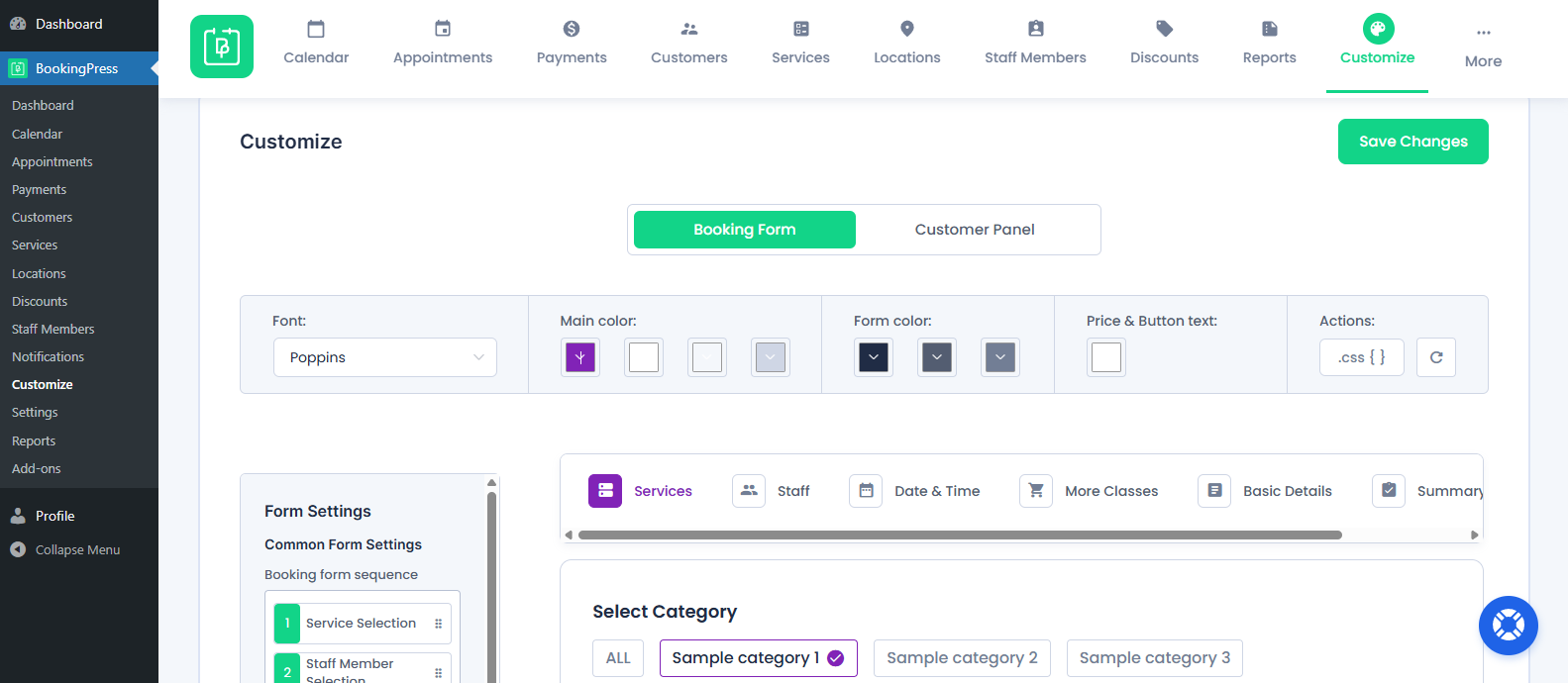
- From here, configure your form’s layout, Colors, Field labels, Required fields and a lot more.
- Next, click on Save Changes.
Step 4: Integrate Online Payments
To make the process more seamless for your clients and visitors, add options to pay online.
BookingPress lets you accept onsite and online payment, full or partial, via 20+ payment gateways such as PayPal, Stripe and more.
Simply go to BookingPress → Settings → Payments.

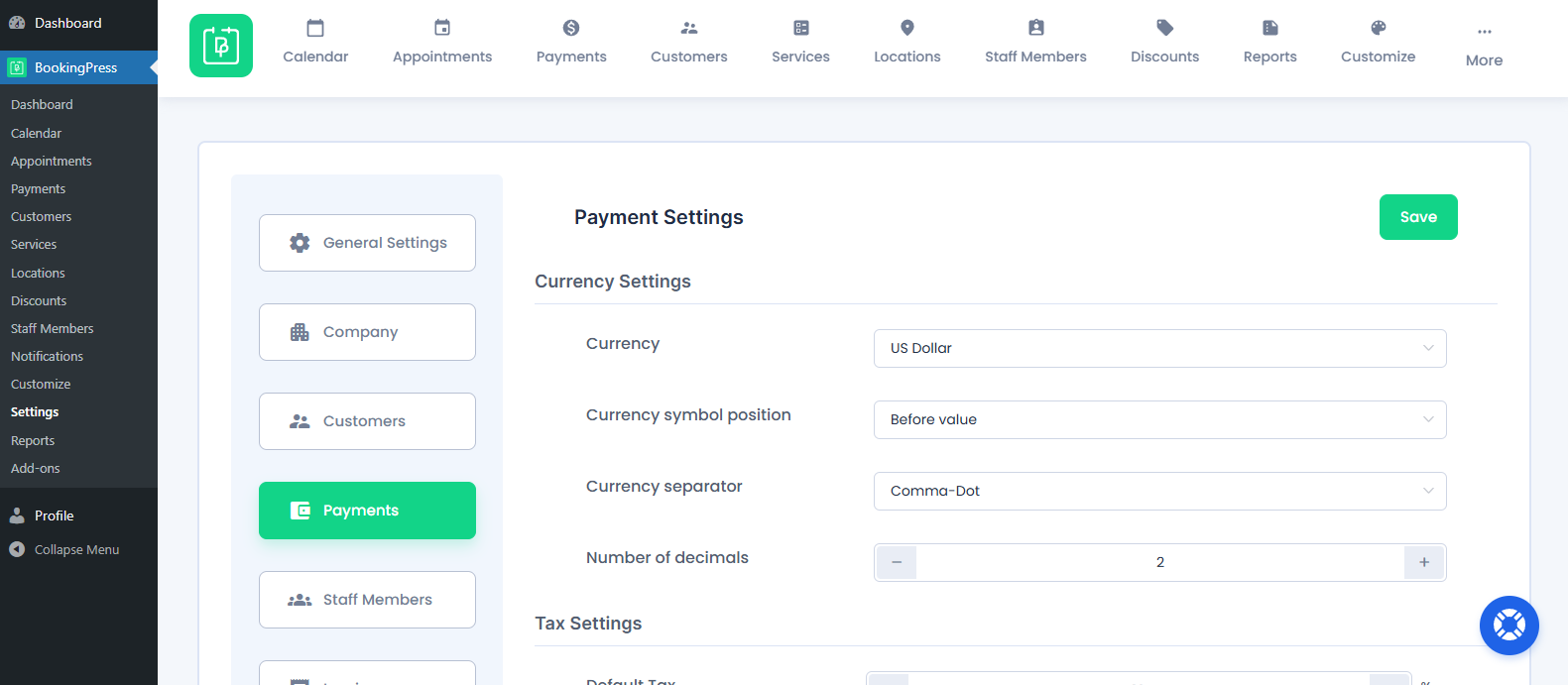
From here, you can easily enable and configure:
- Currency Settings.
- Tax Settings.
- Deposit Payment Settings.
- Appointment Cancellation Refund Policy.
- Payment Method Settings (Onsite or online).
Step 5: Design a Seamless Video-to-Booking Path
At last, it’s time to place the Booking form.
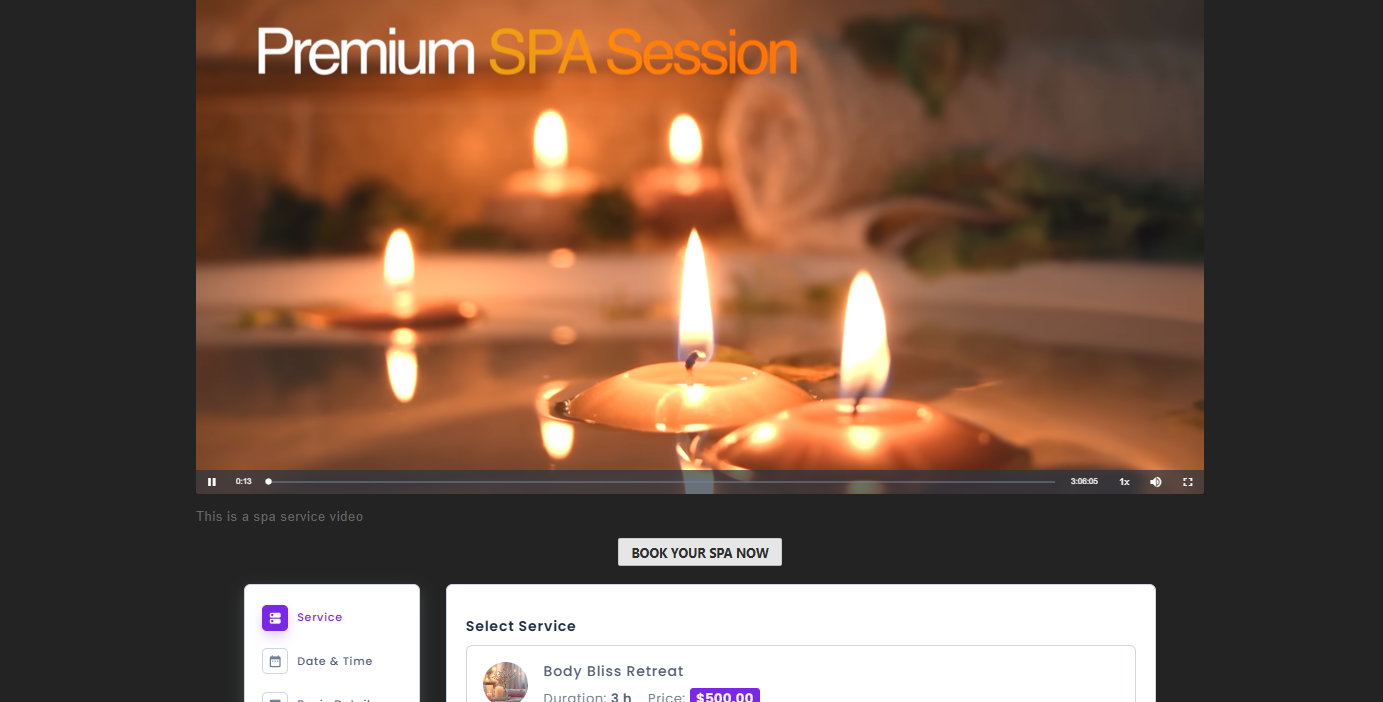
The most effective placement for a booking form is directly under the related video. For example,
- A “Hair Styling Transformation” video → Booking form for Hair Styling.
- A “Yoga Beginner Session” video → Booking form for Introductory Yoga Class.
- A “Consultation Walkthrough” video → Booking form for Strategy Consultation.
Using BookingPress shortcodes or blocks, you can embed the booking widget right into the same page that displays your video gallery.
Thus, simply go to your WordPress service page and paste the shortcode of your Booking form.
This creates a seamless and smooth transition: Watch → Decide → Book. Without sending users anywhere to wonder.

Advanced Tips for Maximizing Engagement and Bookings
Setting up a video landing page is just the beginning. To truly replace traditional landing pages with video experiences, you need to grab attention, give clarity, and take action.
Here are some tips for service businesses to turn views into booked appointments:
1. Use Service-Specific Videos (Not One Generic Video)
Most visitors decide whether to continue watching within seconds. Create focused videos for each core service:
- Service walkthroughs.
- Process demonstrations.
- Client experience videos.
- FAQ-based explainer videos.
Match each of your video with:
- The exact service booking form
- The correct pricing
- The right call-to-action
Let’s say if the video shows a relaxing 60-minute Swedish massage, place the Swedish Massage booking form directly below it.
2. Place the Booking Form Immediately After the Video
The strongest moment of intent happens right after someone finishes watching.
Don’t make visitors scroll through long text sections before they can book. Thus, add a clear “Book Now” button under your video or just embed the full BookingPress form immediately after.
Removing the gap between interest and action pushes visitors to conversions. Because customers can see and feel the vibes, urgency takes place in people to book and get themselves the same experience, especially in Spa or Salons.
3. Use Categories and Filters Strategically
If you offer multiple services, organize videos by:
- Service type.
- Industry specialization.
- Skill level.
- Pricing tier.
- Location.
The faster they find what matches they want, the faster they convert.
4. Offer Packages and Bundles With BookingPress
BookingPress lets you create a bundle of multiple services and offer discounts in total price with coupon codes. Thus, rather than promoting only single sessions or standalone services, consider:
- Multi-session packages.
- Subscription-based services.
- Consultation + follow-up bundles.
- Tiered service plans.
5. Design a Clear Watch → Trust → Book Journey
Think of your page as a guided path:
- Visitors search or filter a service.
- Then they hop on to watch a video of your service.
- Visuals and testimonials build trust.
- Next, they see a clear call-to-action.
- Booking happens.
Every section should move the visitor forward, not distract them.
Conclusion: Turn Visitors into Customers with Video + Booking Form
Service businesses need clearer buying journeys. And making landing pages with videos does exactly that. It gives visitors a smooth and meaningful journey from seeing the video of that service to the chance of being able to experience it in just one click on “Book Now“.
By combining engaging video experiences powered by All-in-One Video Gallery with complete appointment scheduling through BookingPress, you lower friction and guide visitors from interest to action in one smooth flow.
When people can watch, trust, and book, all in one place, conversions naturally follow.