
Welcome to the guide for integrating Bunny Stream with the All-in-One Video Gallery plugin. This step-by-step tutorial walks you through setting up your Bunny.net account, configuring video hosting within the plugin, and enabling secure video playback using token authentication.
- What is Bunny Stream?
- Why Choose Bunny Stream?
- Step 1: Create Your Bunny.net Video Library
- Step 2: Set Up Bunny Stream in WordPress
- Step 3: Enable Secure Playback (Token Authentication)
- Organizing with Collections (Optional)
- Using Bunny’s Native Player (Optional)
- Frequently Asked Questions
What is Bunny Stream?
Bunny Stream by Bunny.net is a powerful and budget-friendly video hosting and delivery service. It offers built-in encoding, global delivery through a CDN, and a smooth streaming experience for your viewers.
When integrated with All-in-One Video Gallery, you can:
- Upload videos directly to Bunny Stream from the WordPress admin.
- Store front-end user uploads in Bunny Stream automatically.
- Secure video playback using signed URLs (token authentication).
This integration helps streamline your video workflow while providing high-performance playback.
Why Choose Bunny Stream?
Bunny Stream is built with simplicity and affordability in mind, making it an excellent choice for creators, businesses, and educators.
Key benefits:
- Storage: Starts at just $0.01/GB/month.
- CDN: From $0.005/GB/month.
- Free Transcoding: Convert videos to multiple formats for free.
- No hidden fees: Pay only for what you use.
With its transparent pricing and robust performance, Bunny Stream is ideal for small teams and large projects alike.
👉 Check current pricing — use the built-in calculator to estimate your costs.
Step 1: Create Your Bunny.net Video Library
Prerequisites
- A Bunny.net account (free trial available).
- Access to the Bunny.net dashboard.
Set Up Your Video Library

- In your Bunny dashboard, go to Delivery → Stream.
- Click “Create Your First Video Library”.
- Enter a Name (internal use only).
- Select your preferred storage regions (choose at least two for better performance).
- Click Add Video Library.
👉 For more guidance, refer to Bunny’s Stream Dashboard Overview.
Get Your API Key

- Go to your newly created Video Library.
- Click on the API tab.
- Copy the following:
- API Key
- Video Library ID
- CDN Hostname (e.g.,
yourlibrary.b-cdn.net)
Save these — you’ll need them in the next step.
Step 2: Set Up Bunny Stream in WordPress
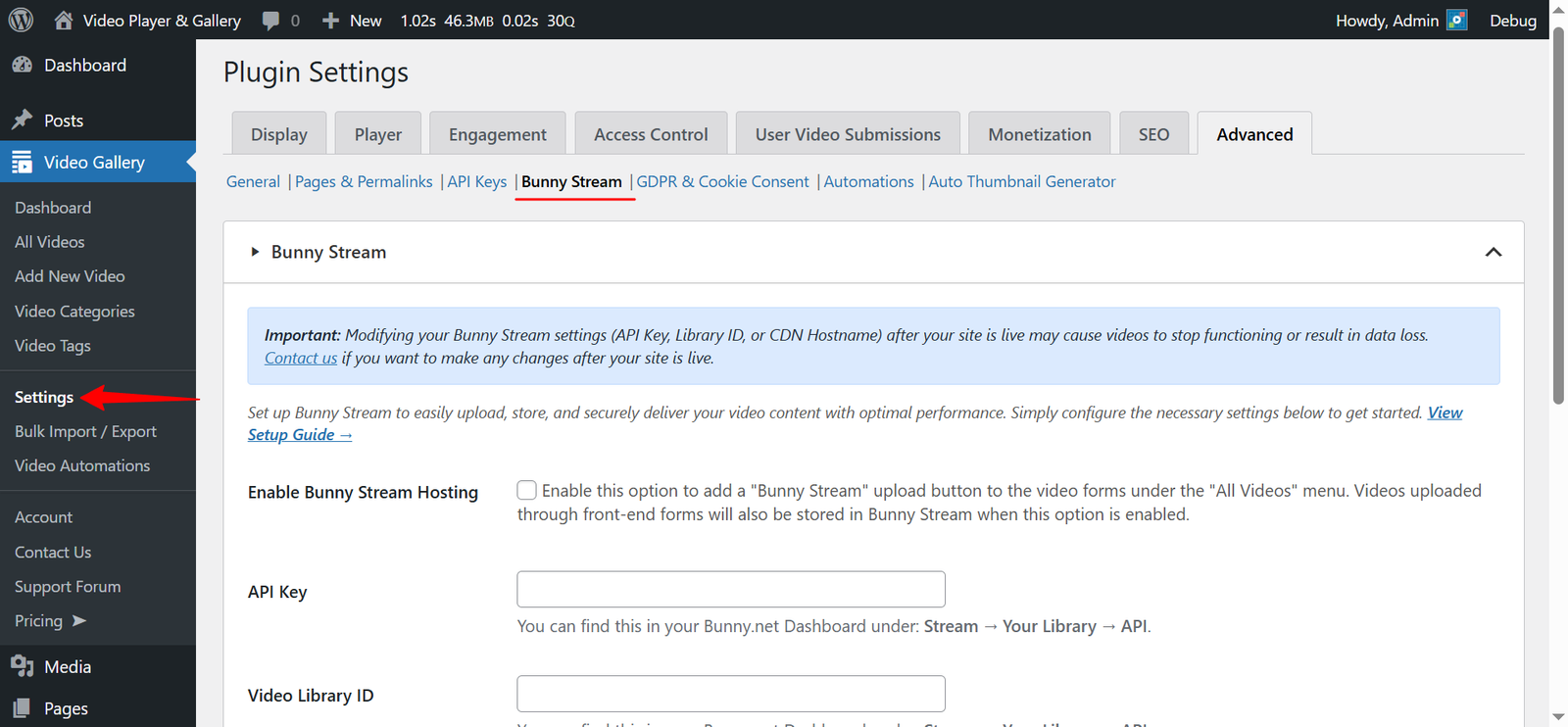
- In your WordPress admin, navigate to: Video Gallery → Settings → Advanced (tab)
- Click on the Bunny Stream submenu.
- Under Bunny Stream, fill in:
- Enable Bunny Stream Hosting
- API Key
- Video Library ID
- CDN Hostname
- Collection ID (optional) — Learn more below.
- Click Save Changes.
Plugin Behavior
- In the back end, a “Bunny Stream” upload button appears in the video form. You can use it to upload videos directly to Bunny Stream and link them with the plugin.
- On the front end, uploaded files are automatically stored in Bunny Stream.
Step 3: Enable Secure Playback (Token Authentication)
Bunny Stream supports signed URLs for added security.
In Bunny.net

- Open your Video Library → Security tab.
- Set the following:
- Disable Direct Play.
- (Optional) Set Allowed/Blocked Domains.
- Block Direct Url File Access.
- Enable Embed View Token Authentication.
- Enable CDN Token Authentication.
- Copy the Token Authentication Key.
Back in WordPress:
- In your WordPress admin, navigate to: Video Gallery → Settings → Hosting (tab)
- Enable Token Authentication.
- Paste the Token Authentication Key.
- (Optional) Set Token Expiry (default is
3600seconds = 1 hour). - Click Save Changes.
Organizing with Collections (Optional)
Collections help organize your videos inside a Bunny Video Library.

How to Create a Collection
- Log in to your Bunny.net dashboard.
- Open your Video Library → Collections tab.
- Click Add Collection, name it, and save.
Get Your Collection ID
- In the Collections list, click the three-dot menu next to any collection.
- Click Copy Collection ID.
- Paste it into the plugin settings (optional).
More details: Stream Collections
Using Bunny’s Native Player (Optional)
By default, the plugin uses its own player. To switch to Bunny’s player:
- Go to Video Gallery → Settings → Player (tab).
- Under Use Native Controls, check the Bunny Stream option.
Frequently Asked Questions
1. What happens if I change the API Key, Library ID, or Token Authentication Key?
Changing your API Key, Video Library ID, or Token Authentication Key will affect previously uploaded videos — they may no longer load or play correctly.
This is because videos are linked to your current Bunny Stream configuration. If those settings change, the plugin can’t locate or authenticate the existing files.
Recommended: If you’re switching to a new Bunny account or library, re-upload the affected videos to ensure they continue working properly.
💡 We’re actively working on a solution to help manage existing videos more gracefully after changes — stay tuned!
2. What happens when I delete a video from WordPress?
When you delete a video under our “All Videos” menu, the videos are automatically deleted on your Bunny Stream account. Kindly ensure that “Delete media files” is enabled under Settings → Advanced → Misc Settings.
Additionally, if you upload a new file to an existing video post, the old Bunny Stream file is deleted automatically.
2. Why is my upload stuck on “Processing”?
Processing Your video is being processed. This usually happens quickly, but during busy times, it may take a little longer. You can safely continue and save the form — no need to wait. The video will automatically become playable once processing is complete.
Bunny Stream uses a shared transcoding queue. Wait a few minutes. If it takes more than a few hours, contact Bunny.net support.
3. Why is my upload stuck on “Transcoding”?
Transcoding Your video is being transcoded to optimize playback across all devices. This usually completes shortly. You can safely save your changes in the meantime — the video will appear on the front-end once transcoding finishes.
Bunny Stream uses a shared transcoding queue. Wait a few minutes. If it takes more than a few hours, contact Bunny.net support.
That’s it! You’ve now successfully integrated Bunny Stream with the All-in-One Video Gallery plugin. With Bunny Stream handling your video storage and delivery, you get smoother playback, stronger security, and simplified management — all without leaving WordPress.
If you run into any issues or have questions, be sure to check the FAQs above or reach out through our support page. We’re here to help!