
The Livestream source type in “Automatic YouTube Gallery” embeds whatever a YouTube channel is streaming live, and finds it again every time the channel goes live. When the channel is offline, you choose what your visitors see instead: the channel’s latest recording, its next upcoming stream, or your own message. This feature is available in the FREE version.
- How the Livestream Gallery Works
- Adding a Livestream Gallery
- Choosing What Shows When No Stream Is Live
- How Quickly the Gallery Updates
- YouTube API Quota Usage
- Always Showing a Specific Stream
- Choosing Between Streams with Code —
For Developers - Frequently Asked Questions
1. How the Livestream Gallery Works
A livestream gallery shows a single video player. Each time it checks the channel, the plugin looks through the channel’s most recent live, upcoming, and finished streams and picks one to show:
- When the channel is live, the gallery plays the live stream. If the channel is running several live streams at once, the one that started most recently is shown.
- When the channel is not live, the gallery shows what you choose in the When No Stream Is Live setting: the latest recording, the next upcoming stream, or your Fallback Message.
Long-running streams, such as 24/7 wildlife or traffic cams, are found too, however long they have been on air.
What the Livestream Gallery Doesn’t Do:
- It shows only public streams that the channel allows to be embedded on other websites. Unlisted, private, and members-only streams are never shown.
- It shows one stream at a time, not a grid of streams.
- It doesn’t accept YouTube @handle URLs (like
https://www.youtube.com/@channelname). Use the channel ID or a video URL instead, as explained below. - It doesn’t reload the page for visitors who are already watching. A change, such as a stream starting or ending, shows up the next time the page is loaded. See How Quickly the Gallery Updates.
2. Adding a Livestream Gallery
Before you begin, make sure you have already configured your YouTube API Key. You can add a livestream gallery with the Gallery Builder, the Gutenberg block, or the widget.
2.1 — Using the Gallery Builder
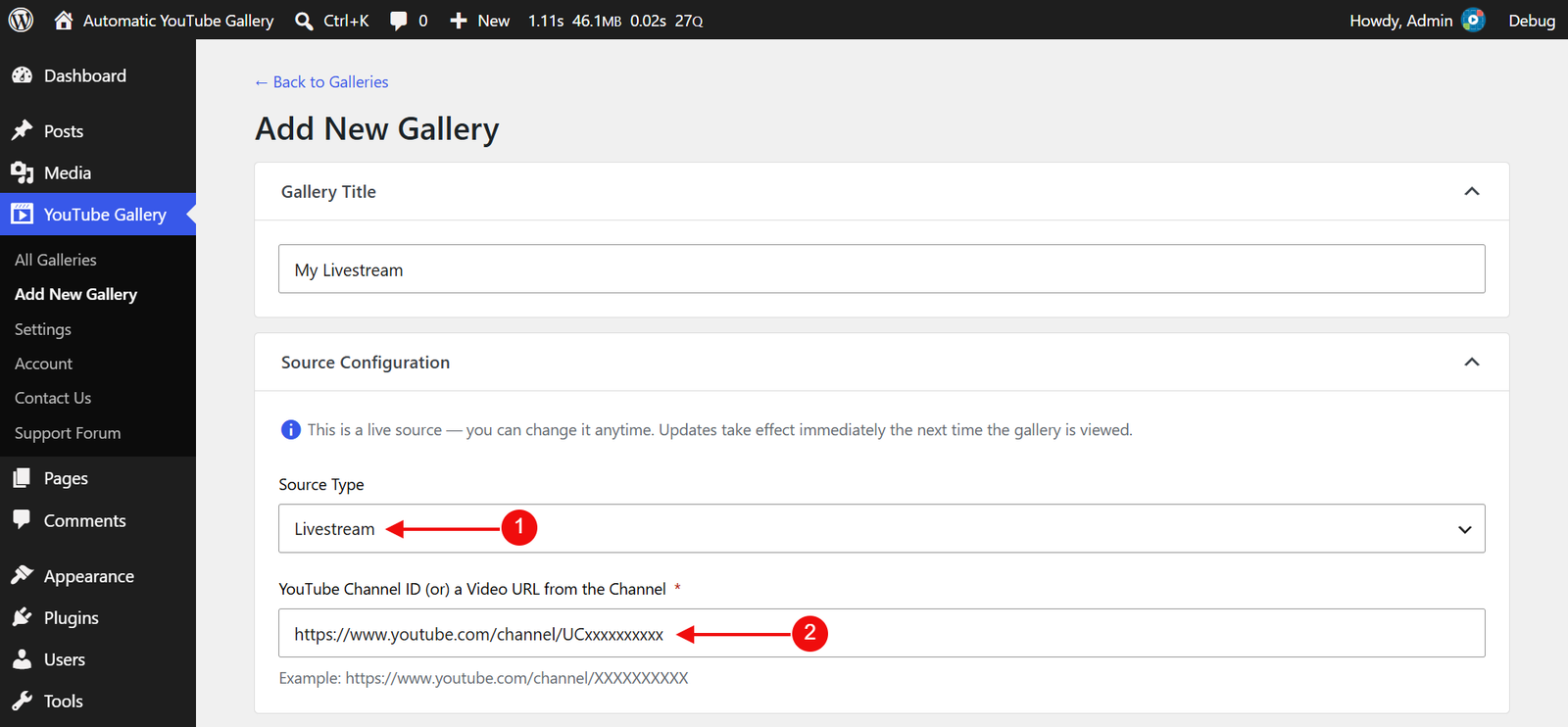
Steps to Create a Livestream Gallery:
- Navigate to “WordPress Admin Dashboard / YouTube Gallery / Add New Gallery“.
- In the Gallery Title field, enter a name to identify this gallery. This is for your reference only and is never shown to your visitors.
- In the Source Configuration section:
- Select Livestream from the Source Type dropdown.
- In the “YouTube Channel ID (or) a Video URL from the Channel” field, enter one of the following:
- The channel ID, which starts with
UC— for example,UCxxxxxxxxxxxxxxxxxxxxxx - The channel URL in this form:
https://www.youtube.com/channel/UCxxxxxxxxxxxxxxxxxxxxxx - The URL of any video from the channel — for example,
https://www.youtube.com/watch?v=XXXXXXXXXXX. The plugin detects the channel from the video.
- The channel ID, which starts with
- Note: If you enter the URL of a live stream, that stream gets priority whenever it is live. See Always Showing a Specific Stream.
- Note: Livestream is a live source. Nothing is imported into your website, so there is no Import Schedule to set, and you can change the channel at any time.
- Optionally, open the Player Options section to adjust settings such as Player Width, Player Height (Ratio), Autoplay, Muted, and Show Player Controls. If you leave them untouched, the plugin uses your global player settings.
- Note: The Gallery Options section is hidden for the Livestream source type, because the gallery always shows a single player.
- Note: Most browsers block videos that autoplay with sound. If you enable Autoplay, enable Muted as well.
- Click the Create Gallery button. Because nothing is imported, the gallery is saved right away and its shortcode is displayed at the top of the form — for example,
[automatic_youtube_gallery id="1"]. - Copy the shortcode using the Copy Shortcode button.
- Paste the shortcode into a Shortcode block on the desired post or page and save your changes.
2.2 — Using the Gutenberg Block or the Widget
The “Automatic YouTube Gallery” block and the “Automatic YouTube Gallery” widget offer the same Livestream source type. Insert the block or the widget, select Livestream from the Source Type dropdown, and enter the channel ID or a video URL in the “YouTube Channel ID (or) a Video URL from the Channel” field, exactly as described above.
Notes:
- Inside the block editor, the preview always uses the custom video player, because YouTube doesn’t allow its own player to load inside the WordPress admin area. Your visitors see the player type you selected under “YouTube Gallery / Settings / Player“.
3. Choosing What Shows When No Stream Is Live
This setting applies to every livestream gallery on your website.
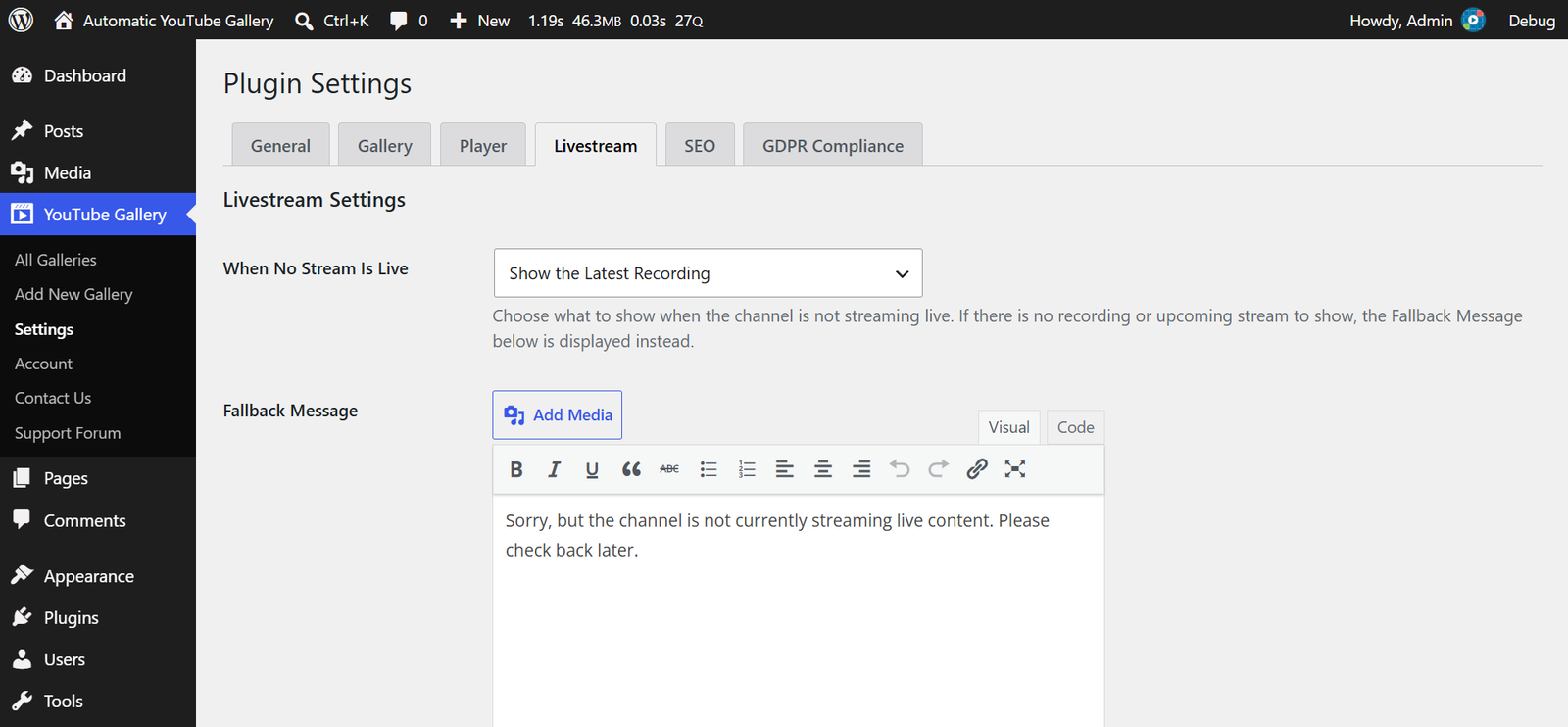
- Navigate to “WordPress Admin Dashboard / YouTube Gallery / Settings“.
- Select the Livestream Tab.
- From the When No Stream Is Live dropdown, choose one of the following:
- Show the Latest Recording — plays the channel’s most recently finished live stream.
- Show the Next Upcoming Stream — shows the channel’s next scheduled live stream. It always appears in YouTube’s own player, even if you use the custom video player, because YouTube’s player shows the countdown (“Live in 2 hours”) and switches to the live stream by itself when it starts.
- Show the Fallback Message — shows the message you enter in the Fallback Message field.
- In the Fallback Message field, enter the message to show when nothing else can be shown. You can format it, and add links or images, with the editor.
- Note: The Fallback Message is also the last resort for the other two options. If the channel has no recording or no upcoming stream to show, the Fallback Message is displayed instead.
- Click Save Changes.
Notes:
- Your changes appear straight away, the next time a livestream gallery is viewed. You don’t need to clear any cache.
- On new installations, Show the Latest Recording is selected by default. Websites updated from an older version of the plugin keep showing the Fallback Message until you change this setting.
- Upcoming streams that were scheduled more than 30 minutes ago and never started are skipped.
4. How Quickly the Gallery Updates
To keep your page fast and save your YouTube API quota, the plugin doesn’t ask YouTube on every page view. It remembers what it found and checks the channel again on a schedule that follows what the channel is doing:
- While a stream is live, the gallery checks every 5 minutes, so the end of the stream is noticed within about 5 minutes.
- While nothing is live, the gallery checks every 15 minutes, so a stream that starts without being scheduled appears within about 15 minutes.
- When a stream is scheduled, the gallery checks 2 minutes before the scheduled start time, then every 2 minutes until the stream starts.
Notes:
- These updates apply to new page views. A visitor who already has the page open keeps what was loaded until they reload the page. The exception is an upcoming stream, which YouTube’s player switches to live by itself.
- Saving a livestream gallery in the Gallery Builder, or saving the Livestream settings, makes the gallery check again on its next view.
- If your website uses a page caching plugin, visitors may see the cached copy of the page until your caching plugin refreshes it.
- The Development Mode option under “YouTube Gallery / Settings / General” turns off this schedule, so every page view checks YouTube. Keep it disabled on a live website.
5. YouTube API Quota Usage
Every YouTube API key comes with a free daily quota — 10,000 units per day by default. Each check of a livestream gallery costs about 2 units, and it doesn’t use YouTube’s search, which has a much smaller separate limit.
Based on the schedule above, each livestream gallery uses at most:
- About 192 units a day when the channel isn’t live (one check every 15 minutes).
- About 576 units a day when the channel is live around the clock (one check every 5 minutes).
Notes:
- Checks happen only when someone views the page, so a gallery on a quiet page uses less.
- Each livestream gallery checks on its own, even if two galleries show the same channel. If you run many livestream galleries, add up their usage — for example, 10 galleries whose channels are live around the clock use up to about 5,760 units a day.
6. Always Showing a Specific Stream
Some channels run more than one live stream — for example, a permanent camera alongside daily shows. By default, the gallery plays the stream that started most recently. To give one stream priority instead, enter that stream’s video URL in the “YouTube Channel ID (or) a Video URL from the Channel” field, rather than the channel ID.
- While that stream is live, the gallery always plays it, even when a newer stream starts on the same channel.
- When that stream isn’t live, the gallery works as usual: it plays the channel’s newest live stream, or shows what you chose under When No Stream Is Live.
- Entering the URL of a regular video, or of a stream that isn’t live, changes nothing. The plugin simply uses it to identify the channel.
Notes:
- The plugin looks through the channel’s 50 most recent streams. On a channel that starts several new streams every day, a stream that has been live for months can drop out of those 50 and be missed. Entering that stream’s video URL solves this.
- If the channel ends that stream and restarts it, YouTube gives it a new video URL. Update the field with the new URL.
7. Choosing Between Streams with Code
Developers can fine-tune the livestream gallery with two filter hooks. Add the snippets below to your theme’s functions.php file — use a child theme, so they aren’t lost when your theme updates. Never add them to the plugin’s own files, which are replaced on every plugin update.
7.1 — ayg_livestream_candidates
This filter receives the streams the plugin can choose from, already sorted, and the gallery shows the first one you return. Remove or reorder streams to change the choice.
$videos— the candidate streams. Each one hasid,title,description,channel_id,thumbnails, andpublished_at, pluslive_start,live_end, andscheduled_startas UTC timestamps (0 when not set).$state— which group the candidates belong to:'live'(newest start first),'recording'(newest end first), or'upcoming'(earliest scheduled start first). The filter runs once for each group that has at least one stream.$params— the gallery’s query parameters.$params['uid']holds the Gallery Builder gallery ID, so you can limit your code to one gallery.
For example, to show only streams whose title contains “Sunday Service” in the gallery with ID 1:
function mytheme_ayg_livestream_candidates( $videos, $state, $params ) {
	if ( '1' != $params['uid'] ) {
		return $videos;
	}

	$filtered = array();

	foreach ( $videos as $video ) {
		if ( false !== stripos( $video->title, 'Sunday Service' ) ) {
			$filtered[] = $video;
		}
	}

	return $filtered;
}
add_filter( 'ayg_livestream_candidates', 'mytheme_ayg_livestream_candidates', 10, 3 );
If you remove every live stream, the gallery behaves as if the channel weren’t live and shows what you chose under When No Stream Is Live. If you also remove every recording or upcoming stream, the Fallback Message is shown.
7.2 — ayg_livestream_cache_duration
This filter changes how long, in seconds, the gallery waits before checking the channel again — the schedule described in How Quickly the Gallery Updates. It receives $seconds, $state ('live', 'recording', 'upcoming', or 'message'), and $params.
For example, to check every 2 minutes while a stream is live:
function mytheme_ayg_livestream_cache_duration( $seconds, $state, $params ) {
	if ( 'live' == $state ) {
		return 120;
	}

	return $seconds;
}
add_filter( 'ayg_livestream_cache_duration', 'mytheme_ayg_livestream_cache_duration', 10, 3 );
Shorter durations use more of your API quota: checking every 2 minutes around the clock costs about 1,440 units a day for one gallery.