
This is a Premium feature.
Using the “Playlists / Favorites” feature, visitors of your website can create a playlist from the videos already available on your website. This does not allow them to upload their own videos but enables them to group existing videos under a name for future viewing (Example: My Favorites, Watch Later, etc.).
- Enable the Playlists / Favorites Button
- How the Playlists / Favorites Feature Works
- Adding the Playlist Button to PREMIUM Templates
Enable the Playlists / Favorites Button
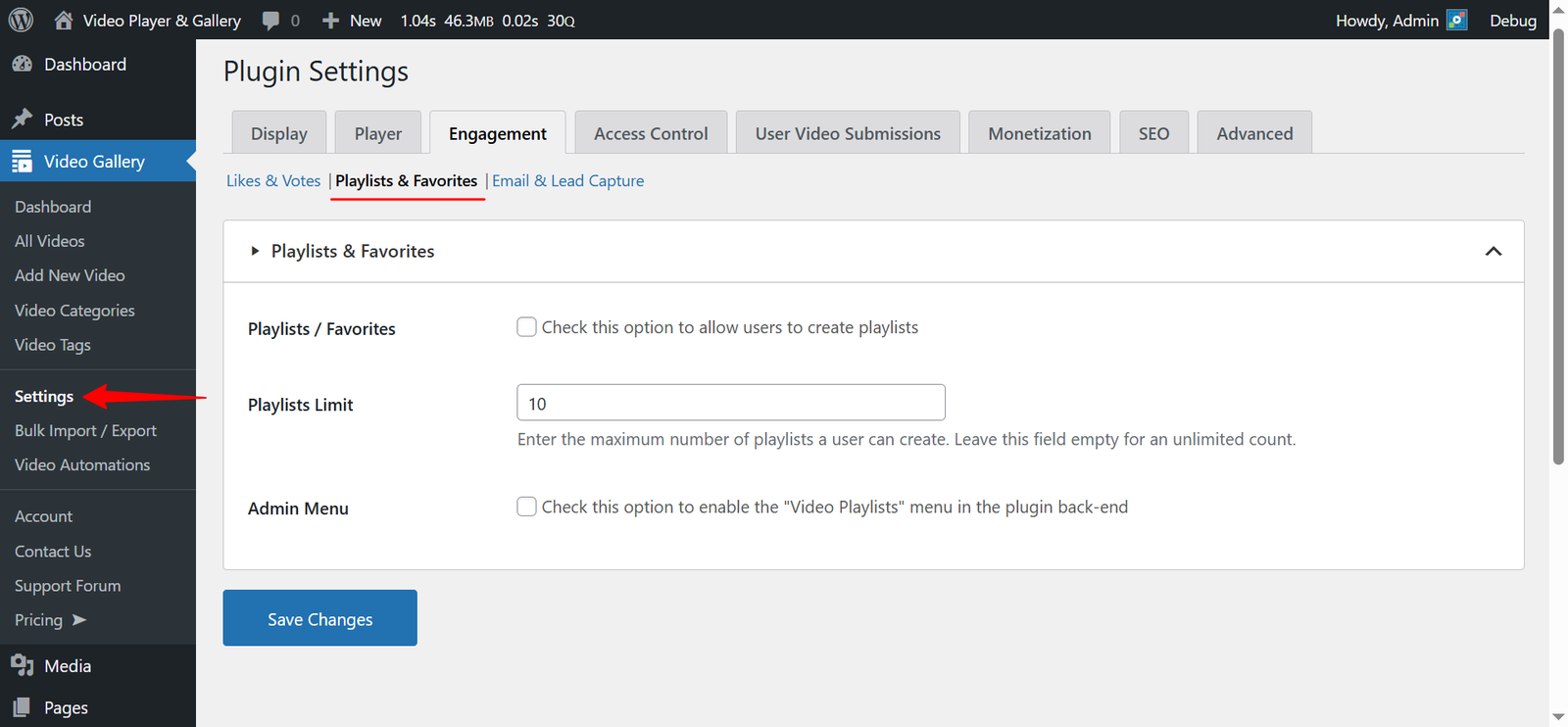
- Navigate to the “Video Gallery → Settings → Engagement (tab)” from your WordPress Admin Dashboard.
- Click on the “Playlists & Favorites” submenu and check the “Playlists / Favorites” option to allow users to create playlists from the front end.
- You can also set a limit on the number of playlists a user can create using the “Playlists Limit” field. Simply enter the desired maximum number, or leave it empty to allow unlimited playlists.
- The “Admin Menu” option is for admin use only. It adds a menu in the plugin back-end named “Video Playlists” that displays the list of playlists created by users and the videos they have added. The admin cannot create playlists from the back end; this menu is for reference purposes only.
How the Playlists / Favorites Feature Works
Creating a Playlist:
When you enable the “Playlists / Favorites” option in the plugin settings as per the instructions above, the plugin will add an “Add to Playlist” button below the player on single video pages, as shown in the screenshot below:

Clicking the “Add to Playlist” button will display a dropdown listing the existing playlists and a text field to enter/create a new playlist name on the fly. A video can be added to multiple playlists.
Viewing a Playlist:
During activation, the plugin automatically adds a page titled “My Playlists”. Simply add it as a menu item under the “Appearance → Menus” page of your WordPress Admin Dashboard.
This page displays all user-created playlists and allows the user to play, edit, or delete their playlists.

Adding the Playlist Button to PREMIUM Templates
When you enable the “Playlists / Favorites” option in the plugin settings, it adds an “Add to Playlist” button on the single video page.
However, if you are using our PREMIUM templates like “Compact,” “Popup,” “Slider,” etc., the plugin does not take users to the single video page. As a result, users will not see the “Add to Playlist” button by default.
To resolve this:
- When selecting a PREMIUM template in the plugin’s settings page, the plugin will add a new setting named “Show / Hide (Player)” to the form.
- Check the “Playlist Button” option from the setting to enable the “Add to Playlist” button in your selected premium template.

Note: The image above is from our settings page. The same option is also available in our Shortcode Builder, AIOVG – Video Gallery Gutenberg Block, and AIOVG – Video Gallery Widget settings, which you can use to add our galleries.
Using Shortcodes:
If you are using our plugin’s shortcodes, you can enable the button by simply adding the show_player_playlist_button attribute to the shortcode.
Example:
[aiovg_videos template="popup" show_player_playlist_button="1"]The Playlists / Favorites feature enhances user engagement by allowing visitors to curate and organize videos according to their preferences. By enabling this functionality and customizing its settings, you can provide a seamless and user-friendly experience. Whether using default templates or premium layouts, users can easily create, manage, and view their playlists. Implement these steps to improve content accessibility and boost audience retention on your website.