
By allowing your users to “Like / Dislike” videos on your website, you provide them with an opportunity to express their opinions. This also gives you valuable insights into what topics your users are most interested in.
- Enable the “Likes / Dislikes” Button
- Show the “Liked / Disliked” Videos
- Display the “Likes / Dislikes” Count in Gallery Thumbnails
1. Enable the “Likes / Dislikes” Button
To enable the likes/dislikes functionality, follow these steps:
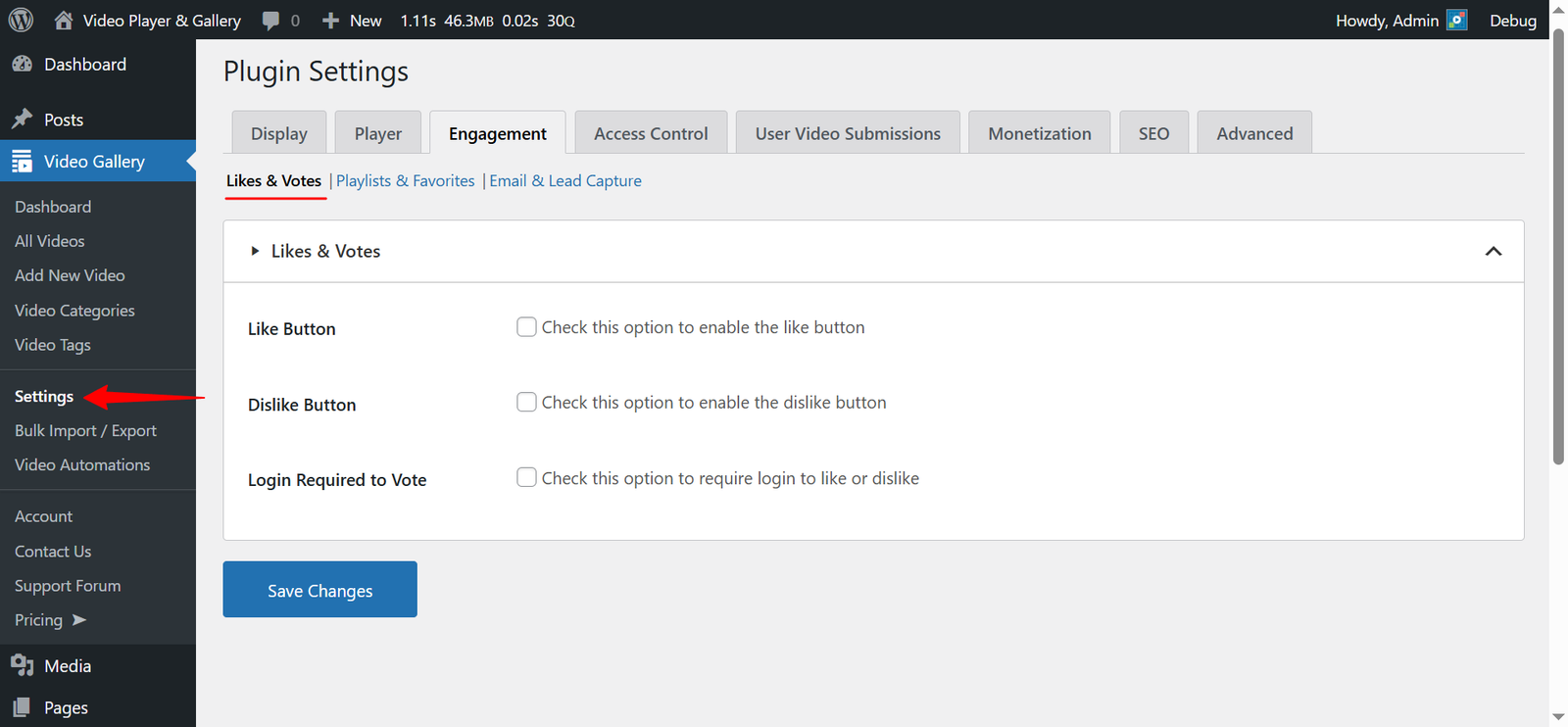
- Navigate to Video Gallery → Settings → Engagement (tab) from your WordPress Admin Dashboard.
- Click on the Likes & Votes submenu.
- Check the Like Button option to enable likes.
- Check the Dislike Button option to enable dislikes.
- (Optional) Check Login Required to Vote if you want users to log in before liking/disliking a video.
- If enabled, likes/dislikes are stored in the database.
- If disabled, likes/dislikes are stored via cookies.
Once enabled, the “Like / Dislike” button will appear below the player on single video pages.

Adding the “Like / Dislike” Button to PREMIUM Templates:
If you’re using our PREMIUM templates such as Compact, Popup, Slider, etc., the plugin does not take users to the single video page. As a result, users will not see the “Like / Dislike” button by default.
To resolve this:
- When selecting a PREMIUM template in the plugin’s settings page, the plugin will add a new setting named “Show / Hide (Player)” to the form.
- Check the “Like / Dislike Button” option in this setting to enable the Like / Dislike button in your selected premium template.

Note: The image above is from our settings page. The same option is also available in our Shortcode Builder, AIOVG – Video Gallery Gutenberg Block, and AIOVG – Video Gallery Widget settings, which you can use to add our galleries.
Using Shortcodes:
If you’re using our plugin’s shortcodes, you can enable the “Like / Dislike” button by simply adding the show_player_like_button attribute to the shortcode.
Example:
[aiovg_videos template="popup" show_player_like_button="1"]2. Show the “Liked / Disliked” Videos
Now that you’ve enabled the Like / Dislike buttons, you may want to show users their liked/disliked videos on the frontend. We recommend creating separate pages for this.
Steps to Create a “Liked Videos” Page:
- Go to the WordPress Admin Dashboard → Pages menu.
- Click Add New.
- Enter a title such as “My Liked Videos”.
- Add the shortcode below in the page content field:
[aiovg_liked_videos] - Save the page and add it as a menu item via Appearance → Menus.
Now, this page will display the current user’s liked videos.
To create a “Disliked Videos” page, follow the same steps but use this shortcode instead:
[aiovg_disliked_videos]3. Display the “Likes / Dislikes” Count in Gallery Thumbnails
Besides showing Like / Dislike buttons, you might also want to display the total likes/dislikes count in your video galleries.
Steps to Enable “Likes / Dislikes” Count in Thumbnails:

- Navigate to Video Gallery → Settings from your WordPress Admin Dashboard.
- Click on the Videos Layout submenu.
- Locate the Show / Hide (Thumbnails) setting.
- Check the Likes Count option to show the total likes count.
- Check the Dislikes Count option to show the total dislikes count.
Note: Like all other options, these settings can be overridden per gallery in our “Shortcode Builder“, “AIOVG – Video Gallery” Gutenberg block, and the “AIOVG – Video Gallery” widget.
By following these steps, you can enhance your video gallery with an interactive Like / Dislike system, improving user engagement and feedback!