
The All-in-One Video Gallery plugin allows you to automatically import videos from the Vimeo website. To enable this feature or generate thumbnail images for private Vimeo videos, you need an Access Token.
First, create a Vimeo App by visiting https://developer.vimeo.com/. If you are not logged in to Vimeo, you will need to log in before proceeding with app creation.

After clicking the button to create a new app, you will be taken to the app setup screen, where you must enter the app title and description.

Once this step is completed, you will see the app details screen. From the left menu, click on “Personal Access Tokens.”

Next, generate your personal access token, which will allow you to query your private videos.
Ensure you select “Authenticated,” which is required for accessing private videos. Additional options will appear, and under “Scopes,” choose both “Public” and “Private,” then click “Generate.”

After generating your token, it will appear in the tokens list below the form. Be sure to copy the token, as it will be needed in the next step.

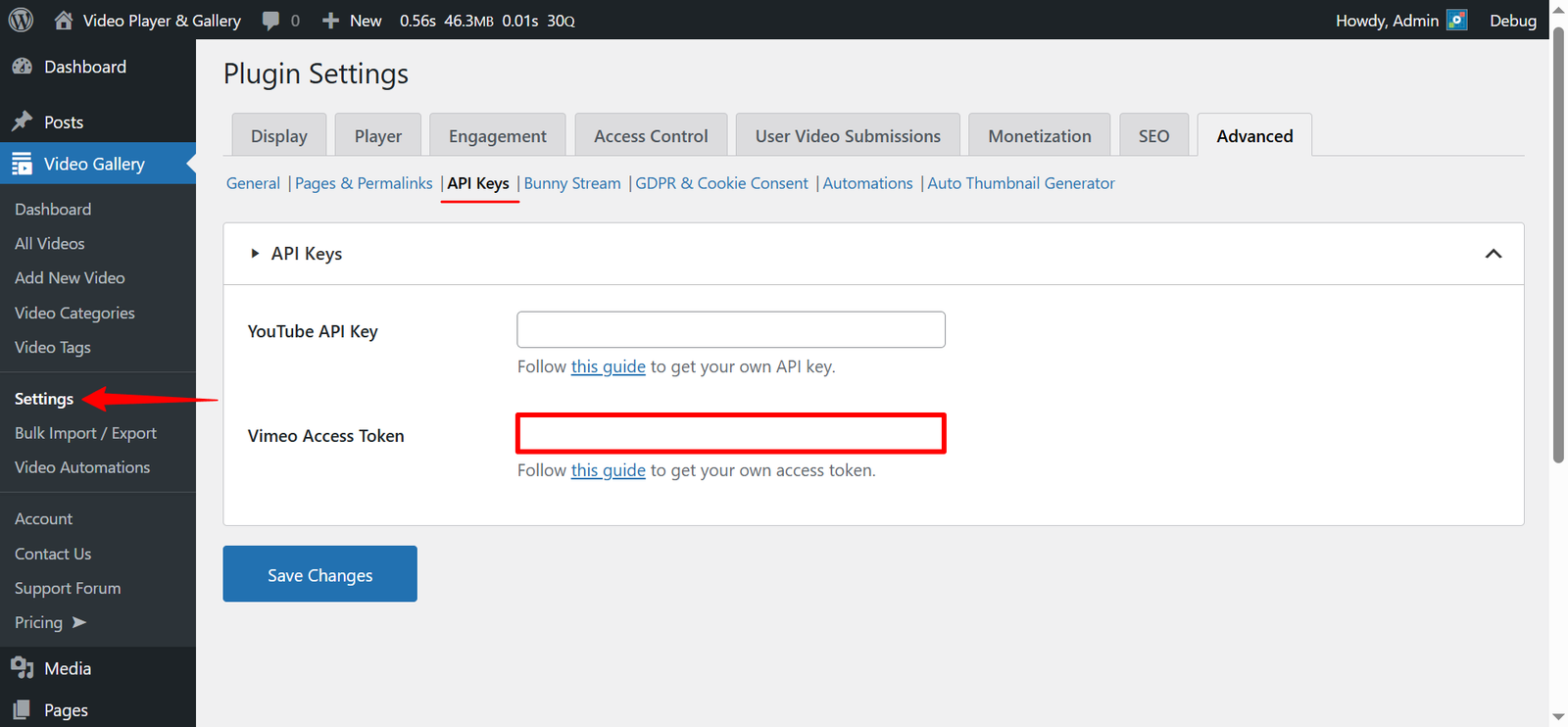
Finally, paste the token into the “Vimeo Access Token” field on the All-in-One Video Gallery settings page and click “Save Changes.”
And that’s it. If you have any questions about All-in-One Video Gallery or face any issues with the setup, feel free to get in touch with our support team, and our support team will always be happy to assist you.