
The All-in-One Video Gallery plugin empowers you to showcase your videos in an organized and visually engaging way. In this tutorial, you’ll learn how to set up video galleries, customize their appearance, and manage content to create a compelling and functional presentation on your site.
- Adding Videos
- Configuring the Gallery Settings
- Displaying Videos on the Front-End
- Using Premium Gallery Layouts like Popup, Slider, and More
1. Adding Videos
Before you can display videos in a gallery, you’ll need to add them under the “All Videos” menu. Follow the steps provided here to upload your videos. Be sure to follow the instructions under the ‘Using the “All Videos” Menu (Recommended)‘ section.
If you’ve already added your videos, you can move on to the next step.
2. Configuring the Gallery Settings
The next step is to choose a default template for your gallery site-wide:
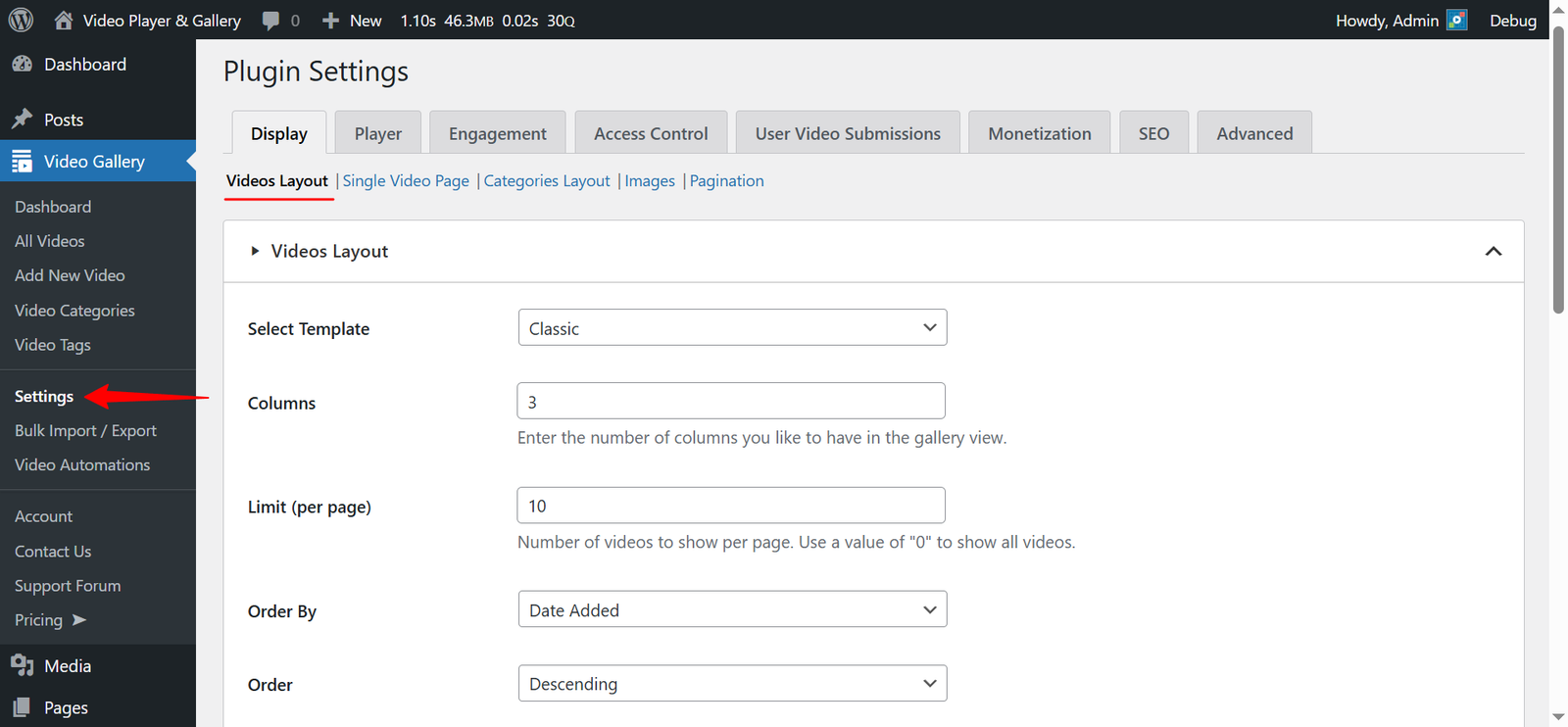
- Navigate to “WordPress Admin Dashboard / Video Gallery / Settings“
- Select the Display Tab
- Click on the Videos Layout submenu.
You are now in the area where you can configure your video gallery settings globally. The Select Template dropdown controls your gallery layout. Choose your desired layout from this dropdown menu.
The FREE version includes only the “Classic” template. If you have the PREMIUM version, this dropdown will include additional options like “Popup”, “Slider”, and more.
Each template comes with its own set of fields. When you change the template option, the settings page will update with new fields specific to the selected template. Make sure to review and configure these fields accordingly.
Note: The above settings can be overridden per shortcode and block individually.
3. Displaying Videos on the Front-End
To display videos on a WordPress page, simply use the shortcode below:
[aiovg_videos]The shortcode above uses the gallery settings described in the previous step. You can also override these settings for individual shortcodes by using attributes to customize the display. While you can manually enter these attributes, we recommend using our built-in shortcode builder for a more intuitive experience.

Steps to Generate a Shortcode:
- Navigate to “WordPress Admin Dashboard / Video Gallery / Dashboard“.
- Select the Shortcode Type as Tags.
- In the General section, choose your template, categories, tags, limit, and sort order.
- Note: The “Select Template” dropdown controls the gallery’s design and appearance. The FREE version includes only the “Classic” template. If you have the PREMIUM version, this dropdown will include additional options like “Popup”, “Slider”, and more.
- After setting up the General section, click on the + Gallery section.
- Note: The fields in this section will change based on your selection in the “Select Template” dropdown. Make sure to review this section whenever you adjust the template option.
- Customize the gallery layout further by selecting columns, thumbnail positions, and display options.
- Click the Generate Shortcode button and copy the shortcode.
- Paste the shortcode into a shortcode block on the desired post or page and save your changes.
Note: Each generated shortcode is unique, allowing you to create different galleries with varying configurations.
Special Shortcode Attributes:
There are some special shortcode attributes that are not available in the shortcode builder:
- include
- Use this attribute to only display specific videos.
- Example Shortcode:
[aiovg_videos include="1,2,3"]
- exclude
- Use this attribute to exclude specific videos.
- Example Shortcode:
[aiovg_videos exclude="1,2,3"]
The numeric values “1”, “2”, and “3” in the above examples represent the video IDs. You can find your video IDs under “WordPress Admin Dashboard / Video Gallery / All Videos”.

Display Videos Using a Gutenberg Block
If you’re using the WordPress block editor to create a page or post, you can easily display your videos by adding the “AIOVG – Video Gallery” block. Refer to the screenshot below:

Notes:
- The “Select Template” dropdown controls the gallery’s design and appearance. The FREE version includes only the “Classic” template. If you are using the PREMIUM version, this dropdown will offer additional options like “Popup”, “Slider”, and more.
- The fields within the “Gallery” section will change based on your selection in the “Select Template” dropdown. Be sure to review this section each time you change the template option.
4. Using Premium Gallery Layouts like Popup, Slider, and More
In All-in-One Video Gallery, the terms “Layout” and “Template” refer to the same feature.
The “Select Template” dropdown is where you configure your gallery layouts. In the PREMIUM version, this dropdown will include additional options such as:
- Classic
- Popup
- Slider
- Playlist
- Compact
Each option in this dropdown comes with its own set of gallery fields. When you select a template option, the “Gallery” section in the builder will update with a new set of fields specific to that template. You can use these options to customize the look of the selected template/layout to suit your needs.