
Categories are an essential tool for organizing your videos, making it easier for users to discover content through searches and category pages. Additionally, you can create customized galleries by grouping videos under one or more categories.
- Adding Categories
- Assigning Categories to Videos
- Configuring the Categories Display Settings
- Displaying Categories on the Front-End
1. Adding Categories

- Navigate to “WordPress Admin Dashboard / Video Gallery / Video Categories“.
- Enter the Name, Description, and upload an Image for the category.
- Click Add New Category to save it.
- Repeat the process to create as many categories as needed.
2. Assigning Categories to Videos
The categories you created earlier will be available in the video form under the “All Videos” menu. When adding a video, select the categories that best describe your content.
Properly categorizing your videos ensures they remain organized and easy to manage.

3. Configuring the Categories Display Settings
The next step is to choose a default template for your categories site-wide:
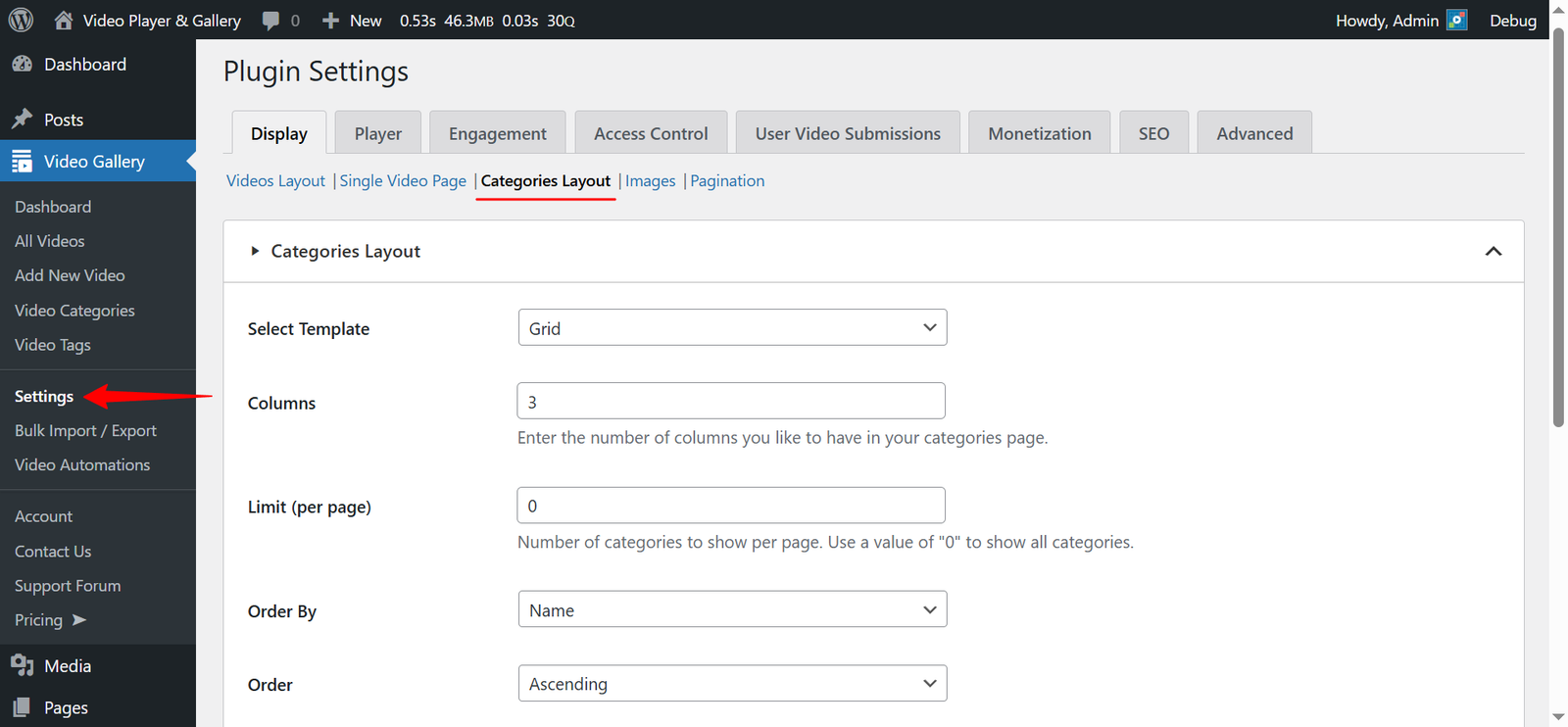
- Navigate to “WordPress Admin Dashboard / Video Gallery / Settings“
- Select the Display Tab
- Click on the Categories Layout submenu.
You are now in the section where you can configure your categories settings globally. The Select Template dropdown controls your categories layout. Choose your desired layout from this dropdown menu.
Each template comes with its own set of fields. When you change the template option, the settings page will update with new fields specific to the selected template. Be sure to review and configure these fields accordingly.
Note: The above settings can be overridden on a per-shortcode and per-block basis.
4. Displaying Categories on the Front-End
During installation, our plugin creates a page titled “Video Category” to display video categories. You can find this page in the “WordPress Admin Dashboard / Pages” menu. To display the categories on your website, simply add this page as a menu item.
You can edit this page as needed, but make sure not to change or remove the [aiovg_category] shortcode, as it is essential for displaying categories.
If you need to display categories on a custom WordPress page, use the following shortcode:
[aiovg_categories]The shortcode above uses the categories settings described in the previous step. You can also override these settings for individual shortcodes by using attributes to customize the display. While you can manually enter these attributes, we recommend using our built-in shortcode builder for a more intuitive experience.

Steps to Generate a Shortcode:
- Navigate to “WordPress Admin Dashboard / Video Gallery / Dashboard“.
- Select the Shortcode Type as Categories.
- In the General section, choose your template, parent category, limit, and sort order.
- Note: When you select a parent category, only the children of the selected category will be displayed.
- When done, click the Generate Shortcode button and copy the shortcode.
- Paste the shortcode into a shortcode block on the desired post or page and save your changes.
Note: The generated shortcode will only display the category elements. If you want to show video elements from specific categories, you must select the “Shortcode Type” as “Video Gallery” in the shortcode builder and regenerate your shortcode.
Special Shortcode Attributes:
There are some special shortcode attributes that are not available in the shortcode builder:
- include
- Use this attribute to display specific categories.
- Example Shortcode:
[aiovg_categories include="1,2,3"]
- exclude
- Use this attribute to exclude specific categories.
- Example Shortcode:
[aiovg_categories exclude="1,2,3"]
The numeric values “1”, “2”, and “3” in the above examples represent the category IDs. You can find your category IDs under your “WordPress Admin Dashboard / Video Gallery / Video Categories” menu.

Display Categories Using a Gutenberg Block
If you’re using the WordPress block editor to create a page or post, you can easily display your categories by adding the “AIOVG – Video Categories” block. Refer to the screenshot below:
