
This is a Premium feature.
Make your video player stand out by adding your company’s logo directly on the player interface. Additionally, you can customize or disable the right-click menu to protect your content and add a personalized touch.
1. Adding Your Custom Logo to the Player
Follow these steps to add a custom logo to your video player:
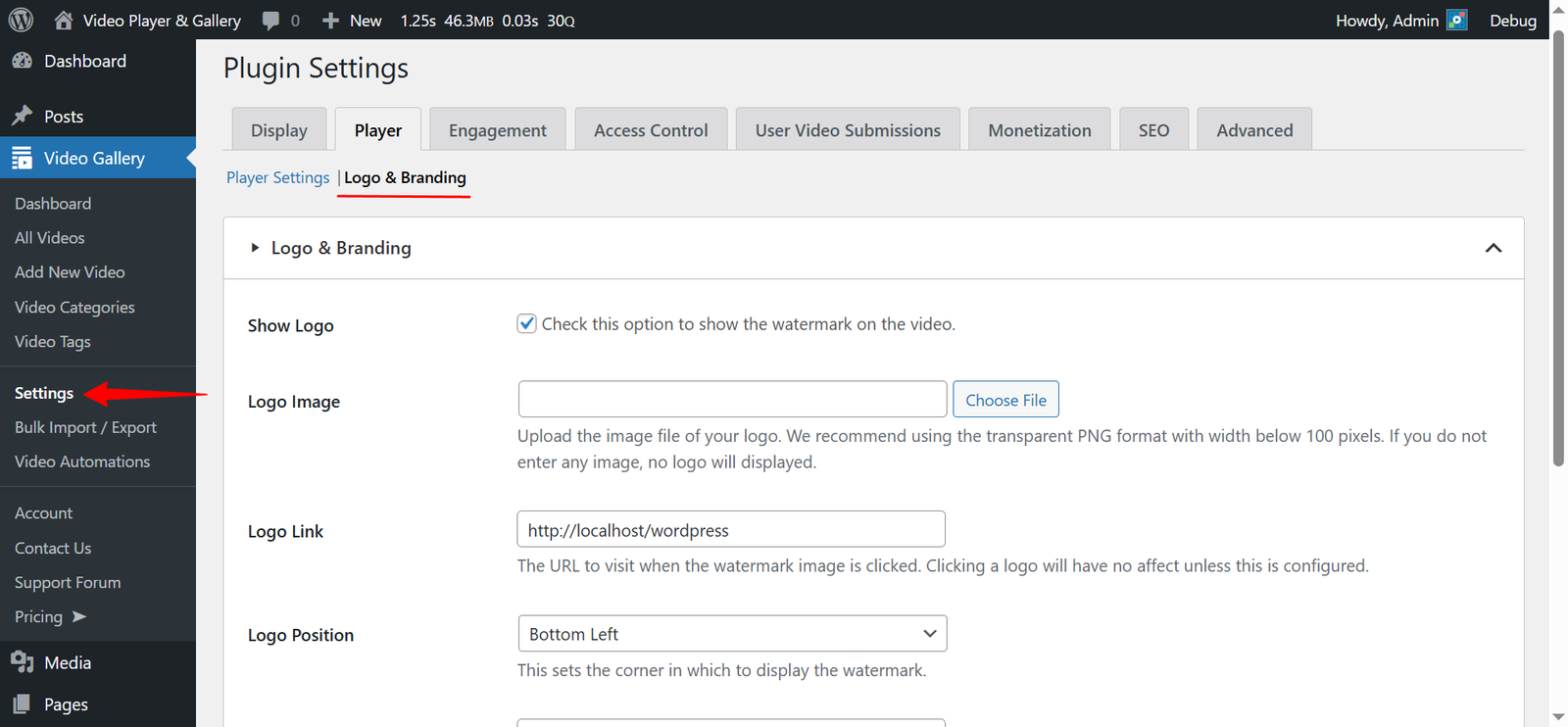
- In your WordPress Admin Dashboard, go to “Video Gallery / Settings“.
- Click on the Player tab.
- Navigate to the Logo & Branding submenu.
- Enable the Show Logo option.
- Upload your Logo Image and choose its position using the Logo Position setting.
- Click Save Changes.
Your logo will now be displayed on the player!
2. Customizing the Right-Click Menu
By default, when you right-click on the player, the browser’s built-in context menu appears. However, with our plugin, you can replace this default menu with your own custom text. To do this, enter your desired content into the Copyright Text field under the same “Logo & Branding” settings page to customize what is displayed when users right-click on the player.