
The Search Form feature in the Automatic YouTube Gallery plugin allows visitors to search for videos within a specific gallery, making it easier to find relevant content quickly. It is especially useful for galleries with a large number of videos, helping users locate the exact content they are looking for without scrolling through multiple pages.
- How to Enable the Search Form?
- How the Search Form Works
- Why is the search not finding some videos?
- Why can’t I see the Search Form option?
How to Enable the Search Form?
To enable the search form for a gallery created with the Gallery Builder:
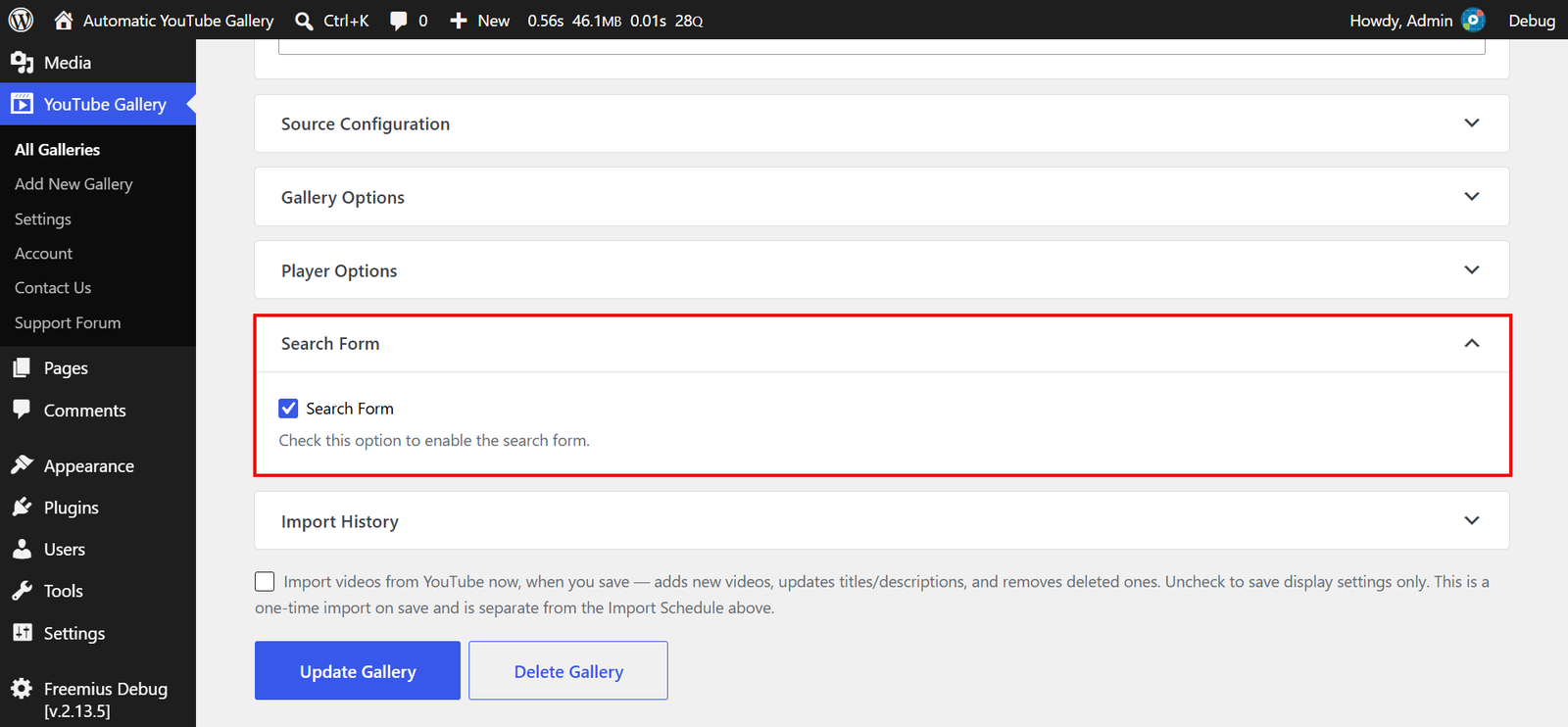
- Navigate to YouTube Gallery / All Galleries in your WordPress Admin Dashboard.
- Click Edit below the gallery you want to update. To create a new gallery instead, click the Add New Gallery button.
- Click the Search Form section to expand it.
- Check the Search Form option to enable it.
- Click Update Gallery (or Create Gallery for a new gallery).
Tip: When you edit an existing gallery, you can uncheck “Import videos from YouTube now, when you save” (shown above the Update Gallery button) to save the change without re-importing the gallery’s videos.
Note: If you’re using the “Automatic YouTube Gallery” Gutenberg block or widget, you’ll find the same option in its Search Form section.
Once enabled, a search box appears above the gallery on the front end.

Supported Layouts:
The search form is supported only on the following layouts:
- Classic
- Popup (available in the PREMIUM version)
- Inline (available in the PREMIUM version)
Supported Source Types:
- Gallery Builder: Channel, Playlist, Username, and Custom Videos List.
- Gutenberg block and widget: Channel, Playlist, Username, Search Keywords, and Custom Videos List.
The Livestream and Single Video source types display a single video, so they don’t offer a search form.
How the Search Form Works
The search form doesn’t search YouTube. It searches the gallery’s videos stored in your website’s database and shows the ones whose title or description contains the text the visitor typed. Because the results come from your own database, a search sends no requests to the YouTube API and uses none of your API quota.
The results are paginated in the same way as the gallery. To return to the full gallery, the visitor clicks the × button in the search box.
Which videos are searchable depends on how the gallery was added:
- Gallery Builder (Channel, Playlist, Username, and Custom Videos List): The plugin imports every video from the source into your database, so all the videos in the gallery are searchable as soon as the import finishes. New videos become searchable once they are imported, either automatically according to the gallery’s Import Schedule or when you click Update Gallery. The results also follow the gallery’s Order Videos By and Filter by Duration settings.
- Gutenberg block, widget, and older shortcodes (shortcodes without an
idattribute, created before the Gallery Builder): These galleries fetch their videos from YouTube as each page of the gallery is viewed, and store them in your database at that moment. This means only the videos from pages that have been viewed are searchable. Videos from pages that haven’t been viewed yet are not included in the search results.
How to Ensure Accurate Search Results
For complete search results across your entire gallery, create the gallery with the Gallery Builder using the Channel, Playlist, Username, or Custom Videos List source type. Every video is imported up front, and the plugin keeps the gallery up to date in the background according to its Import Schedule, so the search form always covers every video in the gallery.
If you use the Gutenberg block, the widget, or an older shortcode, visit all the pages of the gallery yourself to load and store the videos. Alternatively, let your visitors browse the gallery, and the videos are stored automatically as their pages are viewed.
FAQ
Why is the search not finding some videos?
The search form looks for the exact text typed, as a whole phrase, in the video titles and descriptions. If a video doesn’t contain that text, try a shorter or different search term.
For a gallery created with the Gallery Builder, the video may have been published on YouTube after the gallery’s last import. Open the gallery and click Update Gallery to import it right away. Videos listed in the gallery’s Exclude Videos field are never imported, so they never appear in the search results.
For a Gutenberg block, widget, or older shortcode, the video is searchable only after the gallery page that contains it has been viewed. Visit all the gallery pages, or let visitors browse the gallery, to store the remaining videos.
Why can’t I see the Search Form option?
The Search Form section is hidden when the gallery uses a layout or source type that doesn’t support it. Check that the Select Theme (Layout) dropdown in the Gallery Options section is set to Classic, Popup, or Inline, and that the Source Type is one of the supported source types listed above. In the Gallery Builder, galleries using the Search Keywords source type don’t offer a search form.
The Search Form is a valuable addition to enhance user experience, particularly for large galleries with extensive video collections. Create your gallery with the Gallery Builder and enable the search form to let visitors find any video in it.