
This is a Premium feature.
Deeplinking refers to the practice of creating unique URLs for specific pages or elements on your website. This technique improves navigation and simplifies sharing content. Starting with version 2.1.0, the Automatic YouTube Gallery plugin supports deep linking, allowing you to create individual URLs for each video in your galleries.
These unique video URLs streamline the process of sharing specific videos with clients or leads. For example, instead of making someone browse through an entire gallery to find a video, you can share the direct link to the relevant video. When the link is visited, the gallery opens on that video.

Enable Deeplinking
To set deeplinking as the default for your galleries:
- Go to YouTube Gallery / Settings / SEO (tab) in your WordPress Admin Dashboard.
- Find the Deeplinking option and check it.
- Optionally, change the Deeplinking Prefix (the word used in the video URLs,
ayg-galleryby default) and check Include Title in URL to add the video title to each URL. - Click Save Changes.
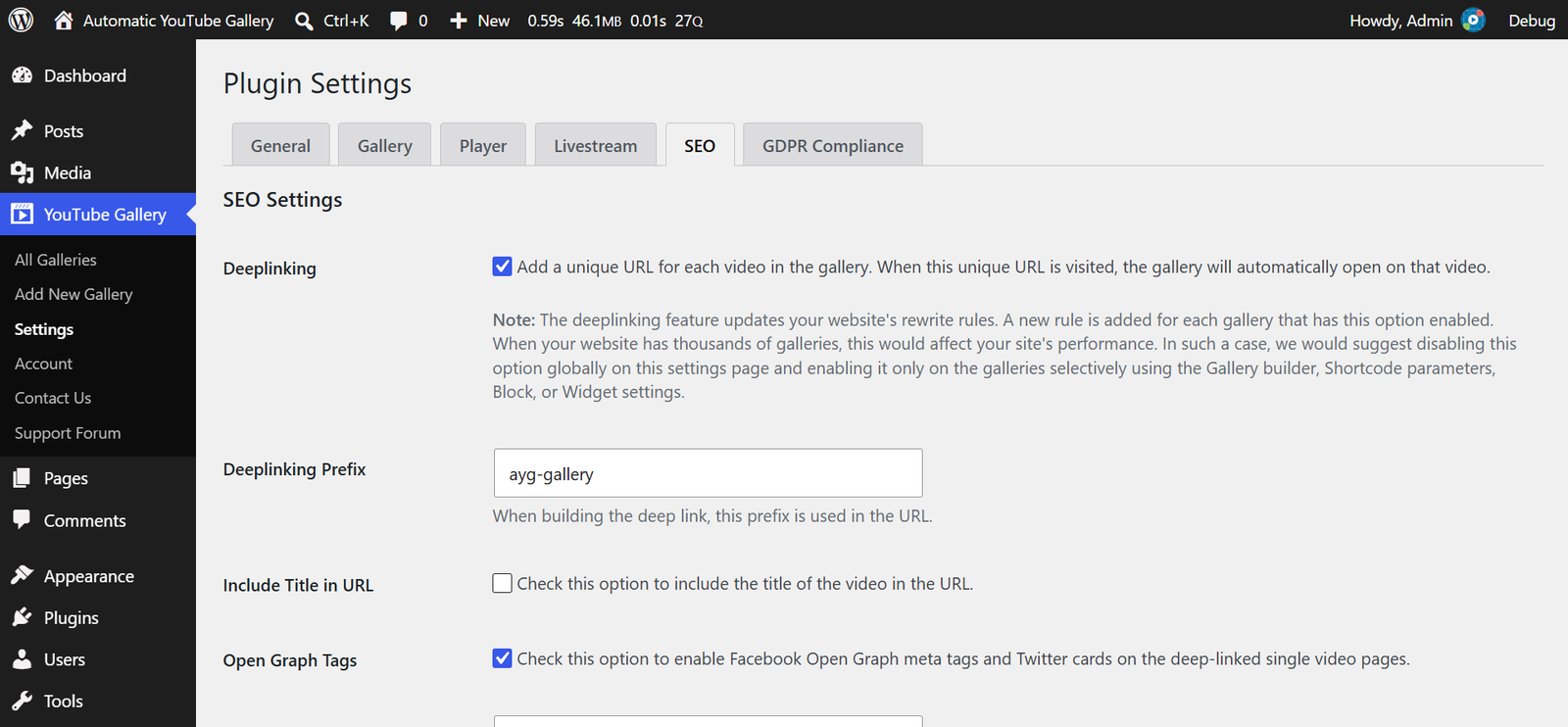
Note: This setting is the default, not a switch for every gallery. New galleries created with the Gallery Builder or the widget start with this value, and blocks or shortcodes that don’t set the option themselves follow it. Galleries already saved with the Gallery Builder or the widget keep their own Deeplinking setting, so update them individually as shown below.
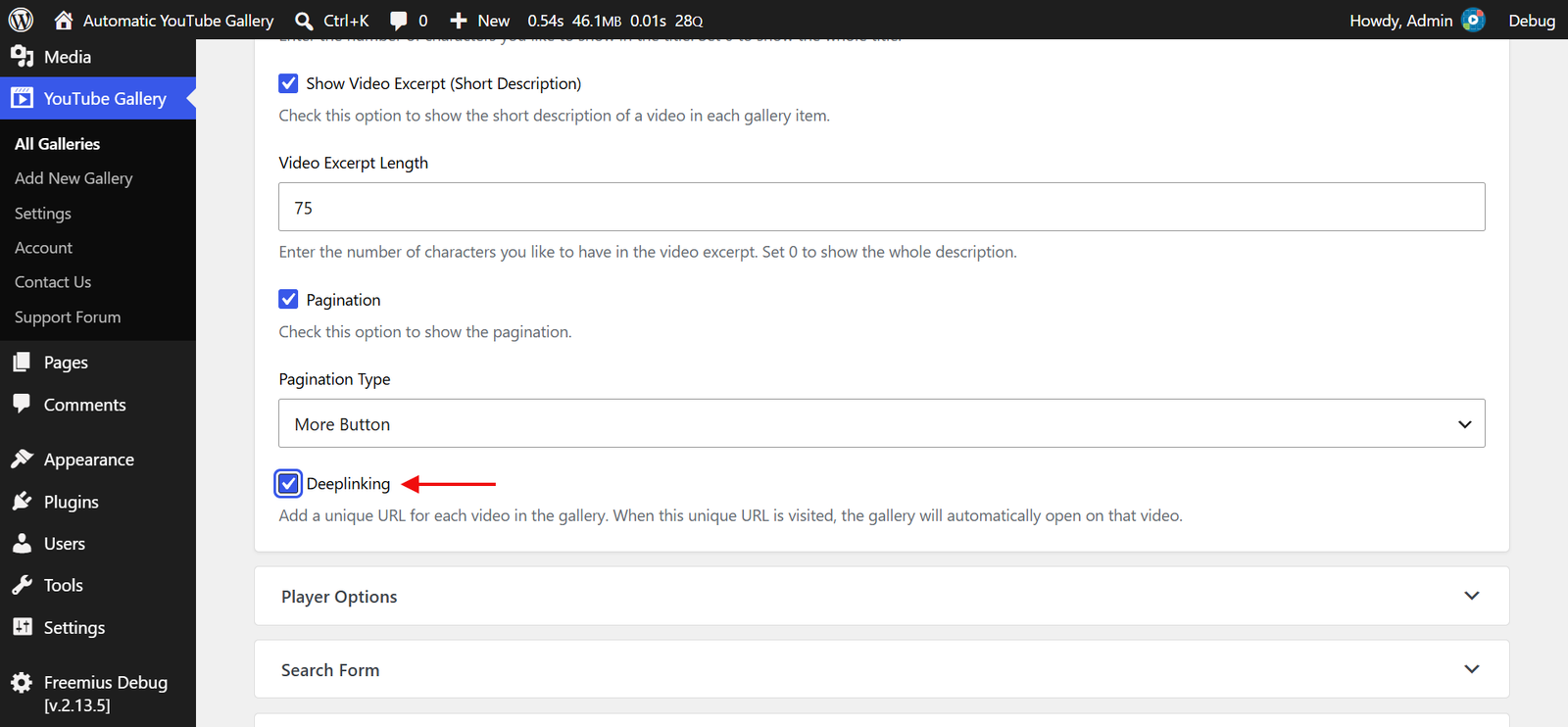
To enable deeplinking on an individual gallery:
- Go to YouTube Gallery / All Galleries and click Edit below the gallery.
- Click the Gallery Options section to expand it, and check the Deeplinking option.
- Click Update Gallery. To save the change without re-importing the gallery’s videos, first uncheck “Import videos from YouTube now, when you save” (shown above the Update Gallery button).
- Alternatively, add deeplinking=”1″ to the gallery shortcode to enable it for that specific gallery — for example,
[automatic_youtube_gallery id="1" deeplinking="1"].
Note: If you’re using the Gutenberg block or widget, you’ll find the same option in the Gallery Options section.
Enhanced SEO Features
In addition to deeplinking, the Automatic YouTube Gallery plugin also includes SEO enhancements such as:
- Facebook Open Graph Tags
- Twitter Cards
- Schema Markup
These features make individual video URLs shareable across platforms like Facebook and Twitter and also improve indexing by Google. You can turn them on or off on the same YouTube Gallery / Settings / SEO (tab) page, using the Open Graph Tags option (which covers both Open Graph tags and Twitter cards) and the Schema Markup option. Enter your Twitter Username there to share videos on Twitter.
Disable Deeplinking
If you prefer to disable deeplinking for certain galleries, follow these steps:
- For galleries created with the Gallery Builder, open the gallery from YouTube Gallery / All Galleries, uncheck the Deeplinking option in the Gallery Options section, and click Update Gallery.
- In the gallery shortcode, add deeplinking=”0″.
- For Gutenberg block or widget users, simply uncheck the Deeplinking option in the Gallery Options section.
Troubleshooting
Sometimes, enabling deeplinking may result in 404 errors on individual video pages. The plugin registers the URLs for a page the first time that page displays a gallery with deeplinking enabled, so the URLs don’t work until the page has been viewed. Here’s how to resolve it:
- If you use a caching plugin, clear its cache for the page that contains the gallery.
- Visit the page that contains the gallery on the front end of your website. This registers the page and regenerates the individual video URLs.
- Open one of the video URLs again.
Clicking the Delete Cache button on the YouTube Gallery / Settings page also clears the list of registered pages, so repeat these steps after using it.
If the issue persists, try flushing the rewrite rules (also known as resaving your permalinks):
- Go to Settings / Permalinks.
- Click Save Changes without making any modifications.
Still facing issues? We’re just an email away! Submit a support ticket here.